Singapore
 Thailand
 Indonesia
Managing your team manually and facing delays during shipments ? Don’t worry, with EasyParcel’s Team Management, you can easily add multiple users, assign roles, and manage shipments in one place.💪 It’s simple, efficient, and only takes a few clicks to get started.
Contents
What is EasyParcel's Team Management?
Before we started, let’s have a brief understanding about this feature.
Why Use Team Management on EasyParcel?
Improved Workflow Efficiency
Your team members can focus on their own tasks, making work smoother and
more organized.
Flexible Access for Teams
You may give each team member the access they need to do their task.
Reduced Mistakes
Clear roles help reduce errors and avoid confusion in orders and deliveries.
No Need for Multiple Accounts
You can manage everything in one account, so there’s no need for multiple accounts.
How to Set Up Team Management?
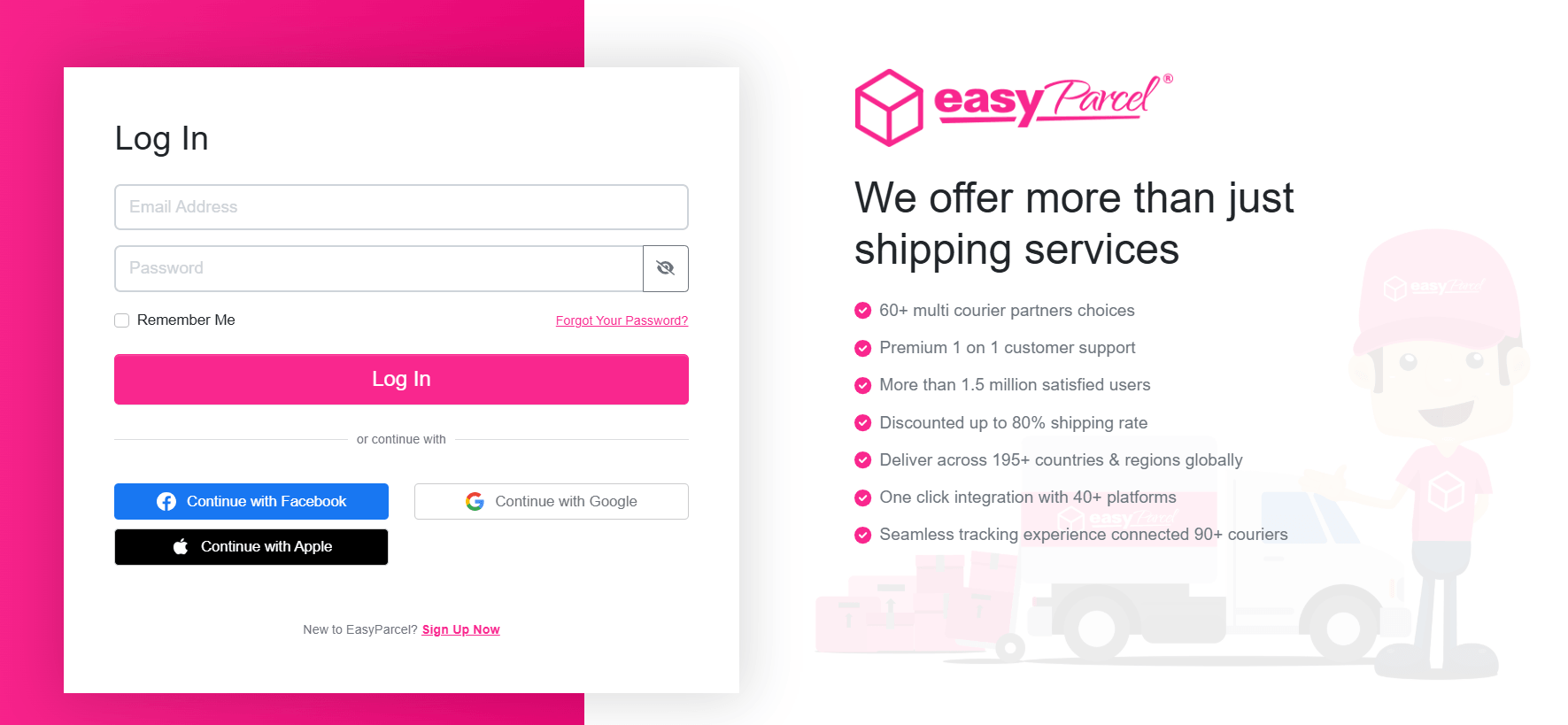
Step 1: Log in or sign up to your EasyParcel’s account.
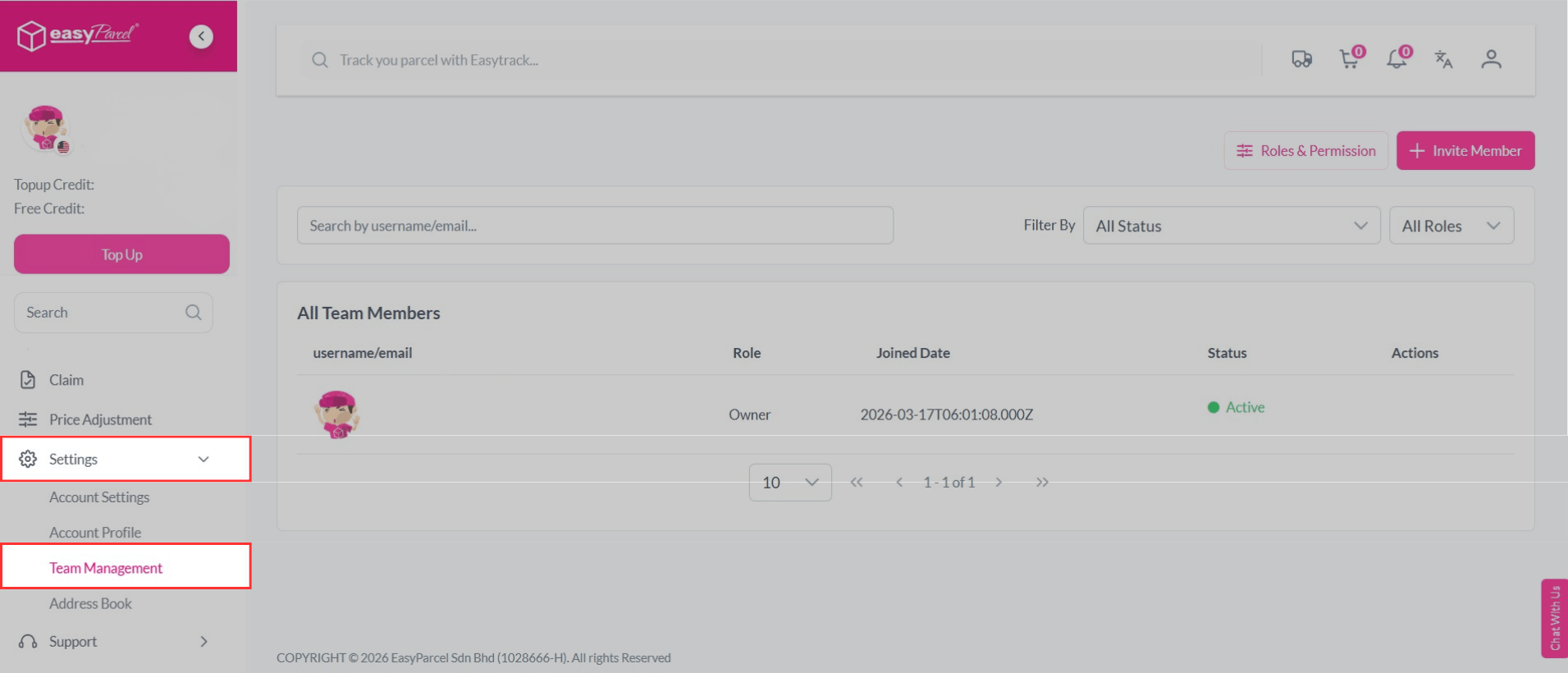
Step 2: On the left-hand sidebar menu, scroll down to Settings, then click on Team Management.
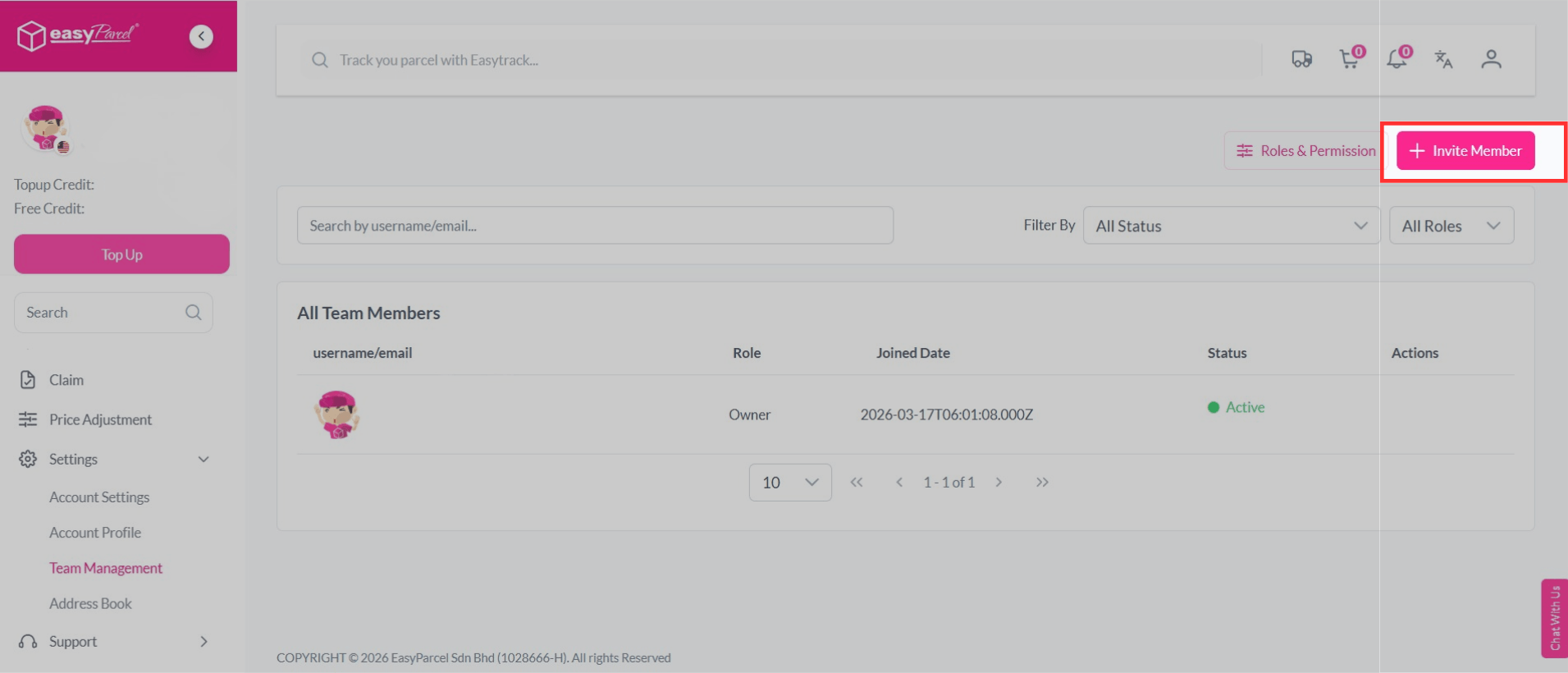
Step 3: Click on Invite Member.
Step 4: Enter the email address of the person you want to invite and assign a role as “Admin” or “Member”.
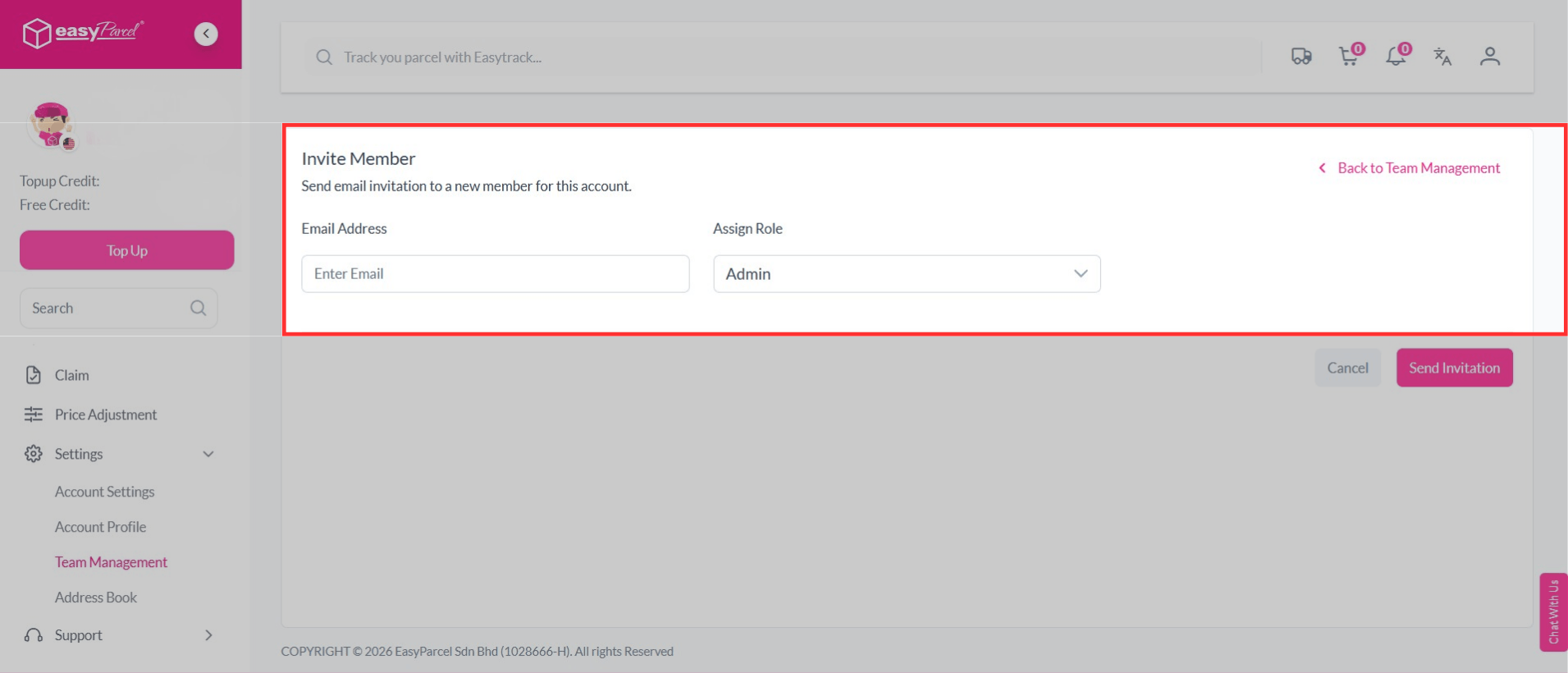
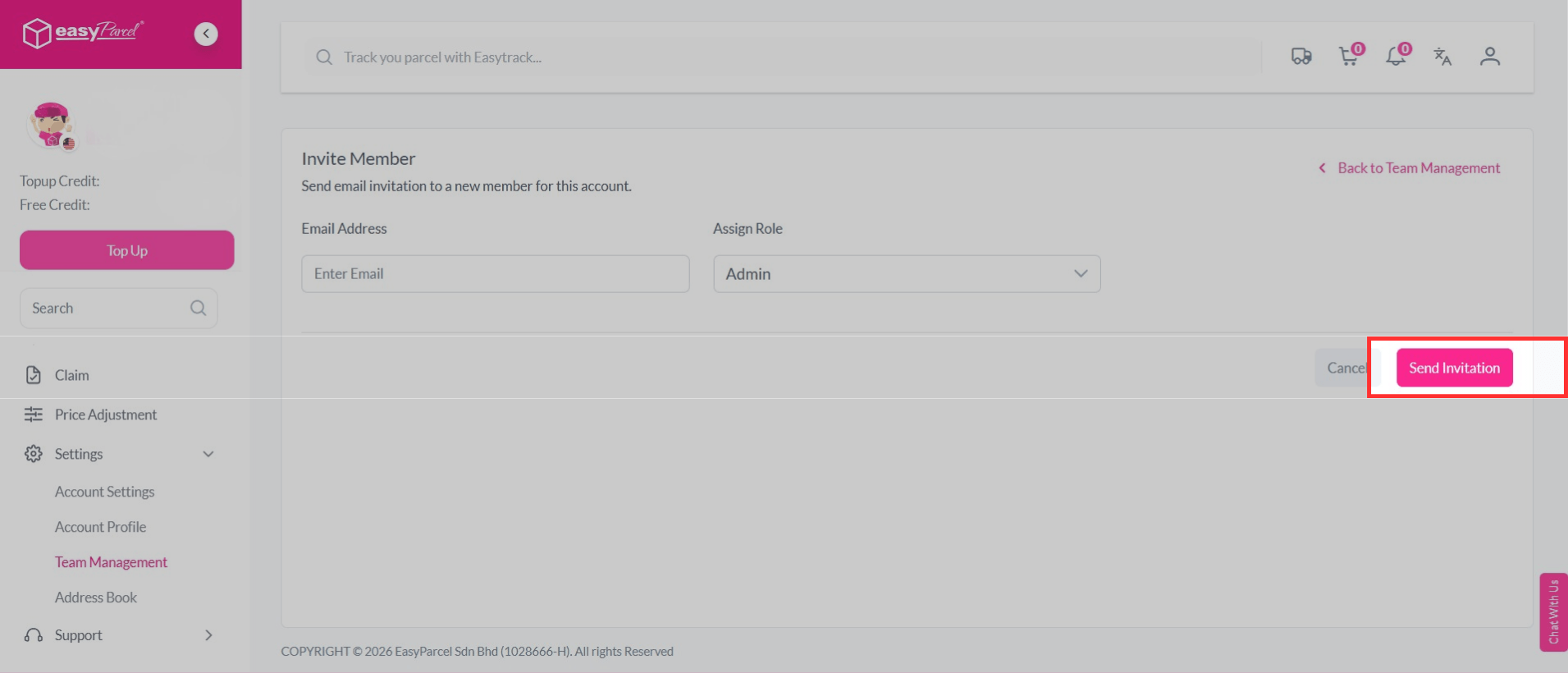
Step 5: After entering the details, click on Send Invitation. That’s it! Your invited member will receive an email—just click the link inside to get started.
How to Set Permission For Each Role?
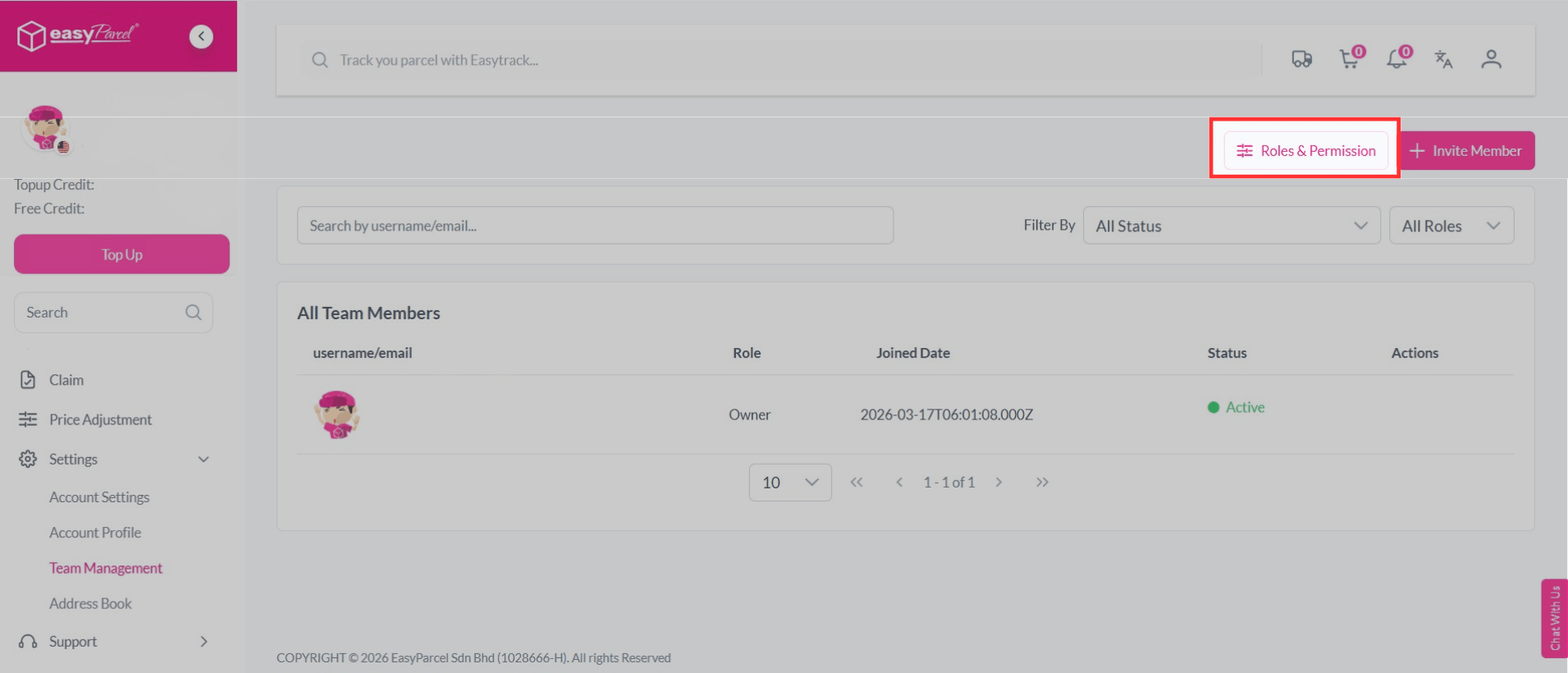
Step 1: Click on Roles & Permission.
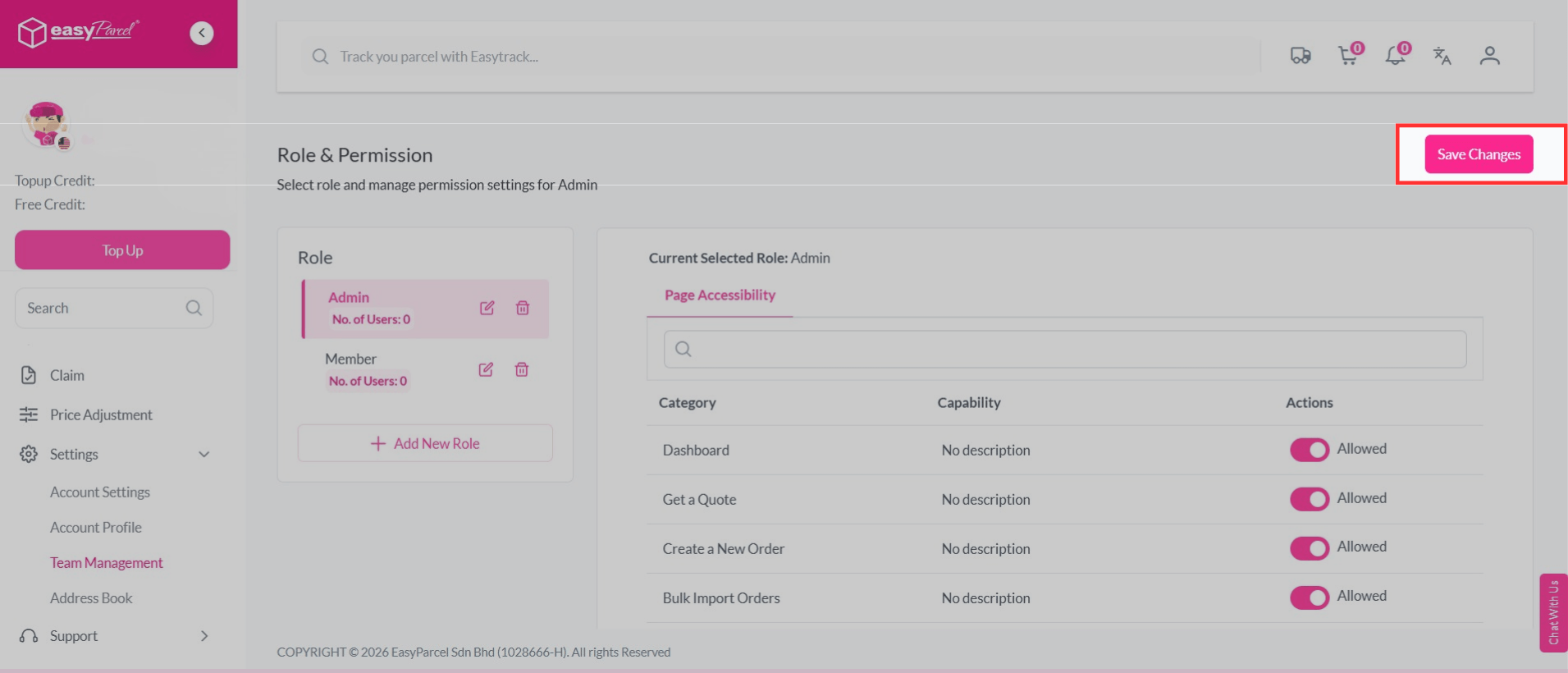
Step 2: Click on “Admin” or “Member”, set the permissions such as bulk import orders and top up using the toggle switch. Then, you can click on save changes.
Let’s Set Up Team Management on EasyParcel
Managing your team with EasyParcel is quick and easy. Add members, set roles, and control access in just a few steps.
Start setting up your team today and manage everything smoothly in one place. 🚀
FAQ about Account Team Management
1. What is the difference between admin and member?
Admin has full access to manage the account, while member has limited access based on assigned permission.
2. Can I remove a user from my account?
Yes, you, as the owner, can remove users anytime from team management.