The Address Book in EasyParcel Next Gen is a built-in tool that allows businesses to save and organize frequently used sender and receiver details. For sellers handling repeat customers or bulk shipments, it reduces manual entry and improves address accuracy during booking.
Benefits of Using Address Book
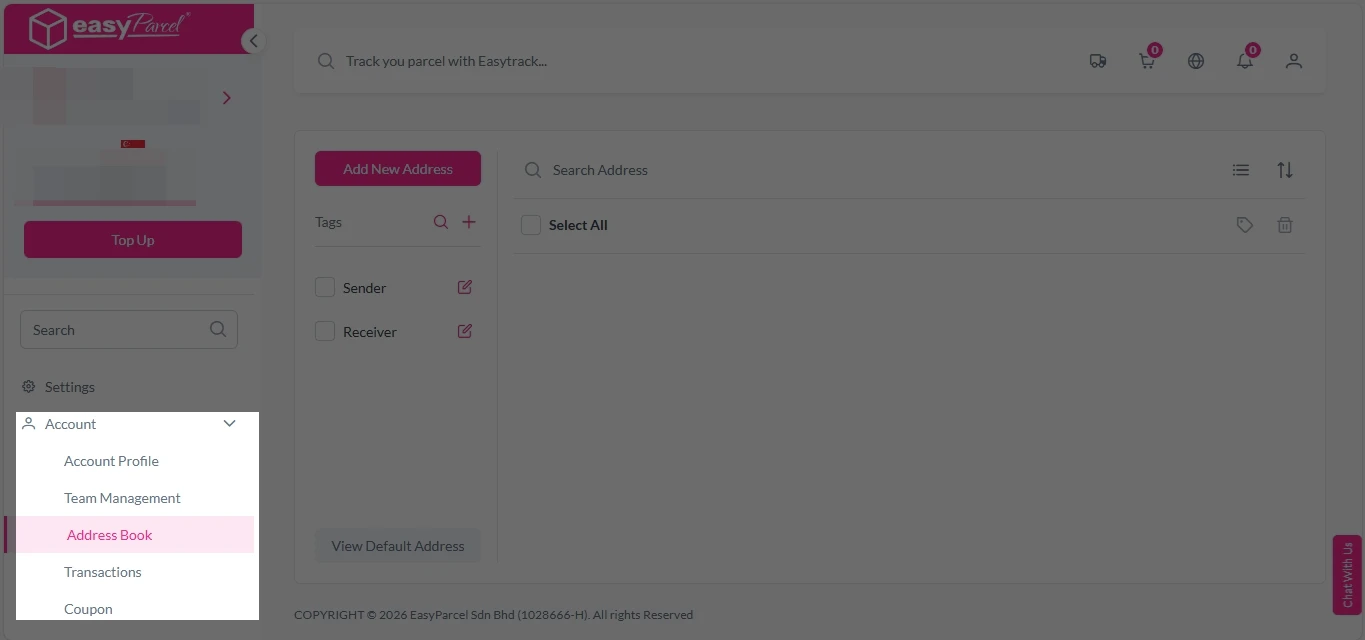
How to Add New Address?
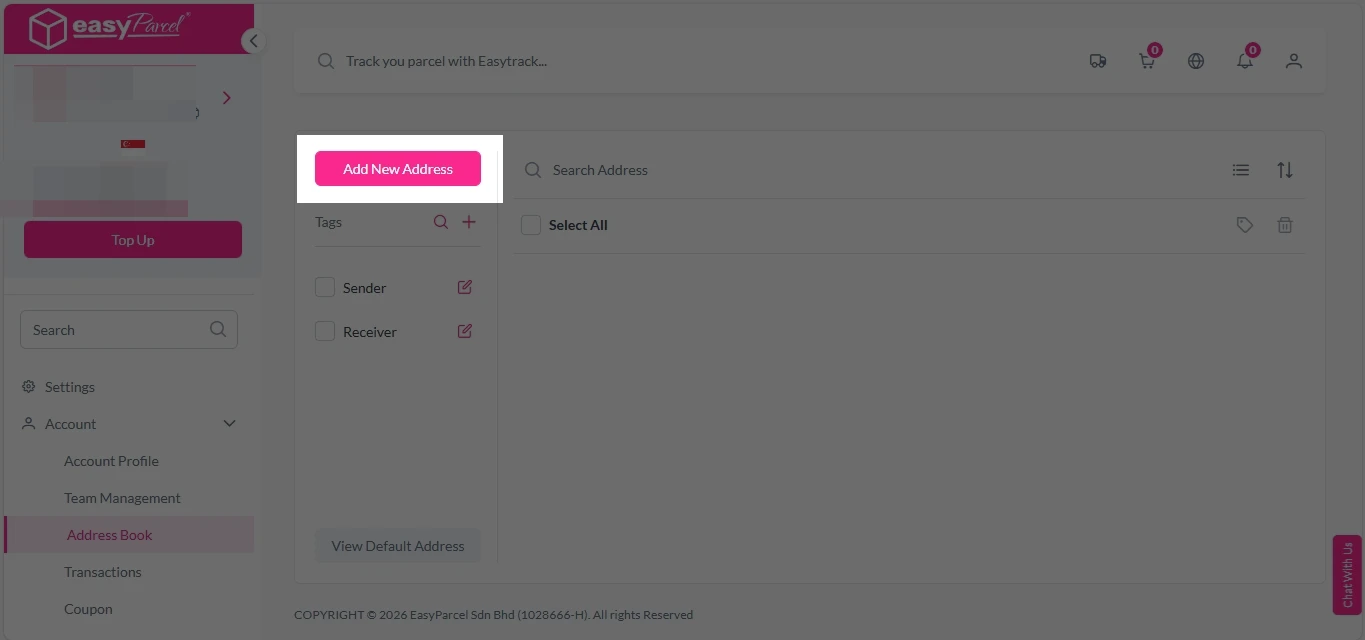
2. Click on ” Add New Address” button.
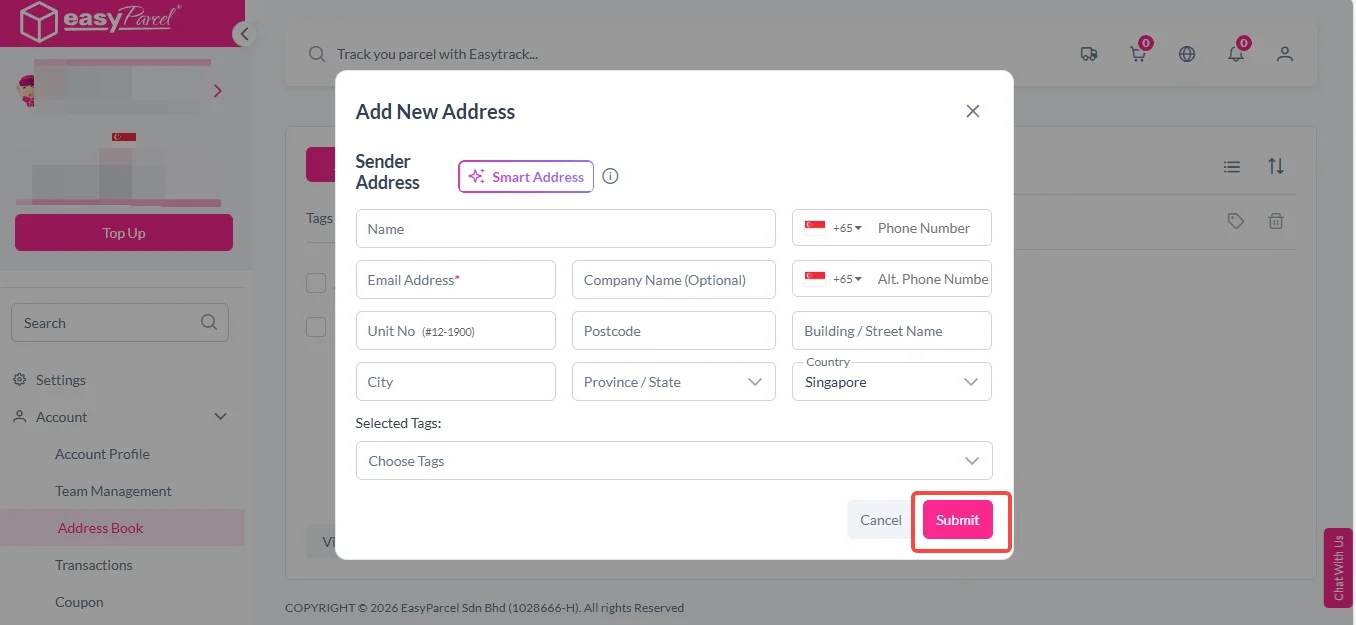
3. Fill in the details and click “Submit”.
How to Add New Tags in Address Book?
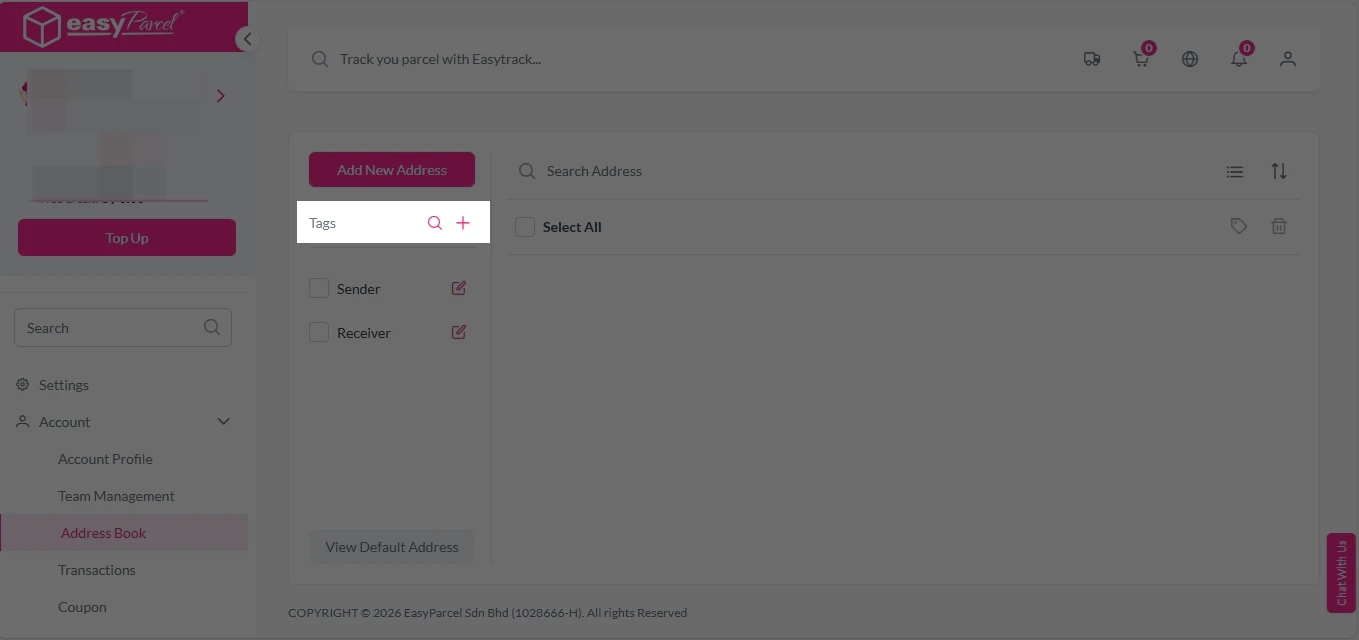
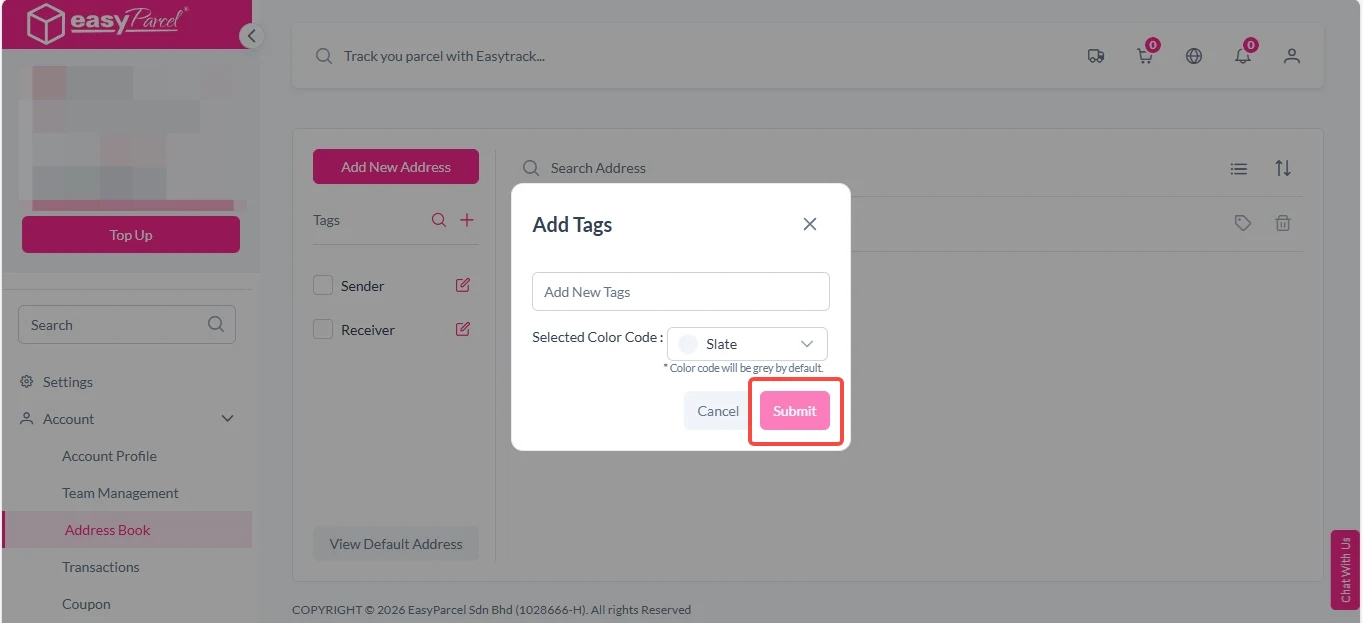
2. Click on “+” button on the right side of “Tags”.
3. Enter new tag name and select preferred color code, click on “Submit”.
How to Assign Name to Tags?
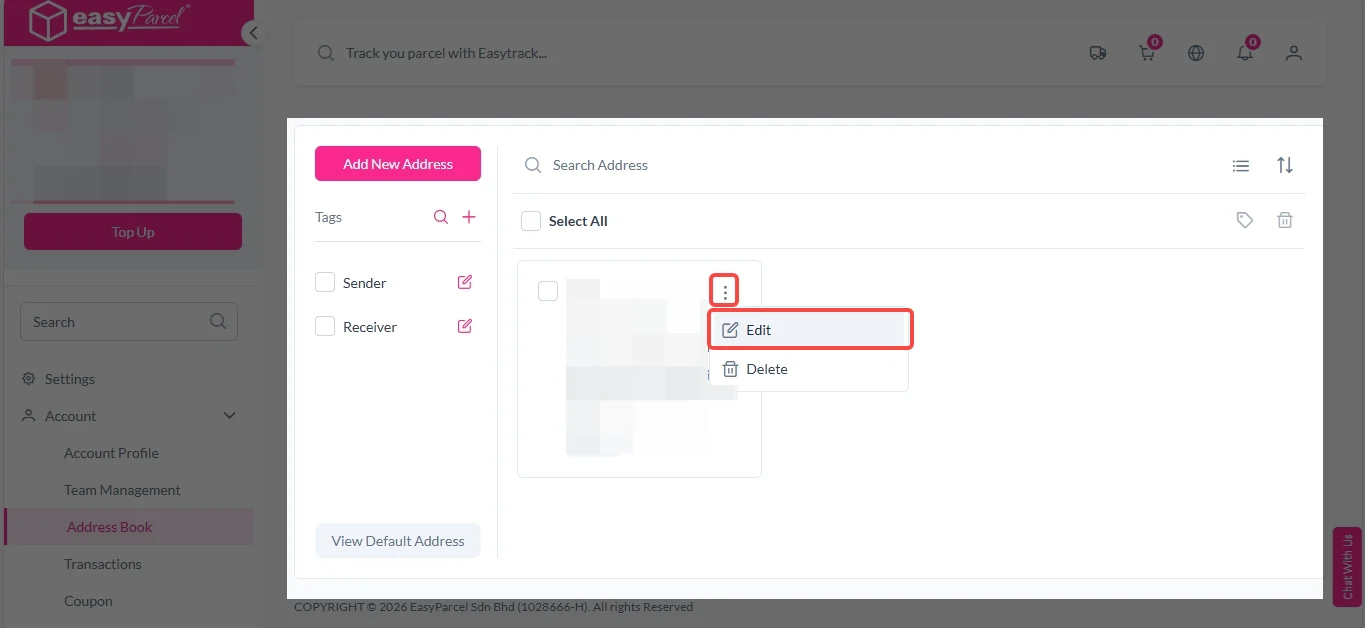
2. Look for the name you want to assign the group to and click on 3 dot icon at top right corner > “Edit”.
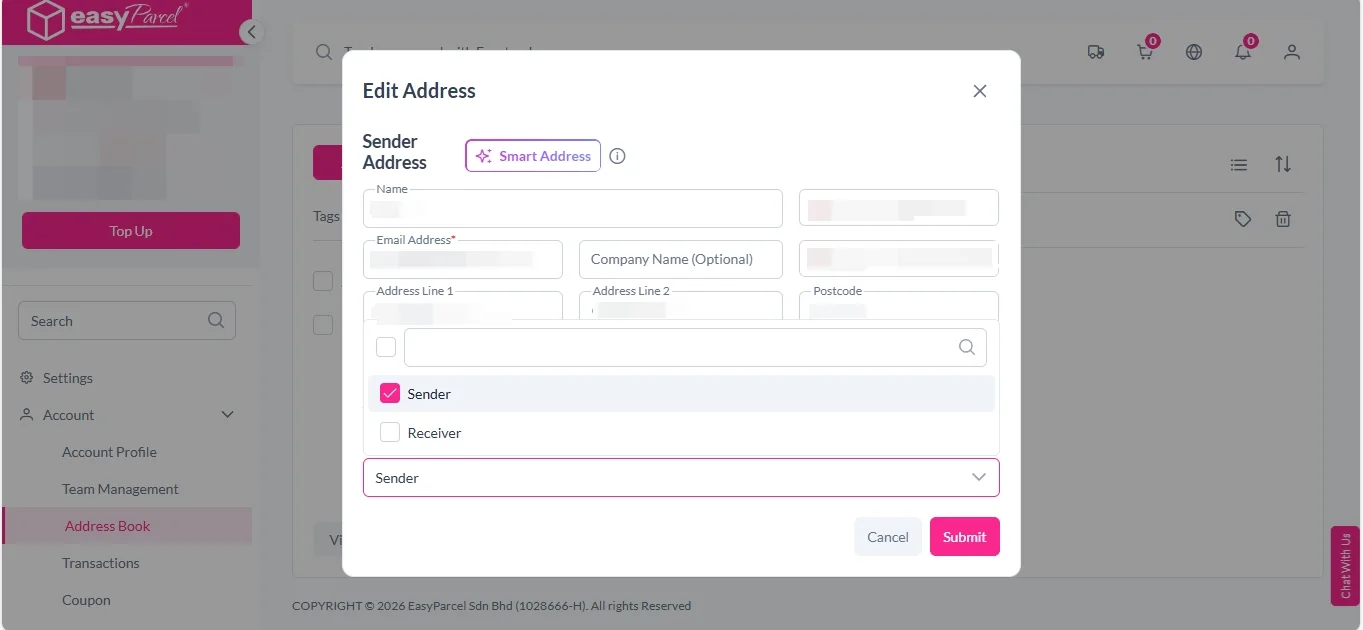
3. Under “Selected Tags” section, select the group and click “Submit”. You can multi-select the groups by pressing shift button at the same time.
Manage Your Addresses Easily
Save frequently used sender and receiver details in EasyParcel’s Address Book for faster, hassle-free bookings.
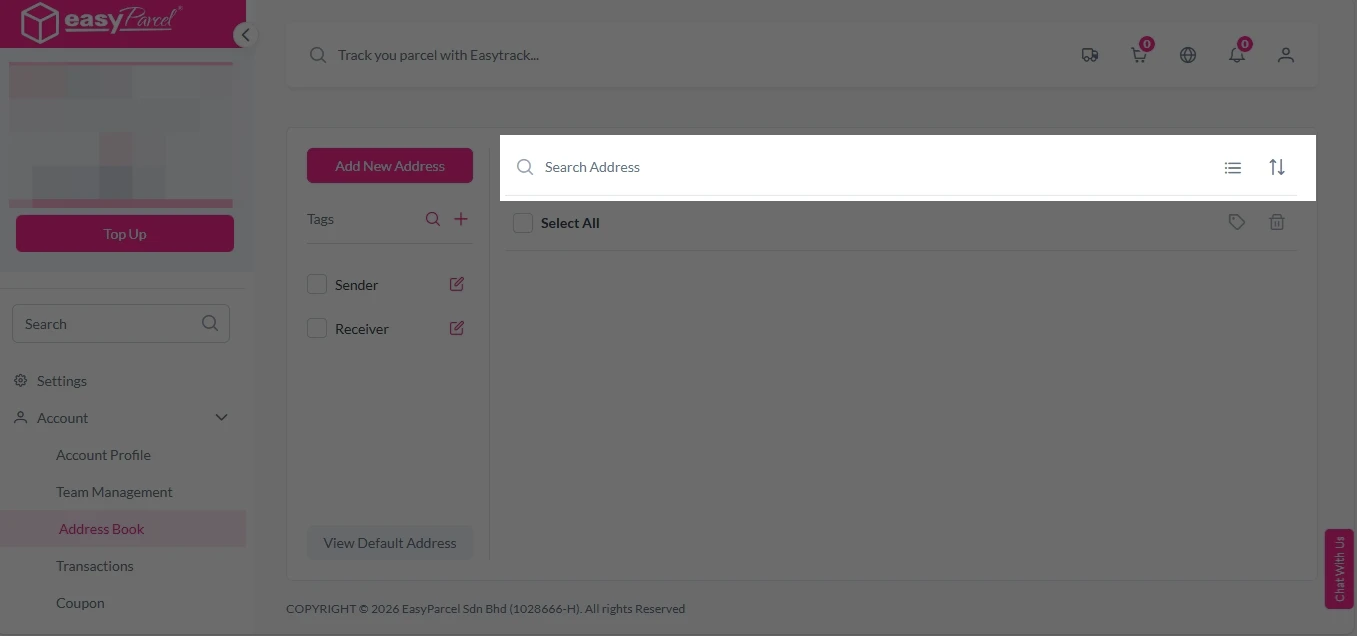
How to Search in Address Book?
2. You can now funnel your customers by key in value in the search bar or filter by group.
How to Delete Address Book?
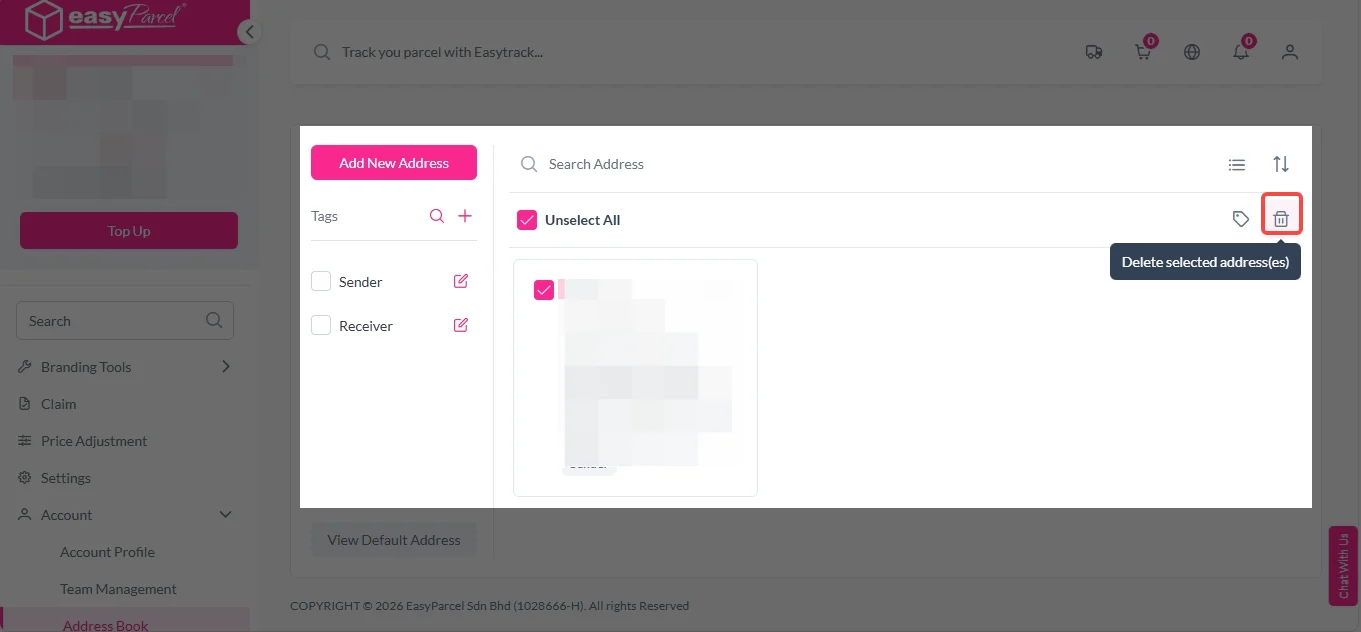
2. Select the contact and click on the “Delete” icon.
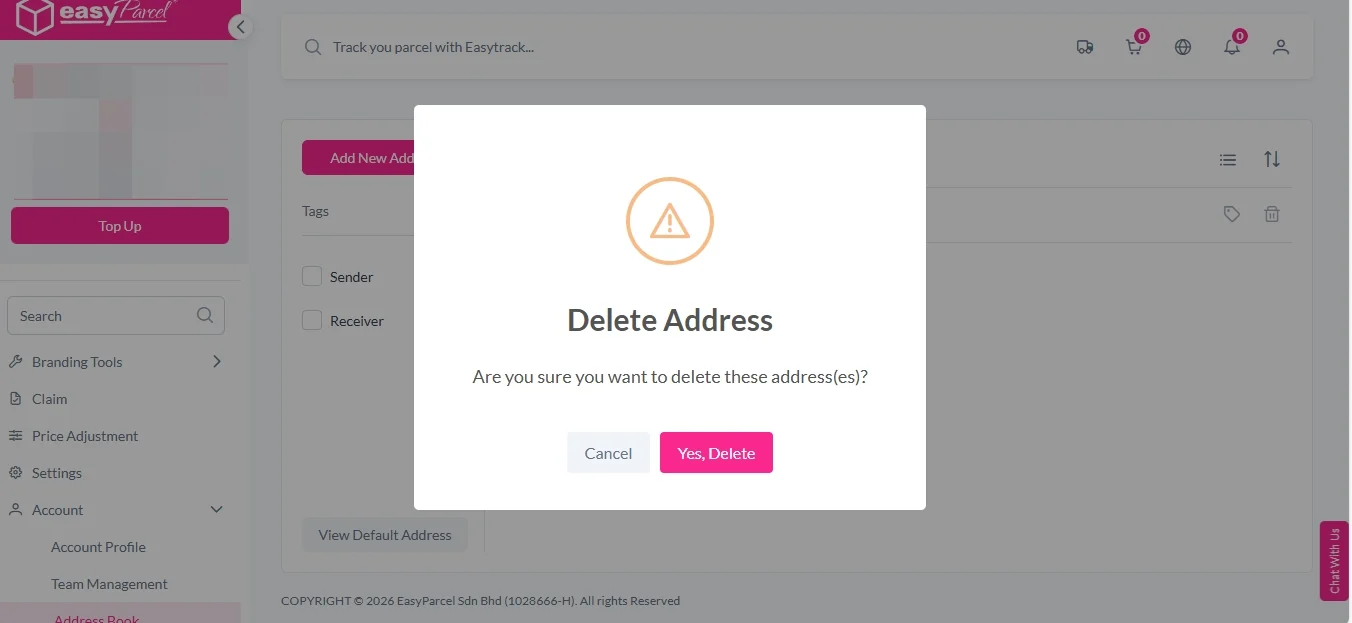
3. Click on “Yes, Delete” to proceed.
Frequently Asked Question (FAQs)