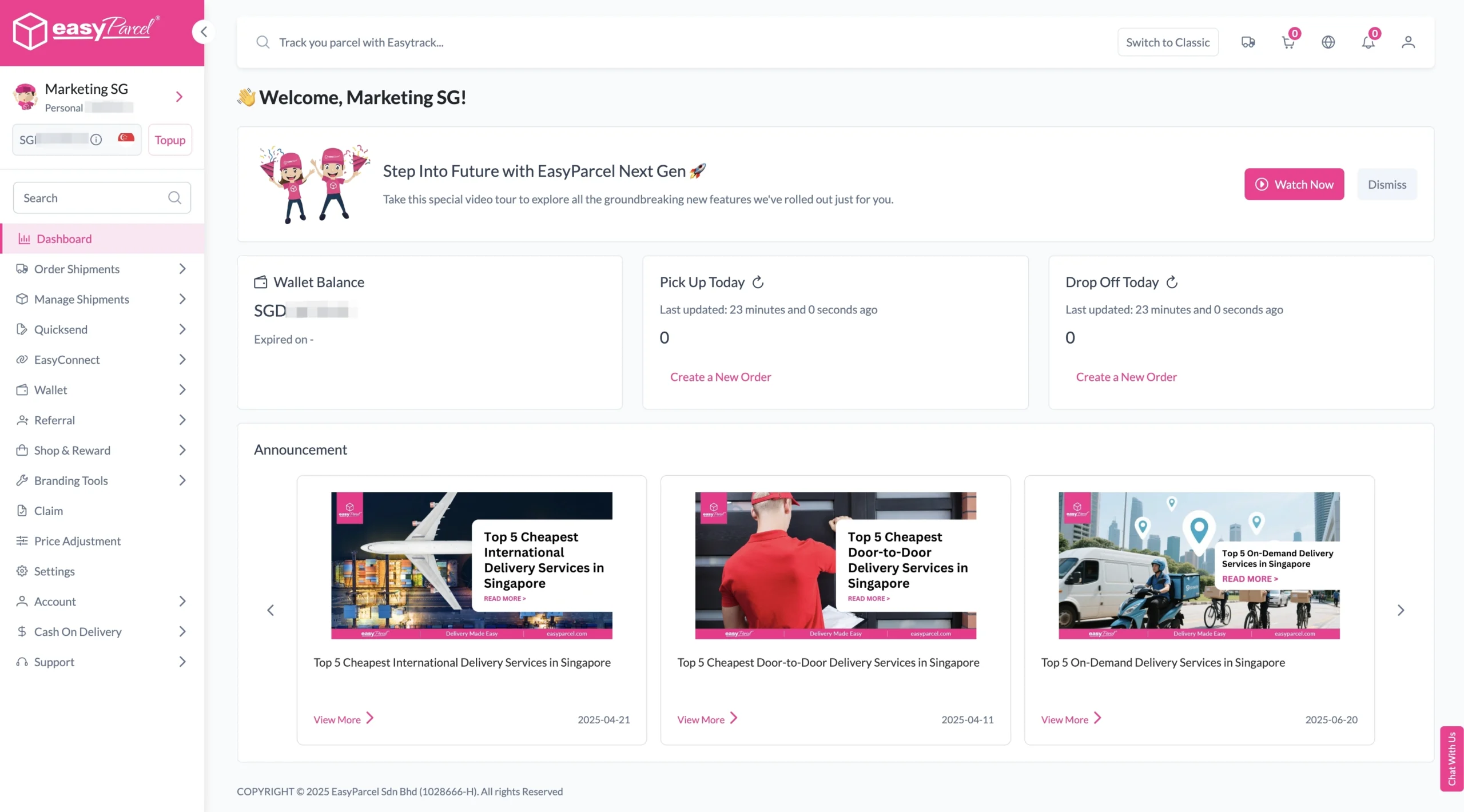
Step 1: Log In to EasyParcel Next Gen
For eCommerce Platform Integration
EasyParcel provide integration with eCommerce platforms such as Shopify and WooCommerce. Once a customer places an order, the integration supports automatic order fulfillment, streamlining your shipping process.
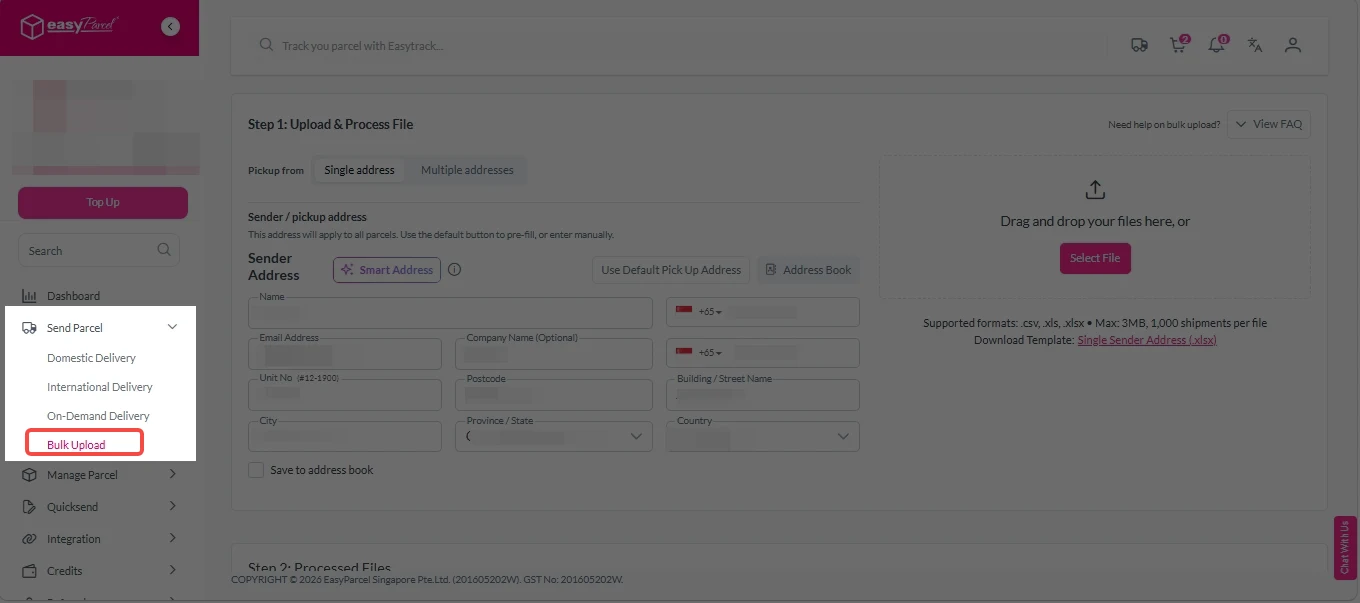
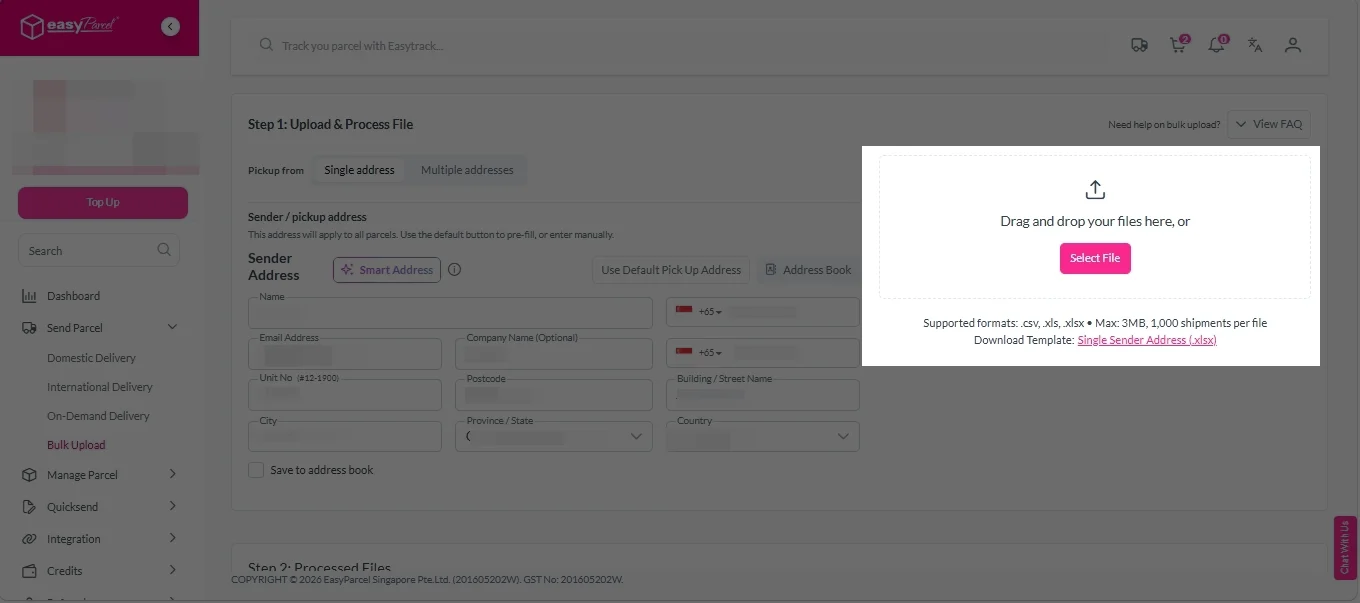
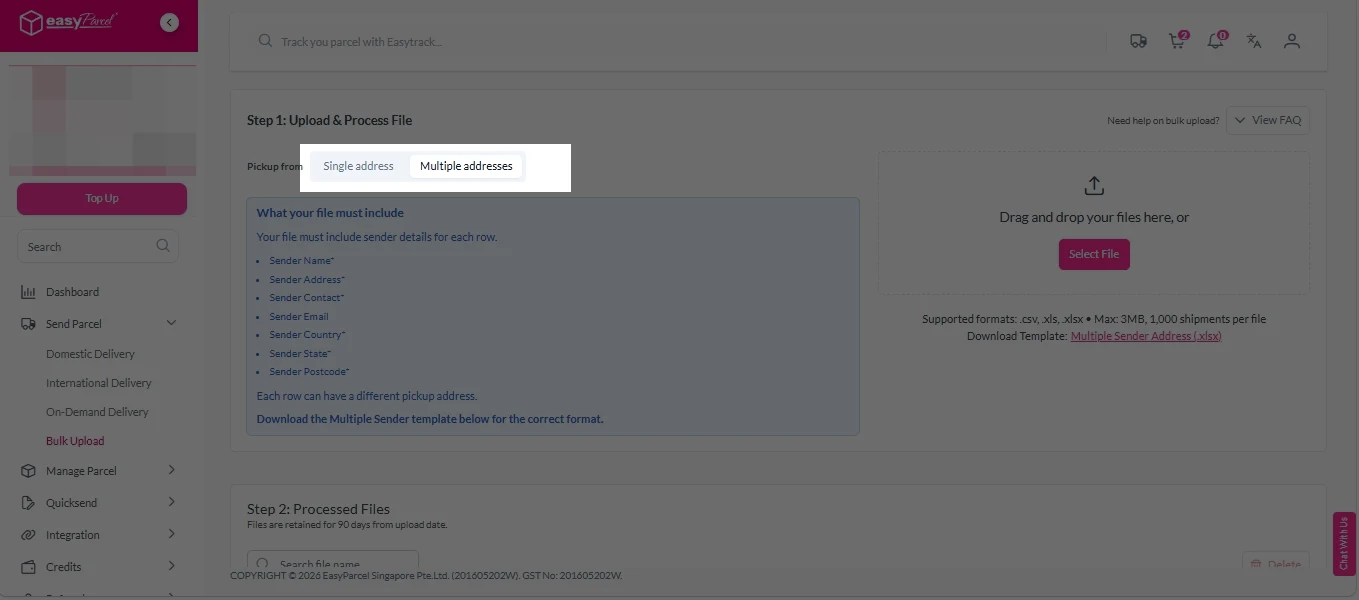
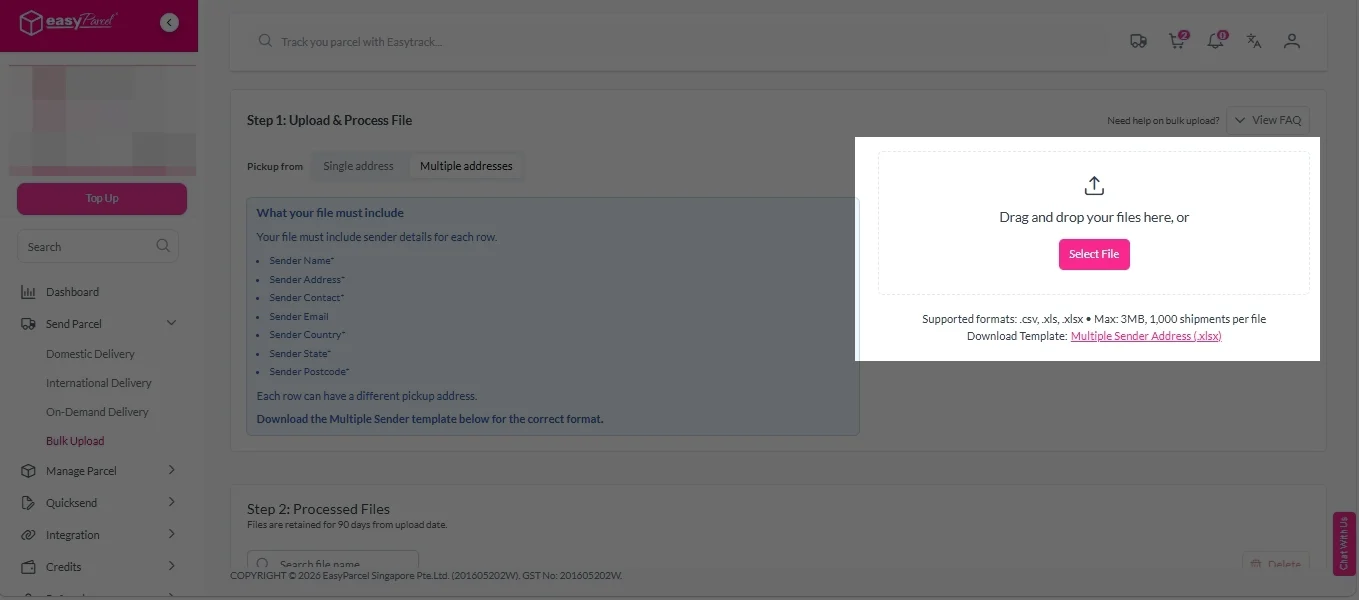
Step 3: Import Bulk Orders.
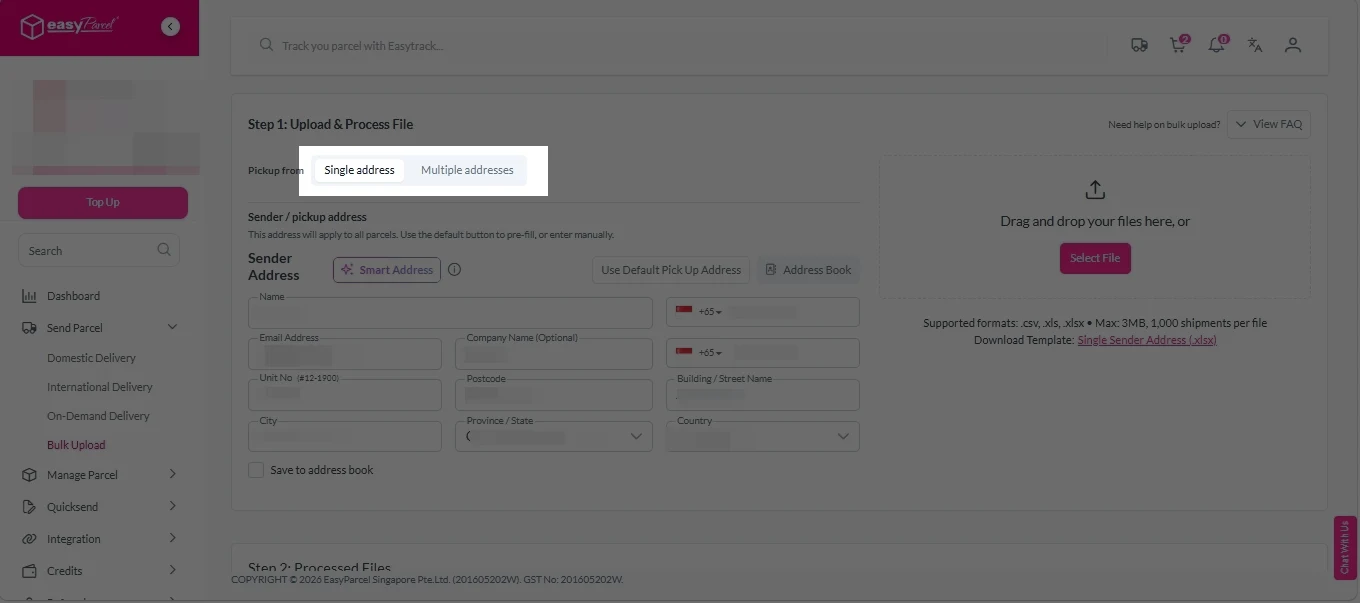
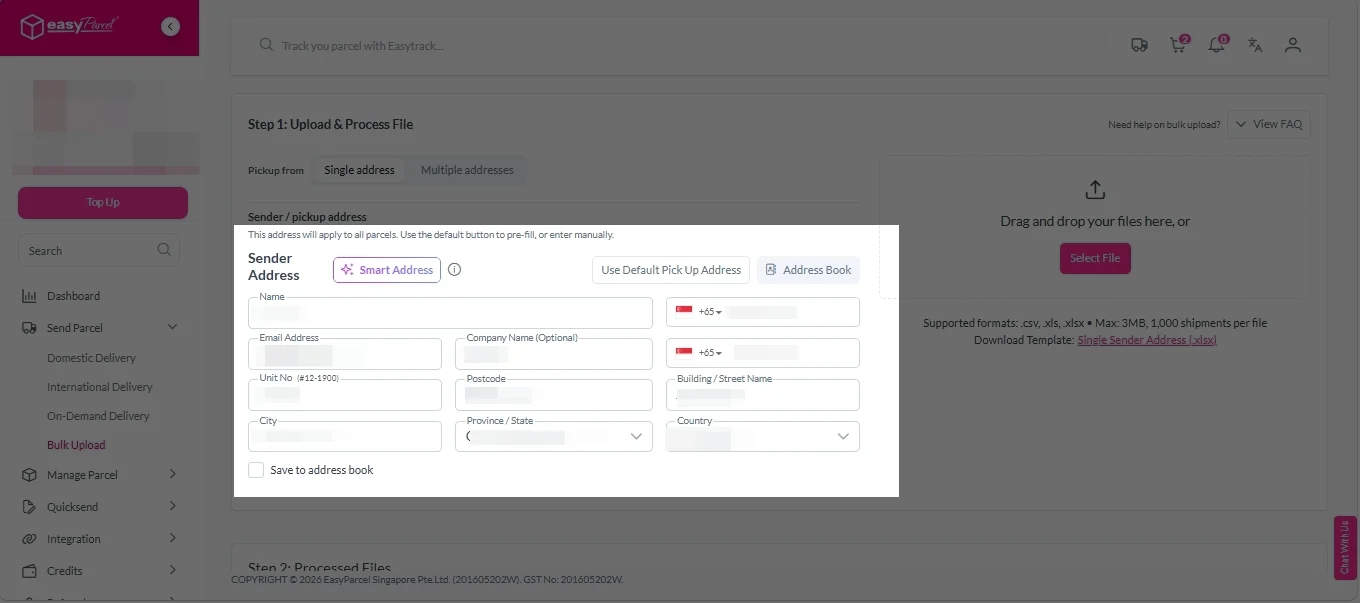
Bulk orders can be imported in two ways — Single Address (multiple shipments from one sender) or Multiple Address (shipments from different senders in one upload), giving businesses full operational flexibility.
Ship Orders Faster with Bulk Import
Upload multiple orders at once with EasyParcel to save time and simplify your shipping process.
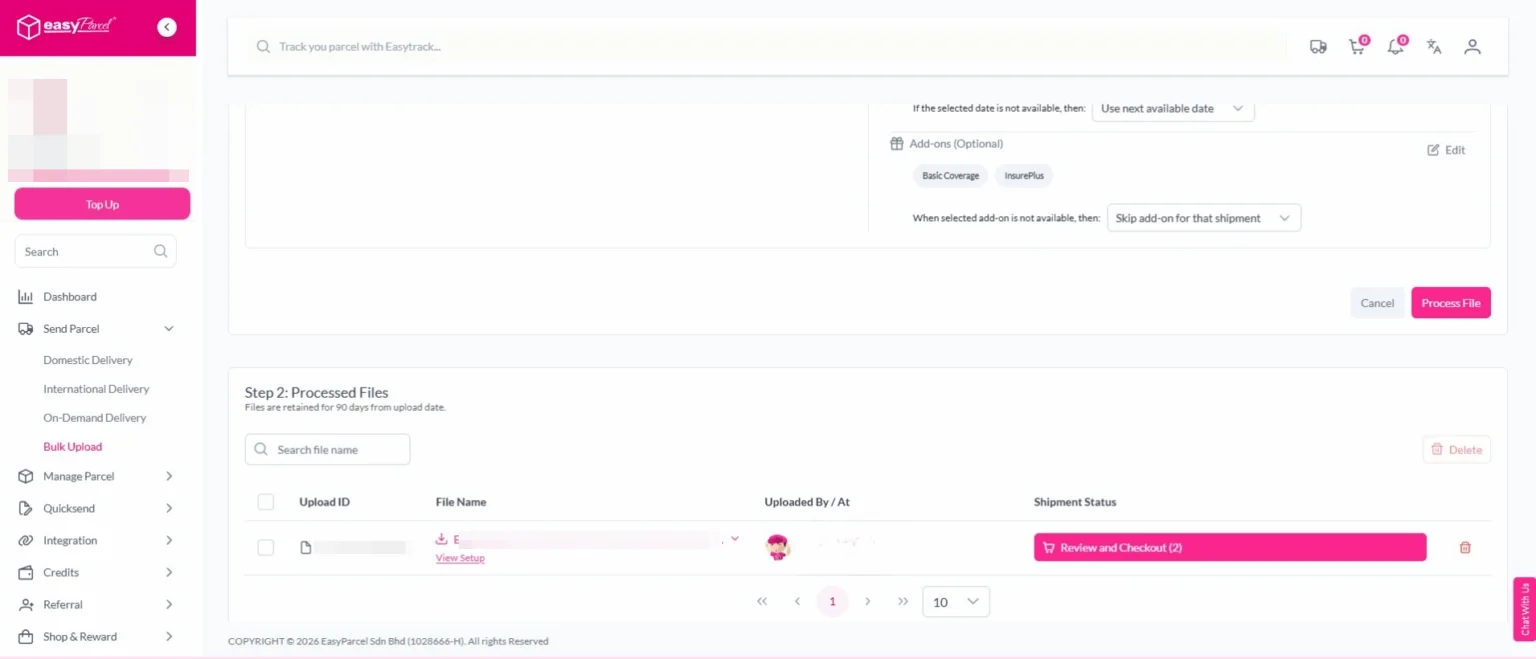
Step 4: Click “Process File” to import your bulk orders into the system.
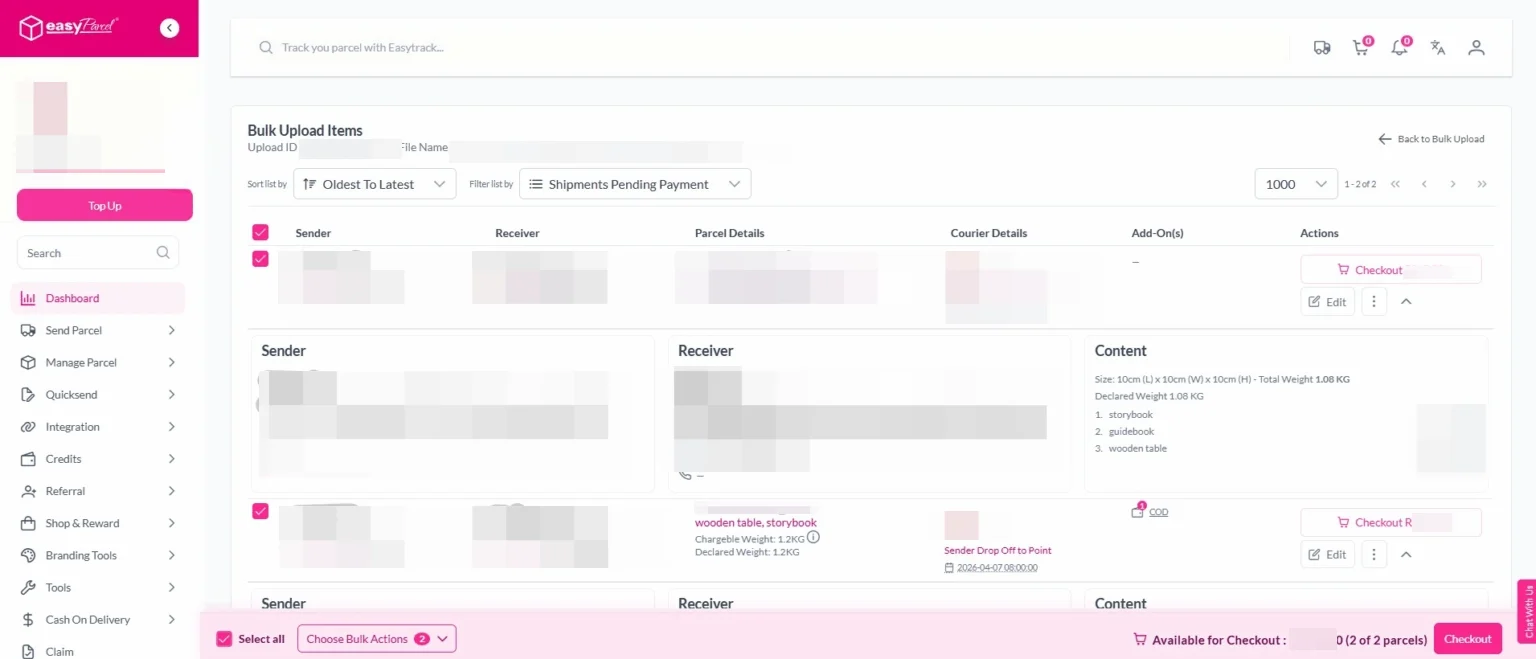
EasyParcel Next Gen will automatically read and display your shipment data.
You can review all imported orders before proceeding — ensuring accuracy for each parcel’s details.
Step 5: Review and Confirm Shipment Details. Then, click on “Checkout” button.
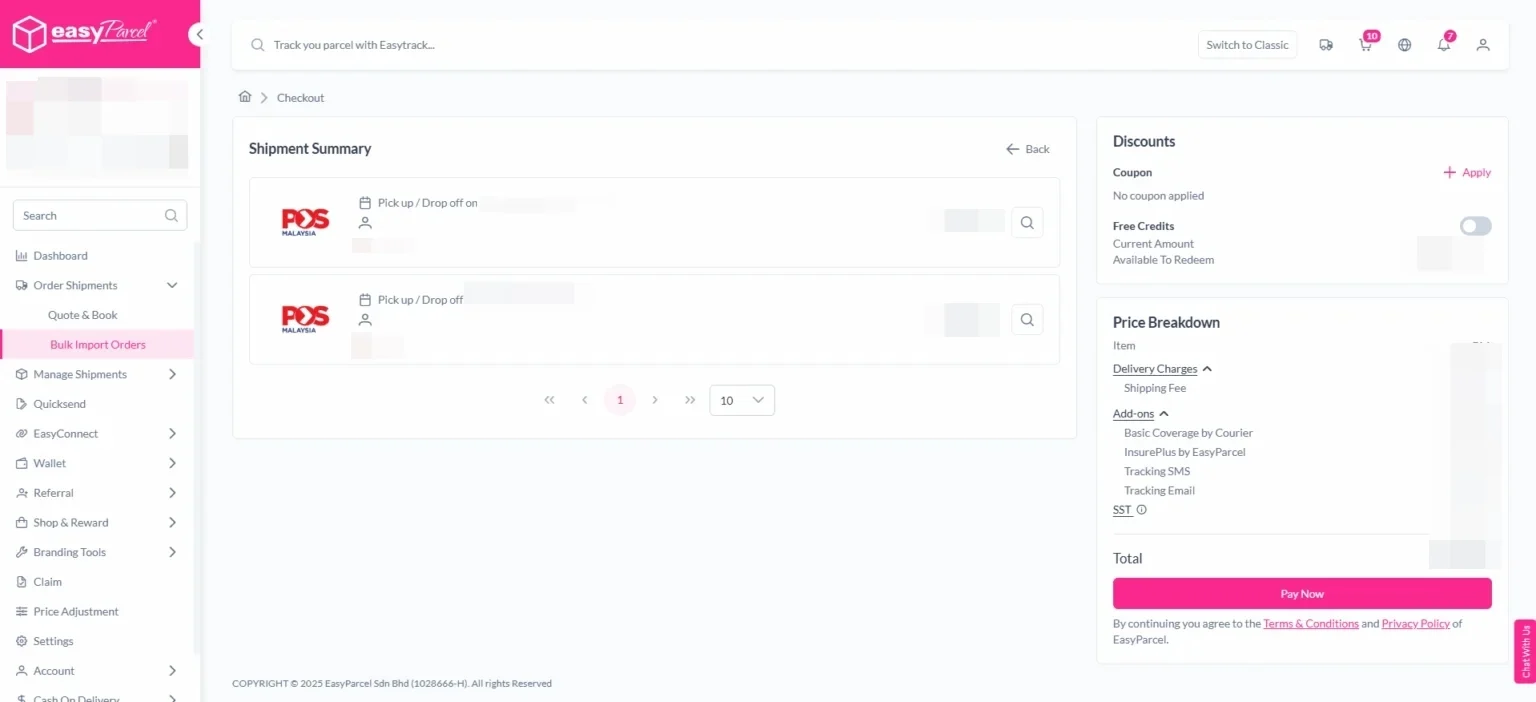
Step 6: Select the orders you want to confirm and click “Pay Now.”
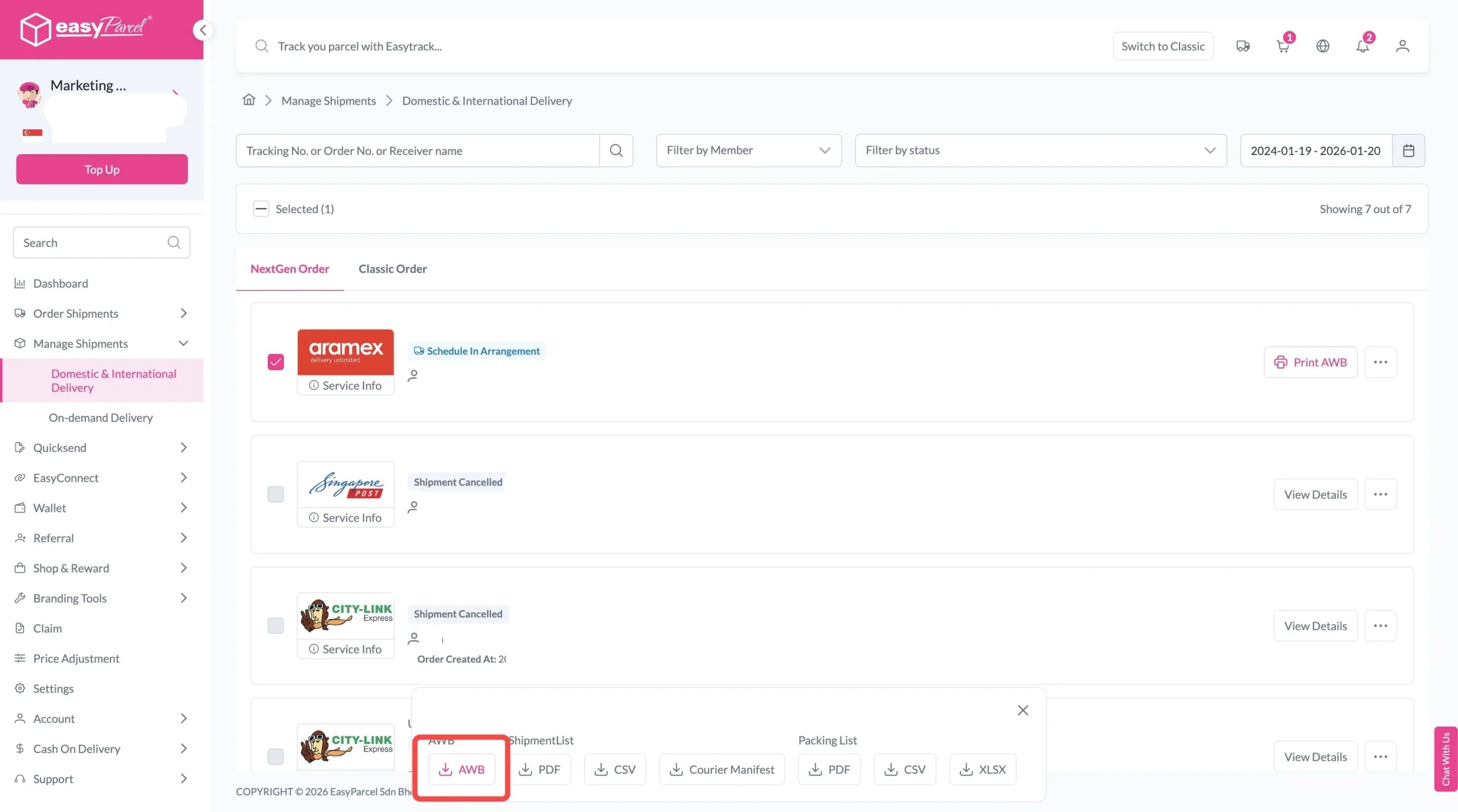
Step 7: After booking, go to “Manage Parcel”, “All Parcels” to print your Air Waybills (AWBs).