Managing shipping manually can slow down your eCommerce operations. If you’re running an online store on Wix, integrating your store with EasyParcel helps automate order import, booking, and tracking — all from one dashboard.
In this blog, will show how to import and fulfill your Wix orders using EasyParcel step by step.
Table of Contents
What Is EasyParcel?
EasyParcel is an all-in-one shipping platform that connects e-commerce stores to 60+ courier services including FedEx, J&T, Ninja Van, and SingPost. Instead of managing separate accounts with each courier, you get one dashboard to compare rates, book shipments, and track deliveries.
Why Integrate Wix with EasyParcel?
One Platform to Manage All Shipments
Handle domestic and international deliveries from a single dashboard without browsing multiple websites.
Reduce Manual Work
Wix orders sync automatically to EasyParcel. No copying addresses. No manual entry. Just click and ship.
Best & Cheapest Rates
Compare 60+ couriers side-by-side instantly to find the most affordable option for every parcel.
Free Marketing Tools
Branded tracking pages, SMS, Air Waybill and email promote your store with every delivery—at no extra cost.
Exclusive Parcel Protection
Add EasyCover parcel protection to safeguard valuable shipments against loss for complete peace of mind.
Reward Points for Free Gifts
Earn points on every shipping dollar spent and redeem them for free gifts, vouchers, and exclusive rewards.
How to Import and Fulfill Wix Orders by Using EasyParcel?
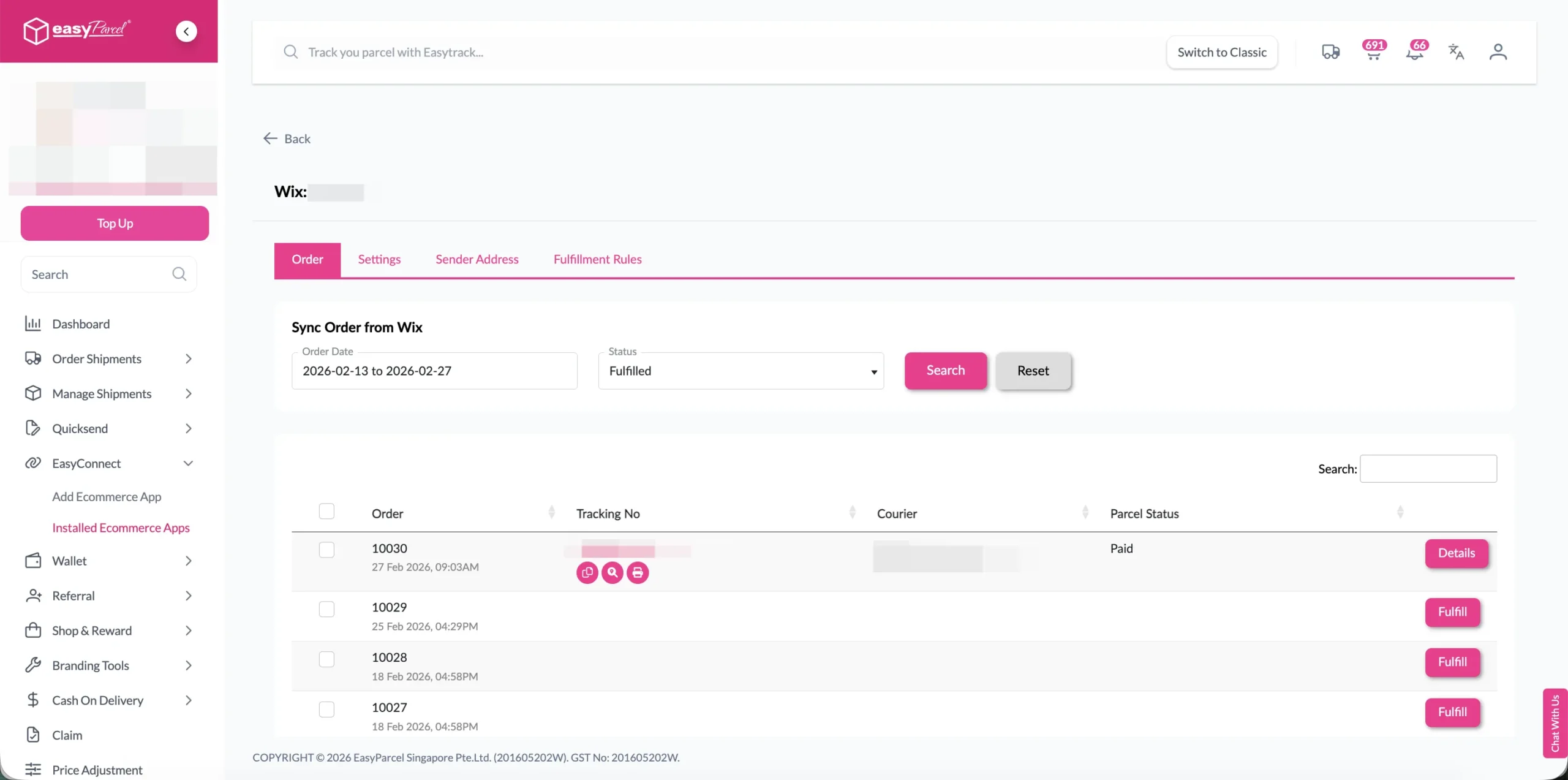
Step 1: Under “Integration”, click on “Installed Ecommerce Apps”, find “Wix” and click on “Open App” button.
Click on “Order”, select the order date and order status and click on the “Search” button.
The order will be imported and shown in the list below.
Step 2: Click the “Fulfill” button on the order you want to fulfill.
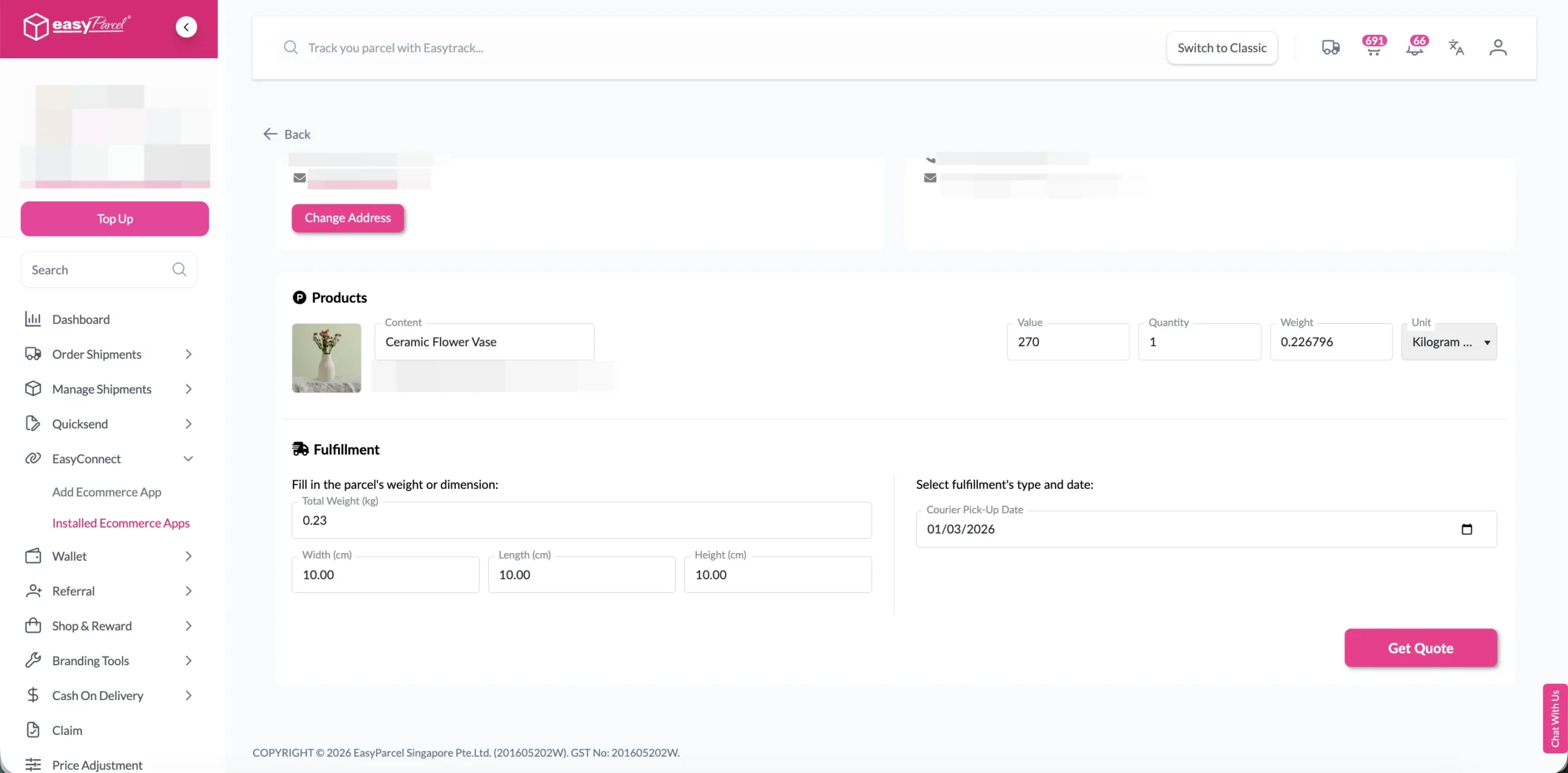
Step 3: After clicking the “Fulfill” button, you can find your order details and click on the “Get Quote” button.
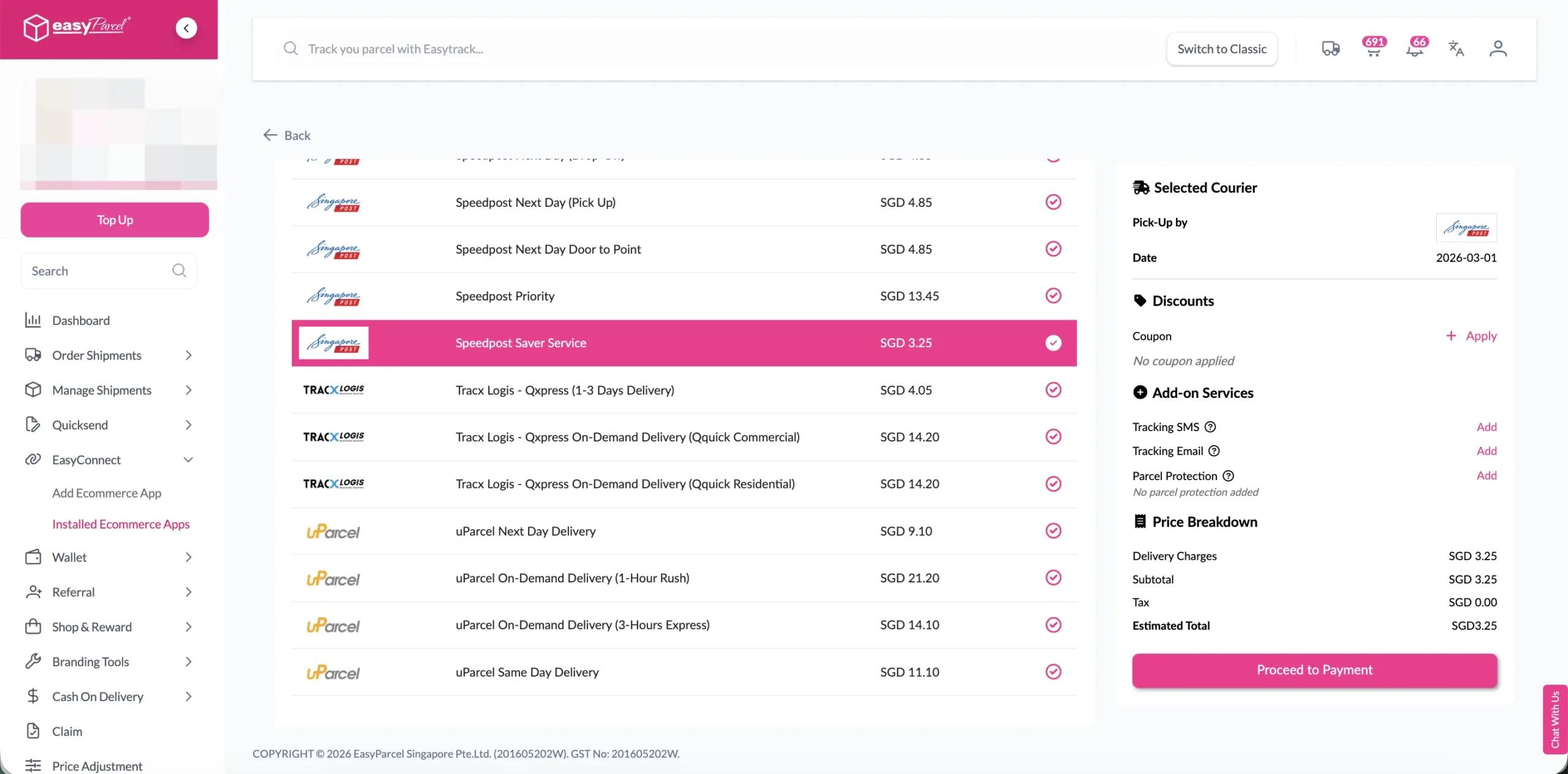
Step 4: Choose the preferred courier option and click on the “Proceed to Payment” button.
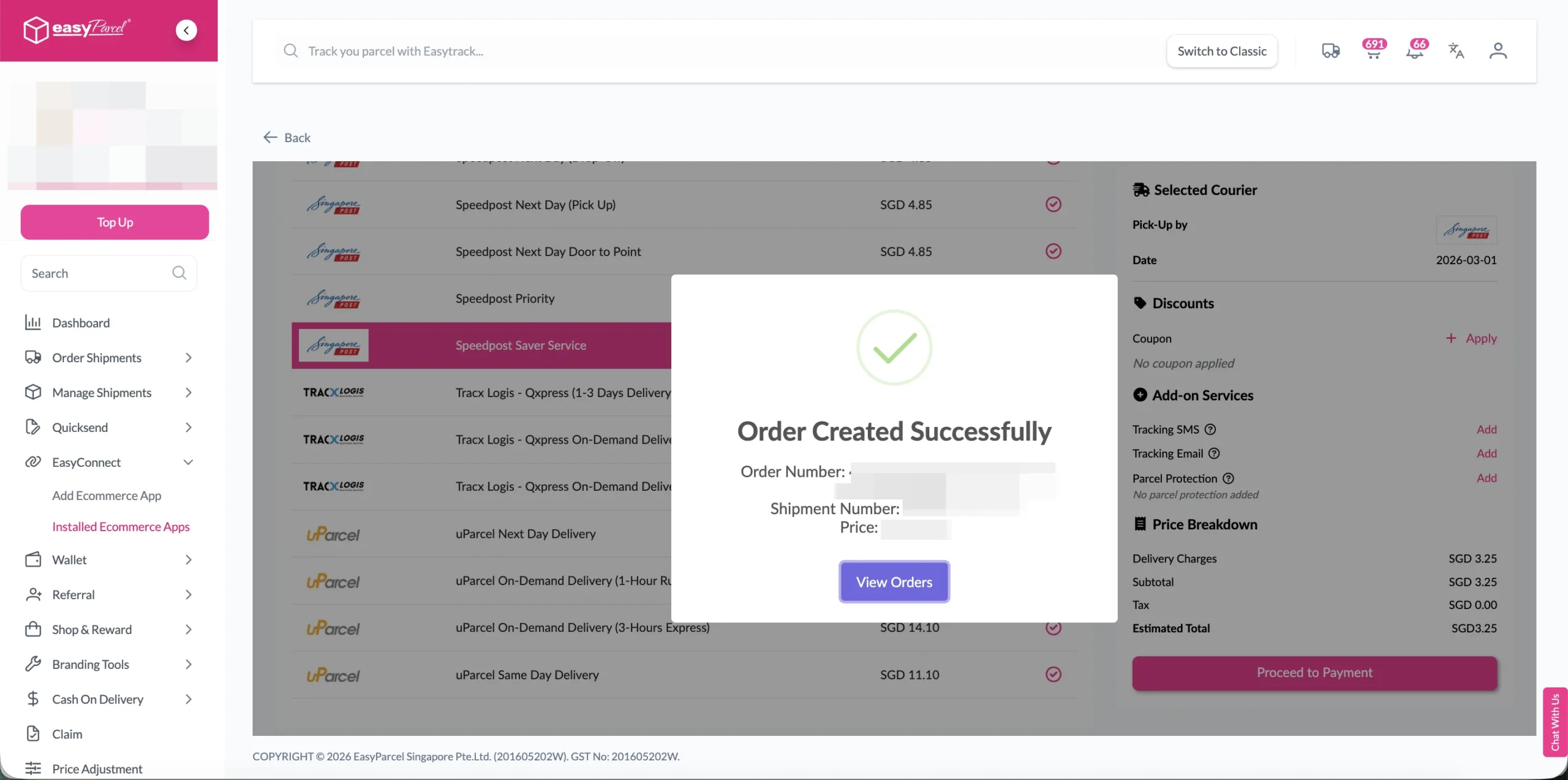
Step 5: The order status, order number, shipment number, and price will be displayed. Click on the “View Orders” button.
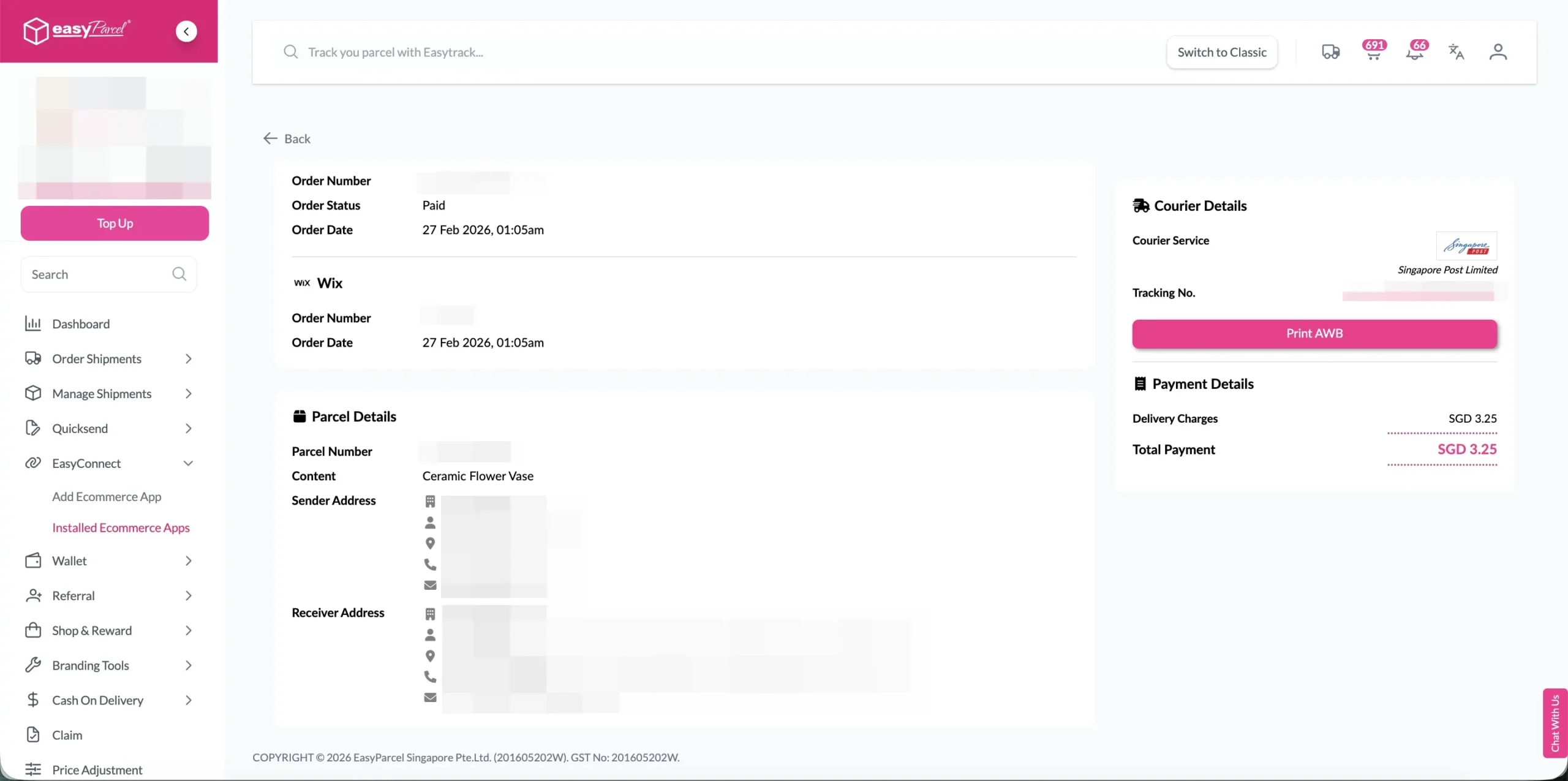
Step 6: Click on the “Details” button. Order details will be displayed on the page.
Pro Tips
By default, auto order status update is set to “No”. We strongly recommend clicking “Yes” to enable this feature.
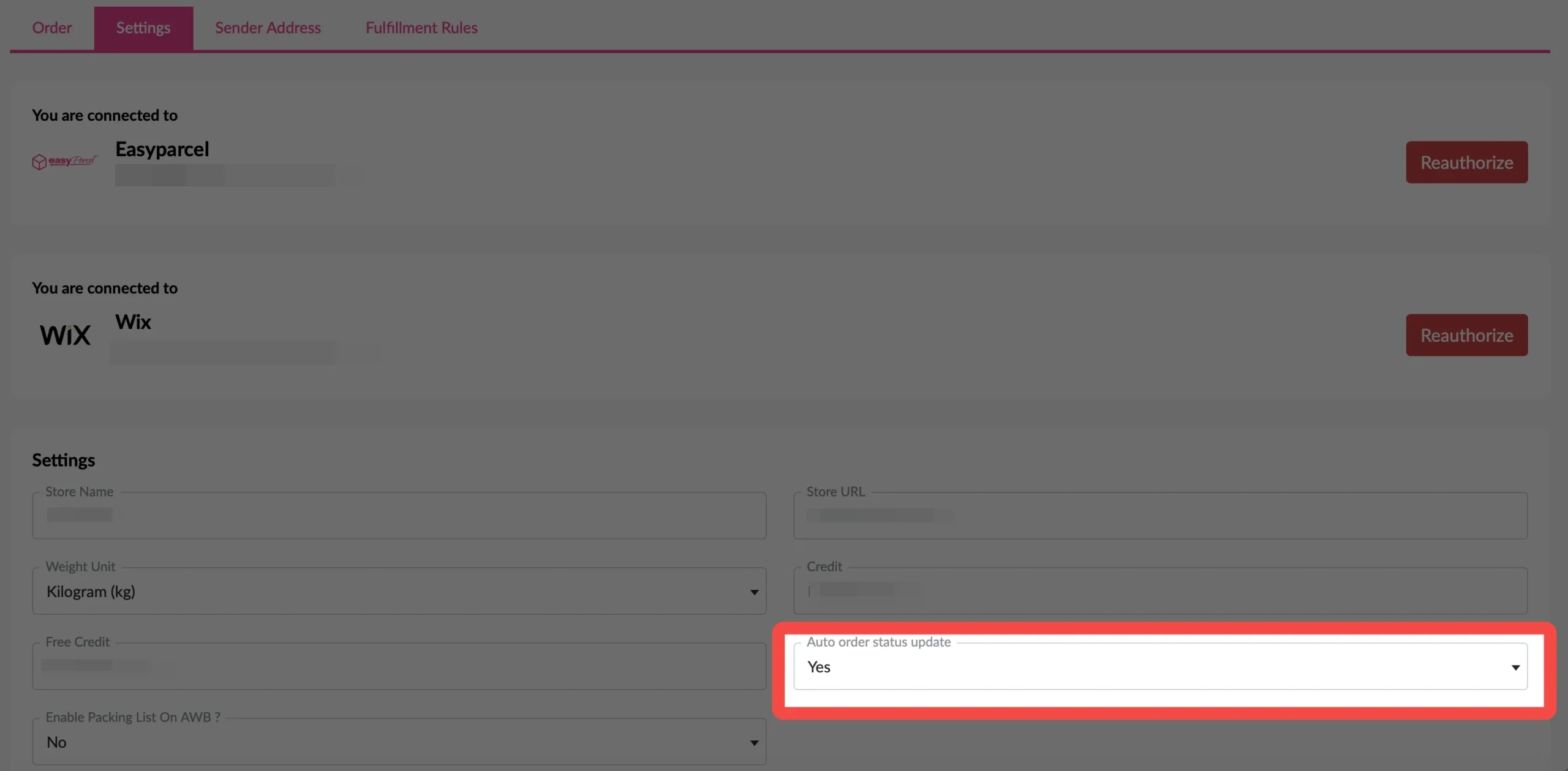
Once enabled, your order status will auto-update in EasyParcel and Wix at the same time.
No more double-handling or manual status changes.
Step 1: Under “Integration”, click on “Installed Ecommerce Apps”, find “Wix” and click on “Open App” button.
Click on “Order”, select the order date and order status and click on the “Search” button.
The order will be imported and shown in the list below.
Step 2: Select preferred fulfill order and click the “Fulfill Selected” button.
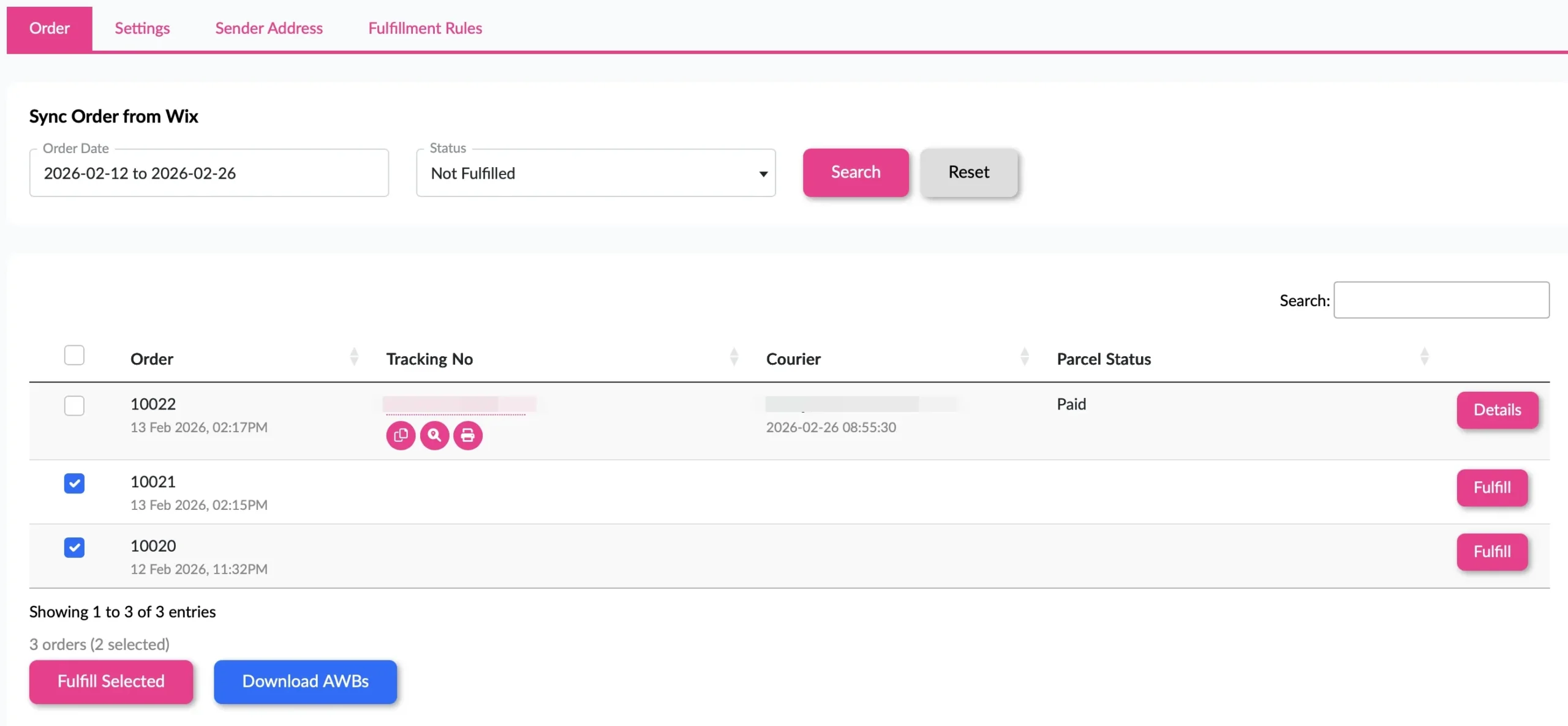
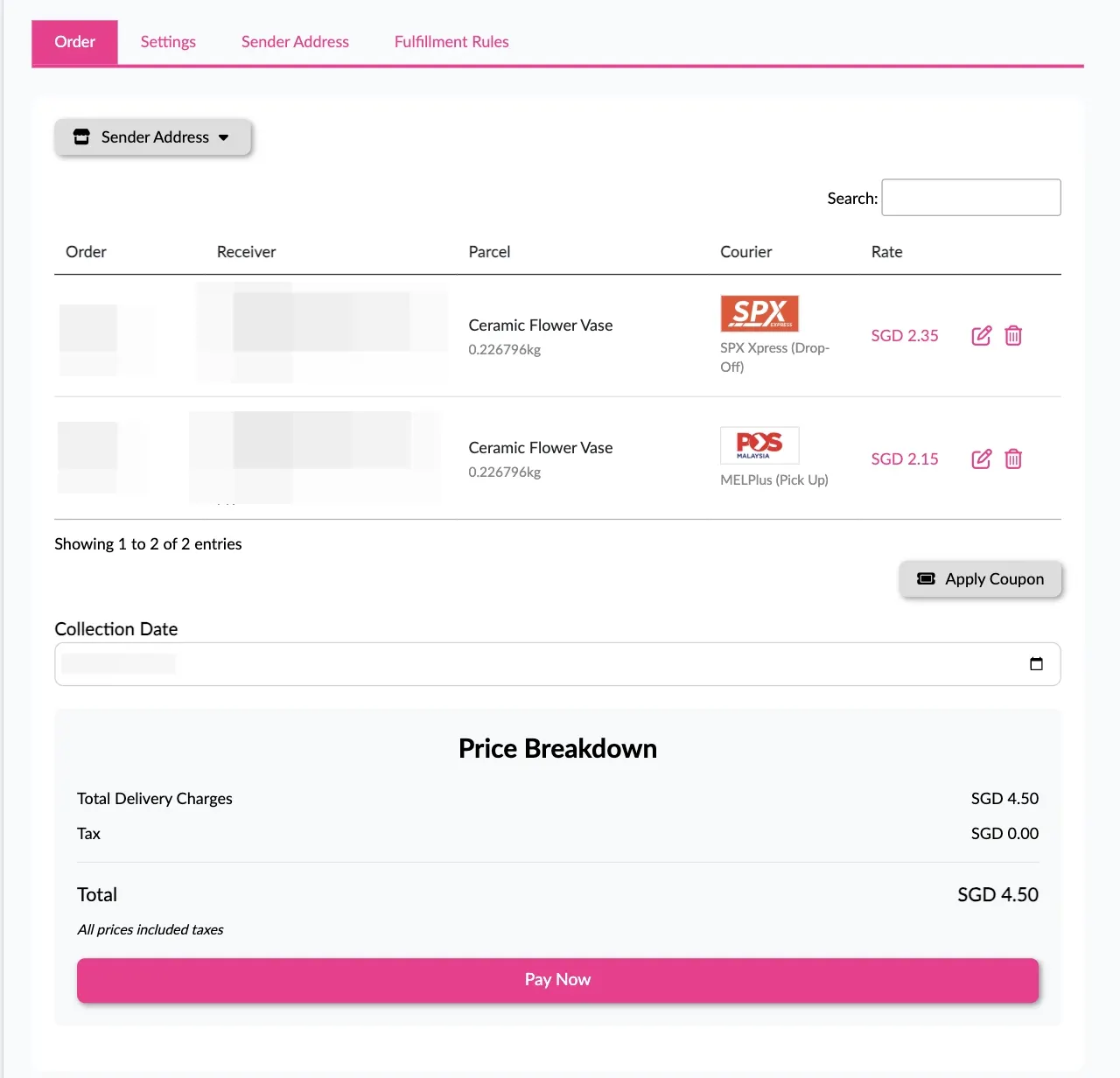
Step 3: After clicking the “Fulfill” button, you can find your order details. Confirm all the details correct, then click on the “Pay Now” button.
Pro Tips
By default, auto order status update is set to “No”. We strongly recommend clicking “Yes” to enable this feature.
Once enabled, your order status will auto-update in EasyParcel and Wix at the same time.
No more double-handling or manual status changes.
How to Set Which Couriers to Use for Wix Orders

Set Specific Courier Service:
Step 1: Under “Integration”, click on “Installed Ecommerce Apps”, find “Wix” and click on “Open App” button.
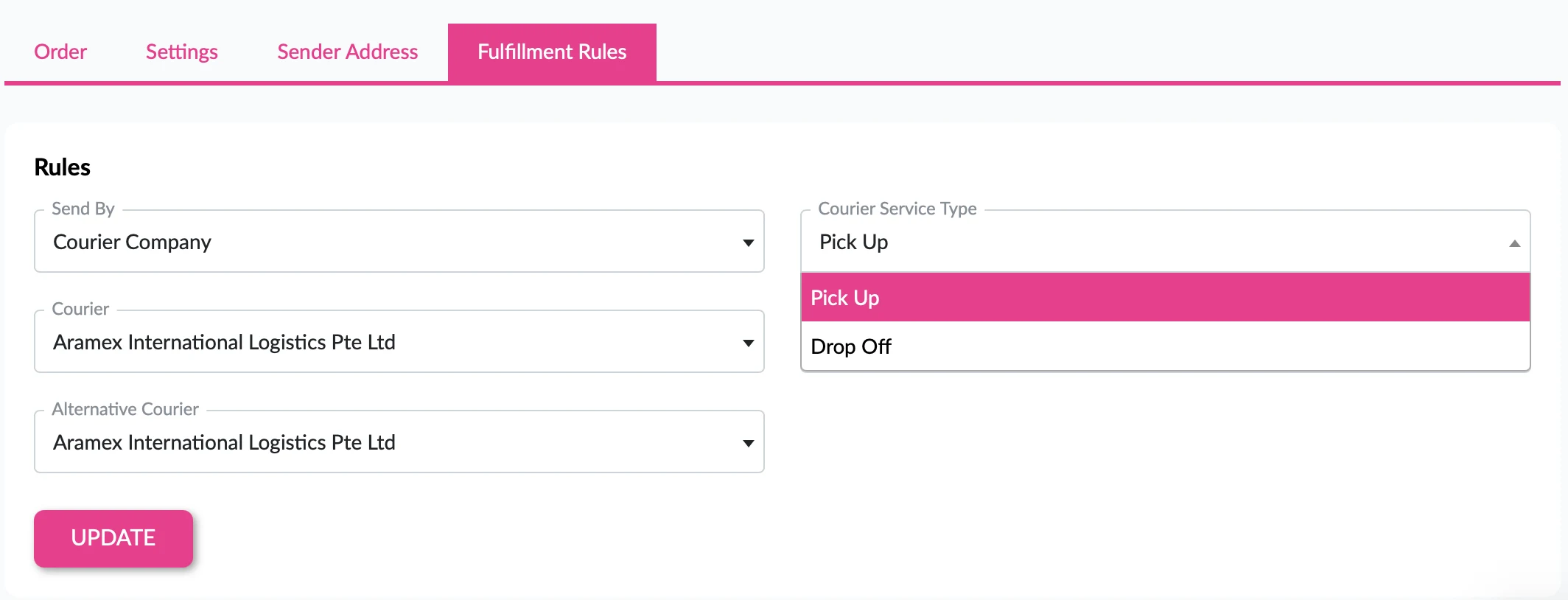
Click On “Fulfillment Rules” tab.
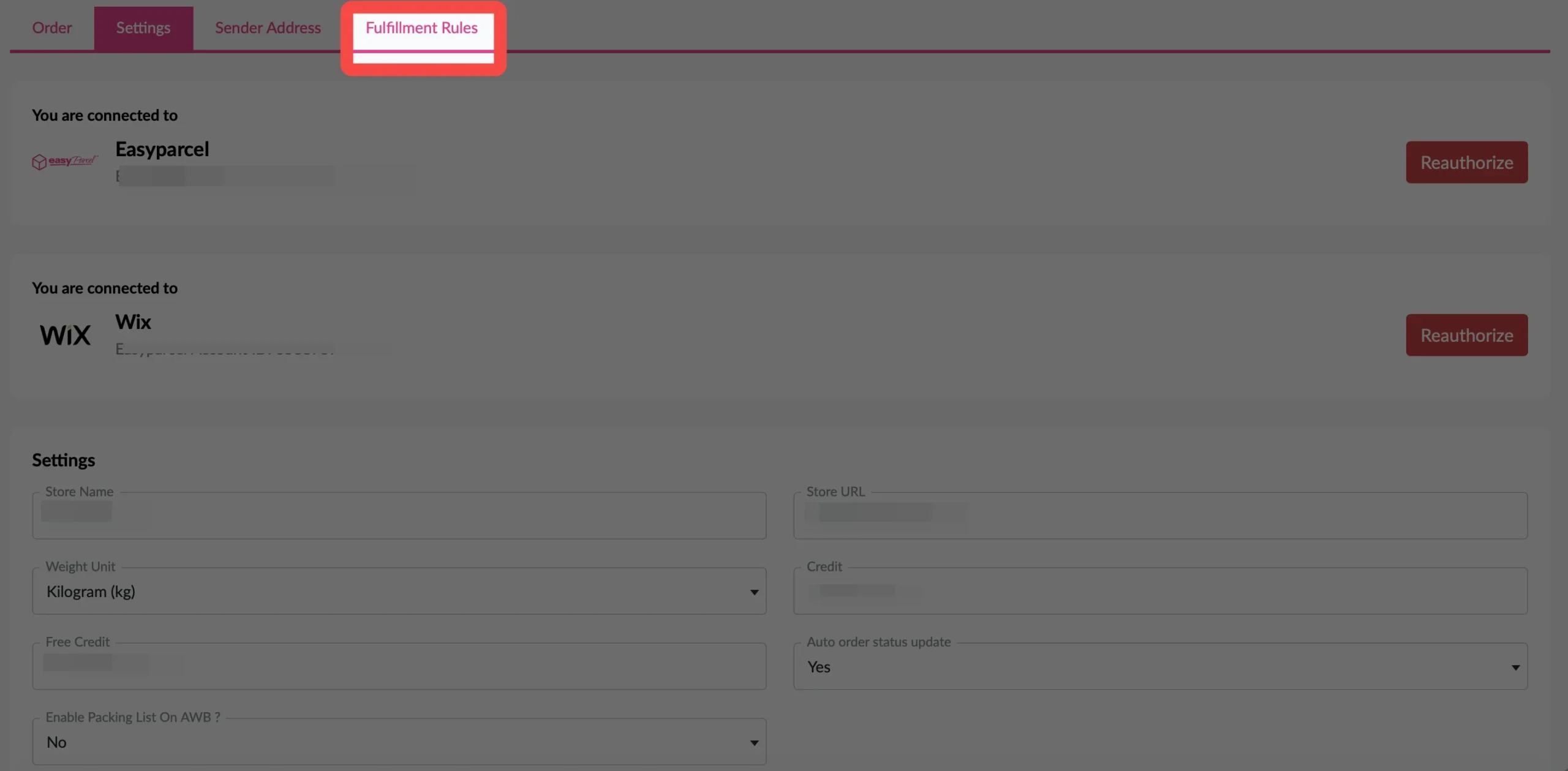
Step 2:Select your own preferred courier service, then click “Update” button. Once you set your preferred courier services, all orders you fulfil after that will automatically use those couriers.
💡 Best Practices for Import and FulFill Wix Order by Using EasyParcel
Before Fulfillment
- Verify inventory availability before confirming fulfillment
- Check address accuracy to prevent delivery failures
- Consider delivery timing for time-sensitive orders
- Review special instructions from customers
During Courier Selection
- Compare multiple options when available
- Consider delivery speed vs. cost based on customer needs
- Check service availability for the destination
- Verify pickup and delivery windows
After Fulfillment
- Print AWB immediately to avoid delays
- Prepare packages according to courier requirements
- Schedule pickup if not automatic
- Monitor tracking for any issues