NEW: Streamline Your WIX Orders by Integrating with EasyParcel

NEW: Streamline Your WIX Orders by Integrating with EasyParcel

Hey WIX store owners! Feeling swamped managing orders, comparing courier rates, and tracking parcels? We’ve got exciting news: EasyParcel now integrates directly with WIX!

Our brand-new integration makes shipping simple—automatically sync your orders, compare courier rates, book deliveries, and track every parcel in just a few clicks!

Why Integrate EasyParcel with Your Wix Store?

Seamless Order Management

Pull all your WIX store orders straight into EasyParcel, no manual entry needed.

Smart Shipping Choices

Compare courier rates instantly and pick the option that saves you money and time.

Real-Time Delivery Updates

Track every shipment from dispatch to doorstep, keeping you and your customers in the loop.

Effortless Workflow

Manage all your shipments in one platform and free up time to grow your store.

Multiple Shipping Options

Choose from standard, express, or bulk shipping based on your order needs.

Boost Customer Satisfaction

Faster, accurate deliveries mean happier buyers and repeat business.

How to Setup & Fulfill Your Orders From Your Wix Store?

Step 1: Log in to your EasyParcel account

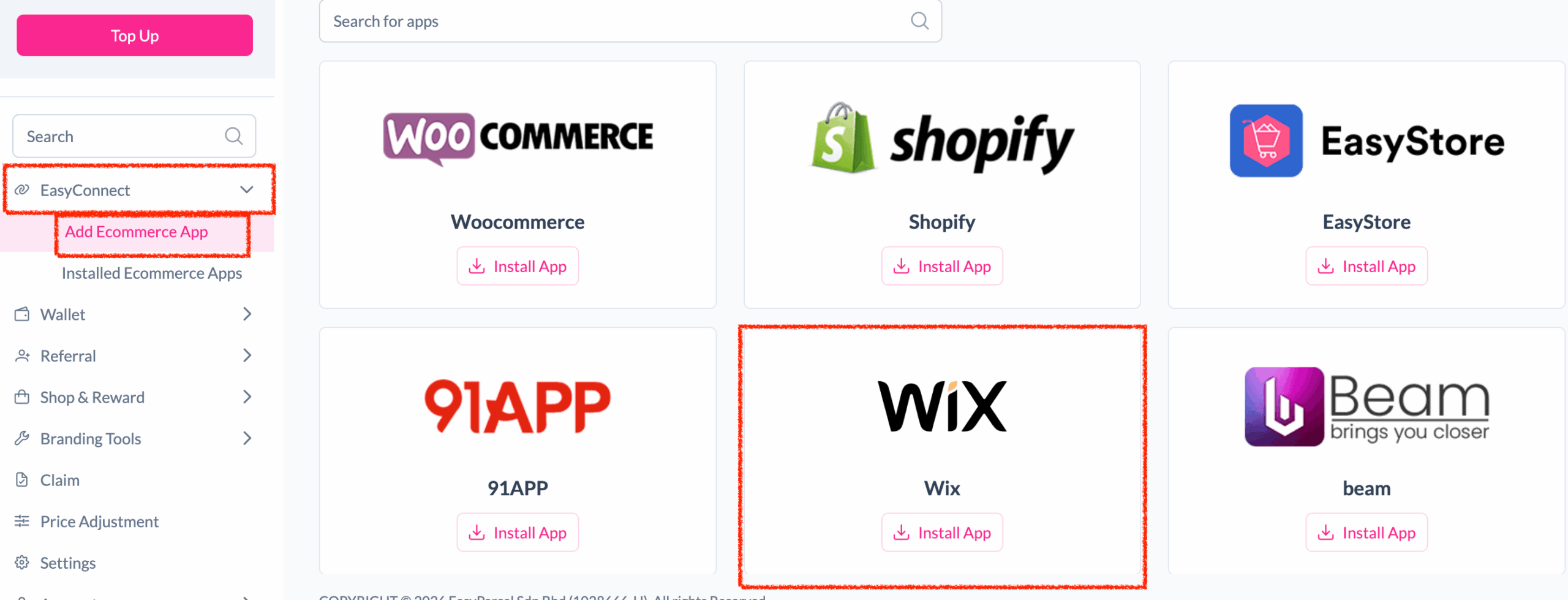
Step 2: After login, click on Add Ecommerce App under EasyConnect section, find Wix and click on Install Ap
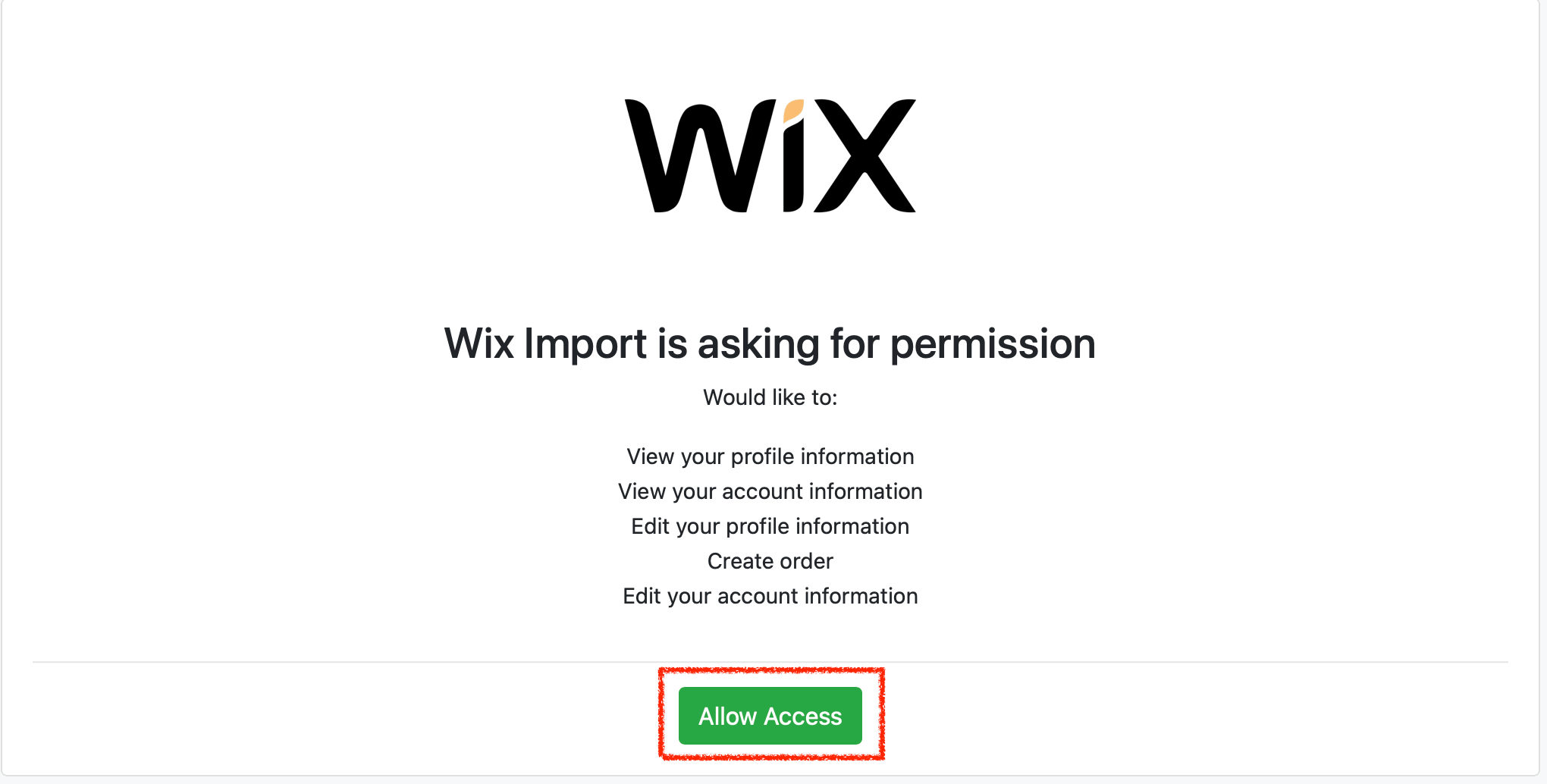
Step 3: Click Allow Access to authorize EasyParcel to access your Wix store data
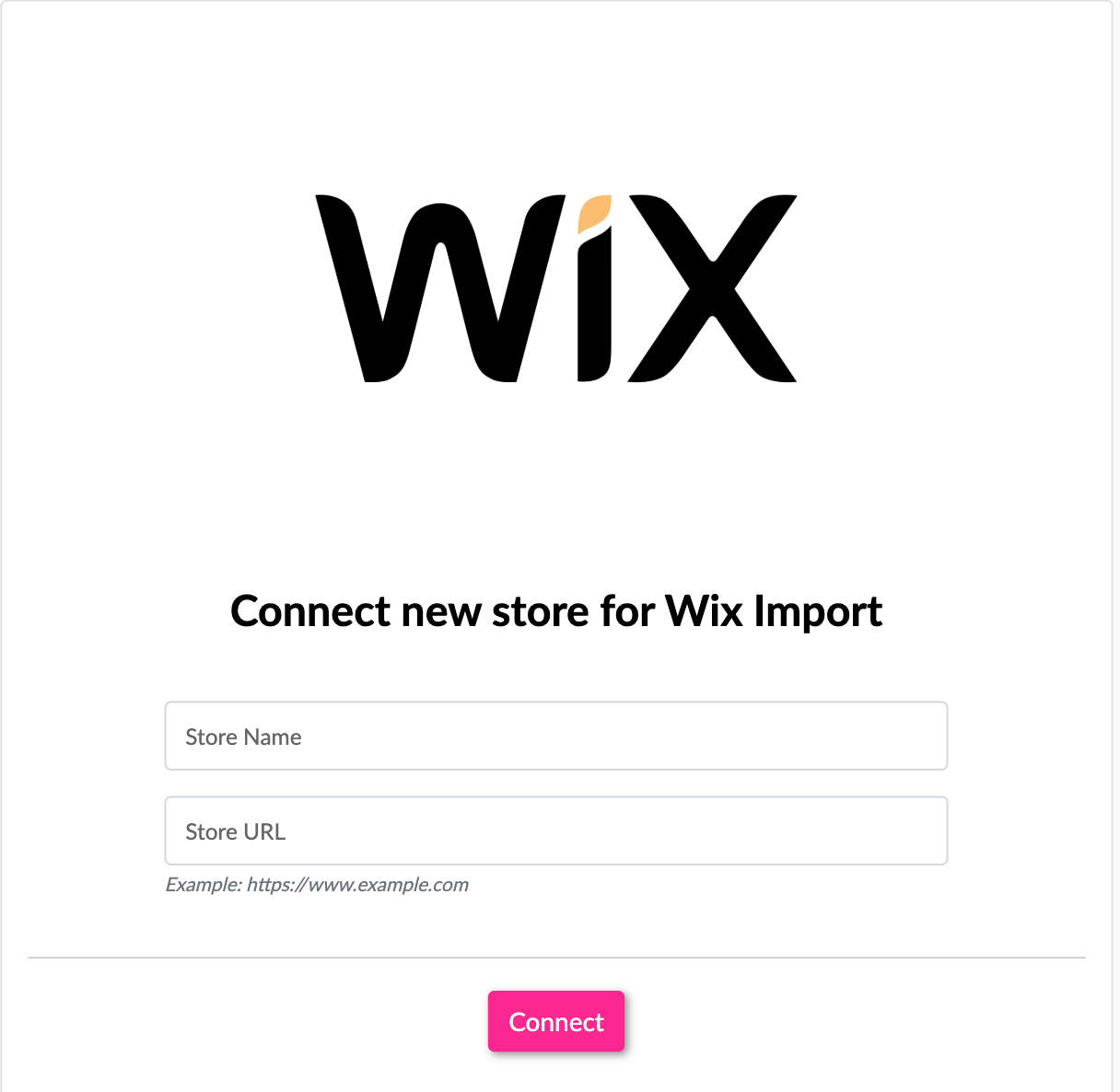
Step 4: Enter your store name and store url, then click Connect
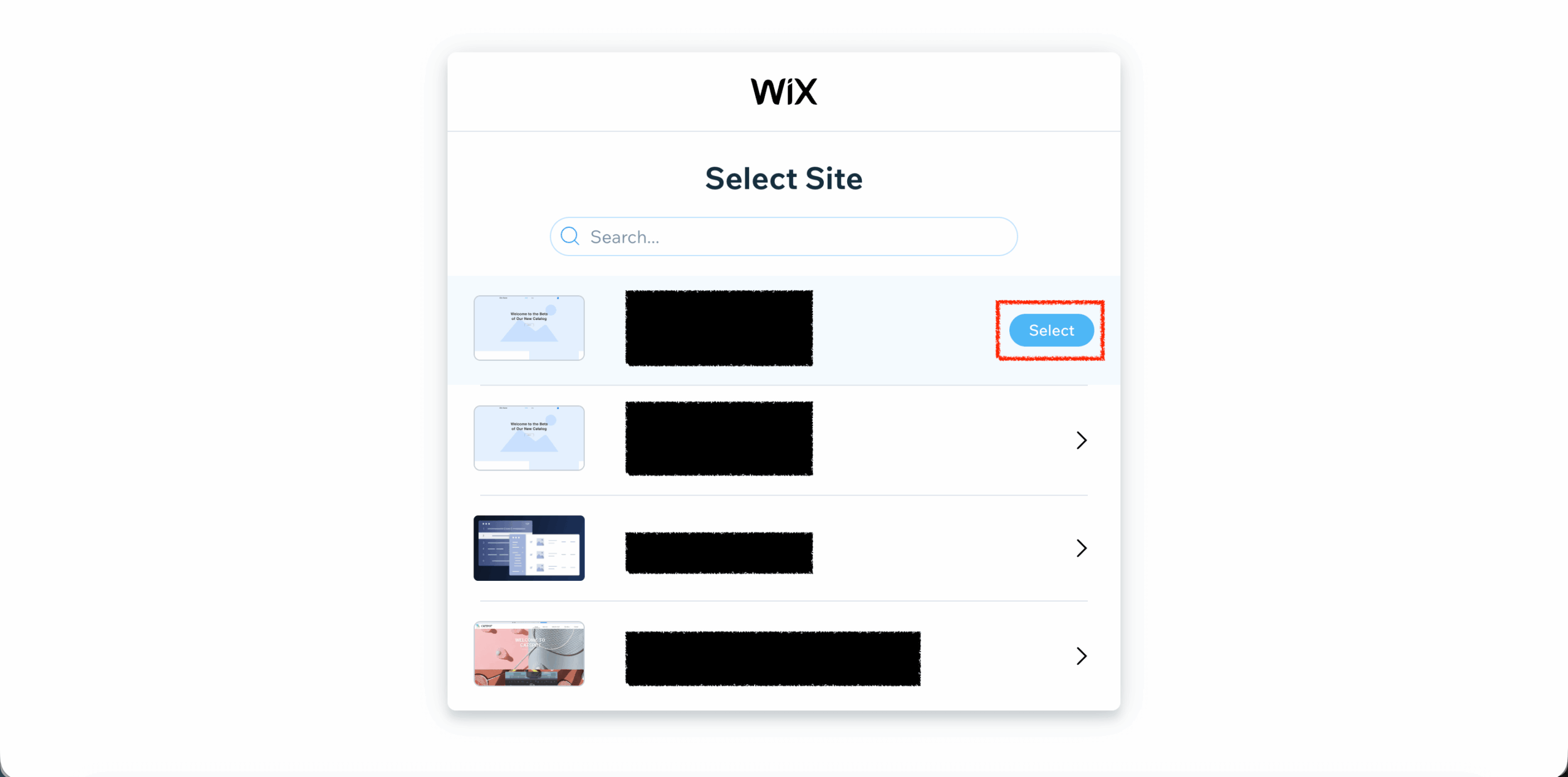
Step 5: You will be redirected to wix to grant app permissions. Select the store you wish to integrate
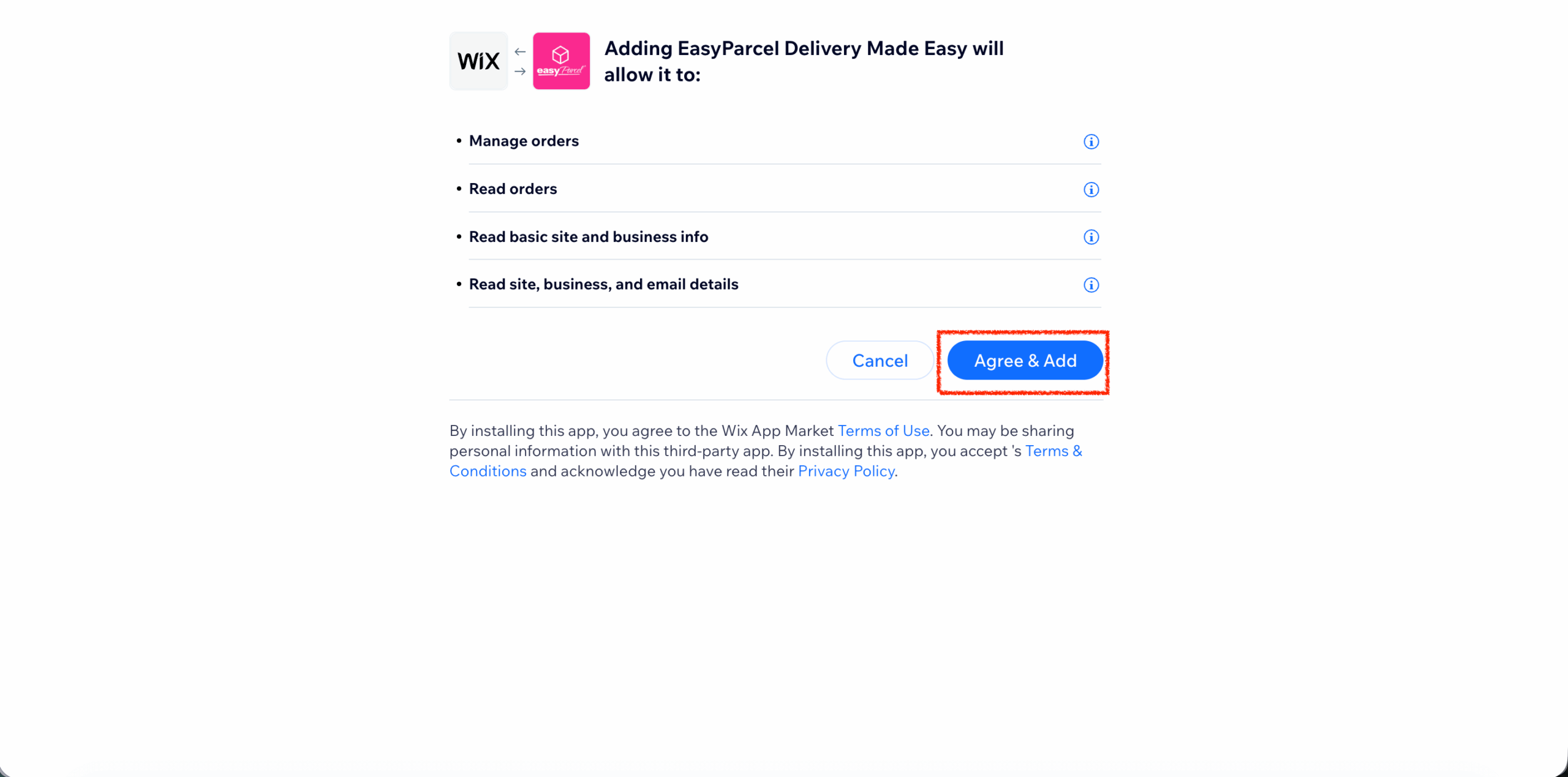
Step 6: Grant the app permission by clicking Agree & Add
Step 7: You will be redirected back to EasyParcel, now the integration is complete
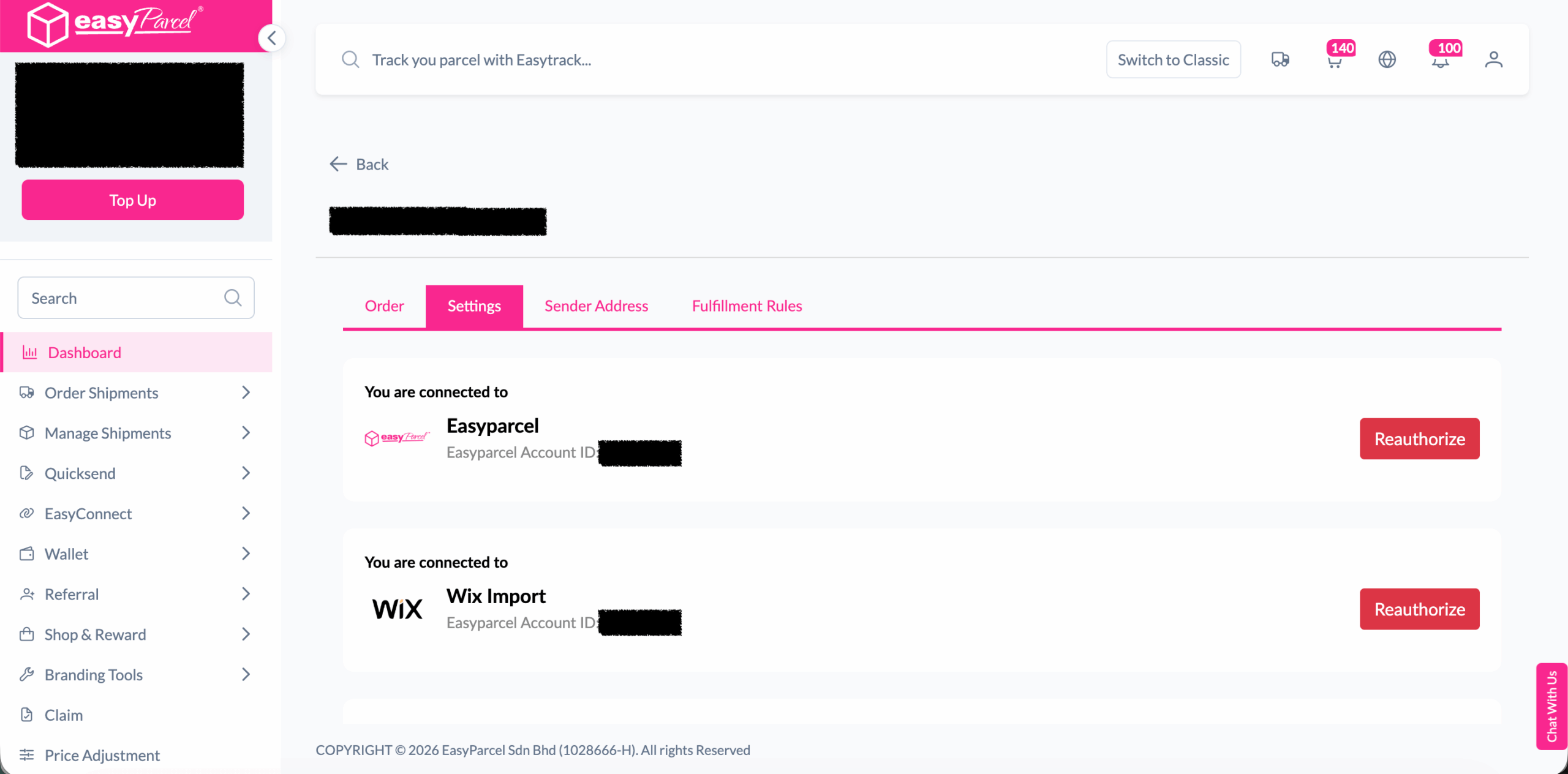


Setup Integrated App

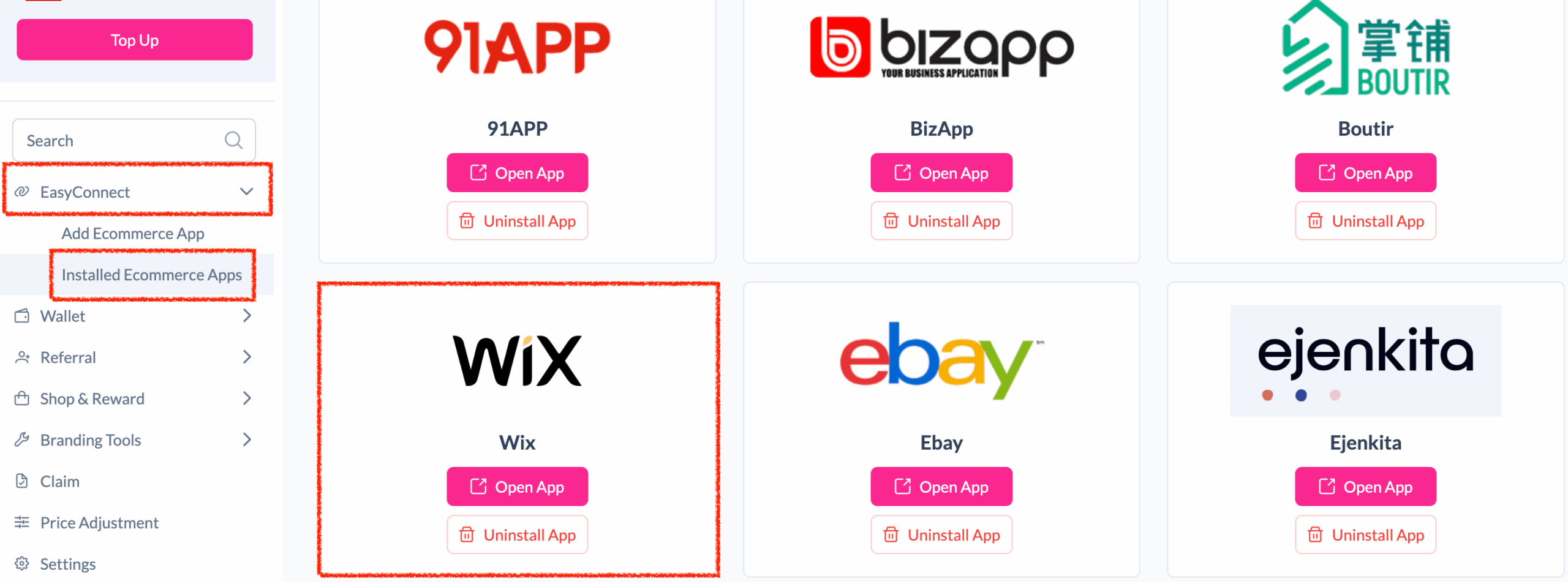
Step 1: Under EasyConnect, click on Installed Ecommerce Apps, find Wix you may find your Wix app successfully install.
Step 2: In the store, click Sender Address and key in your sender details and click on the Update button.
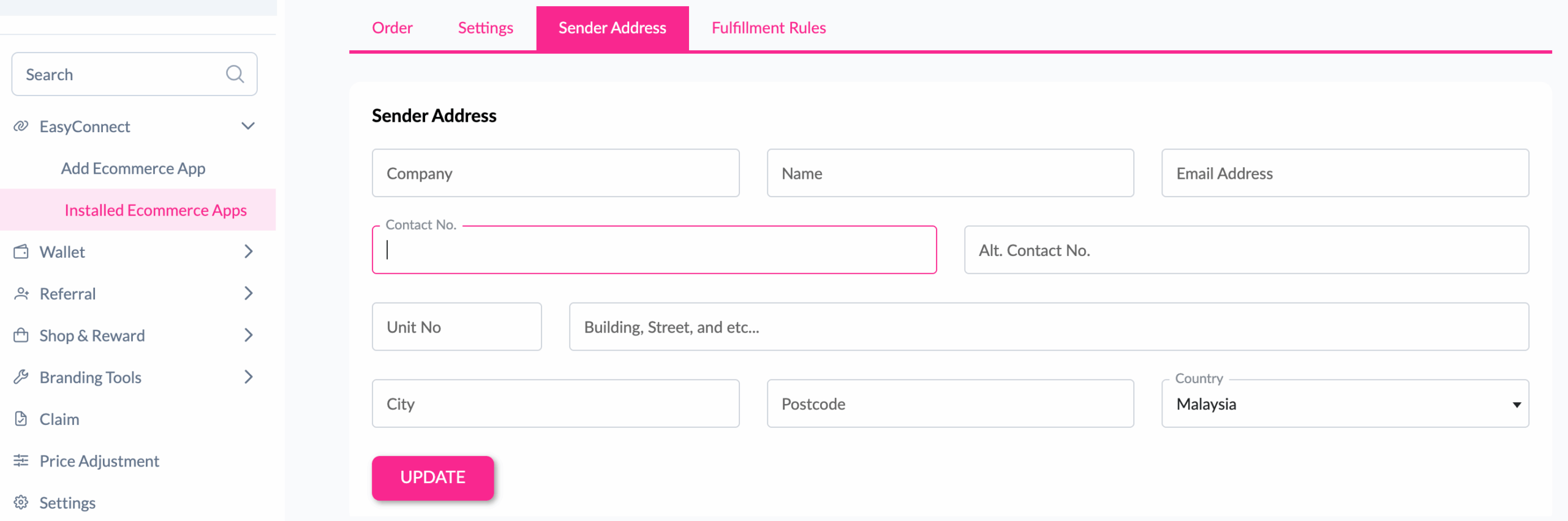
Done ! You have successfully setup Wix app in easyparcel.

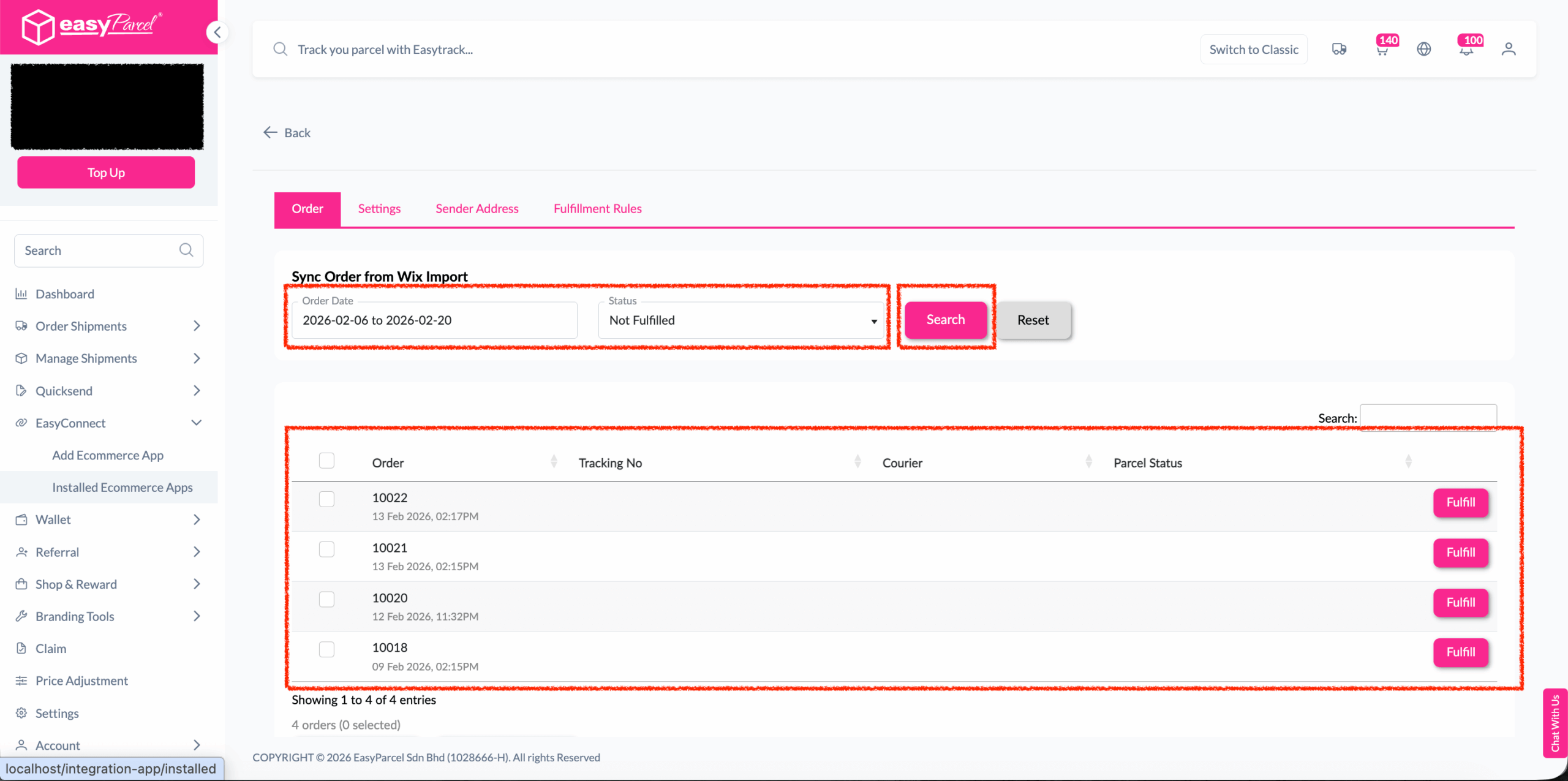
Step 1: Under “EasyConnect”, click on “Installed Ecommerce Apps”, find “Wix” and click on “Open App” button. Click on “Order”, select the order date and order status and click on the “Search” button. The order will be imported and shown in the list below. Then, click the “Fulfill” button on the order you want to fulfill.
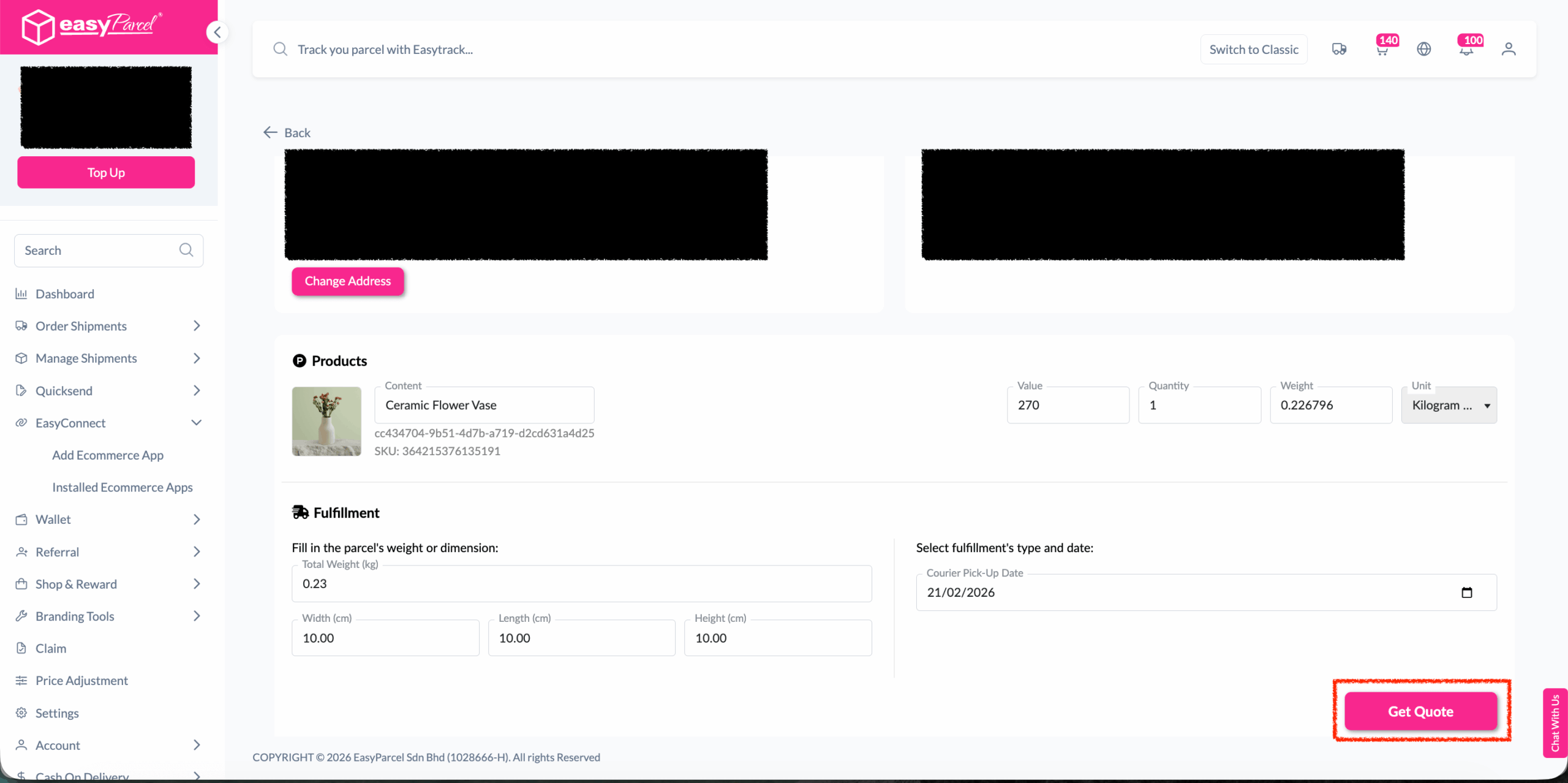
Step 2: After clicking the “Fulfill” button, you can find your order details and click on the “Get Quote” button
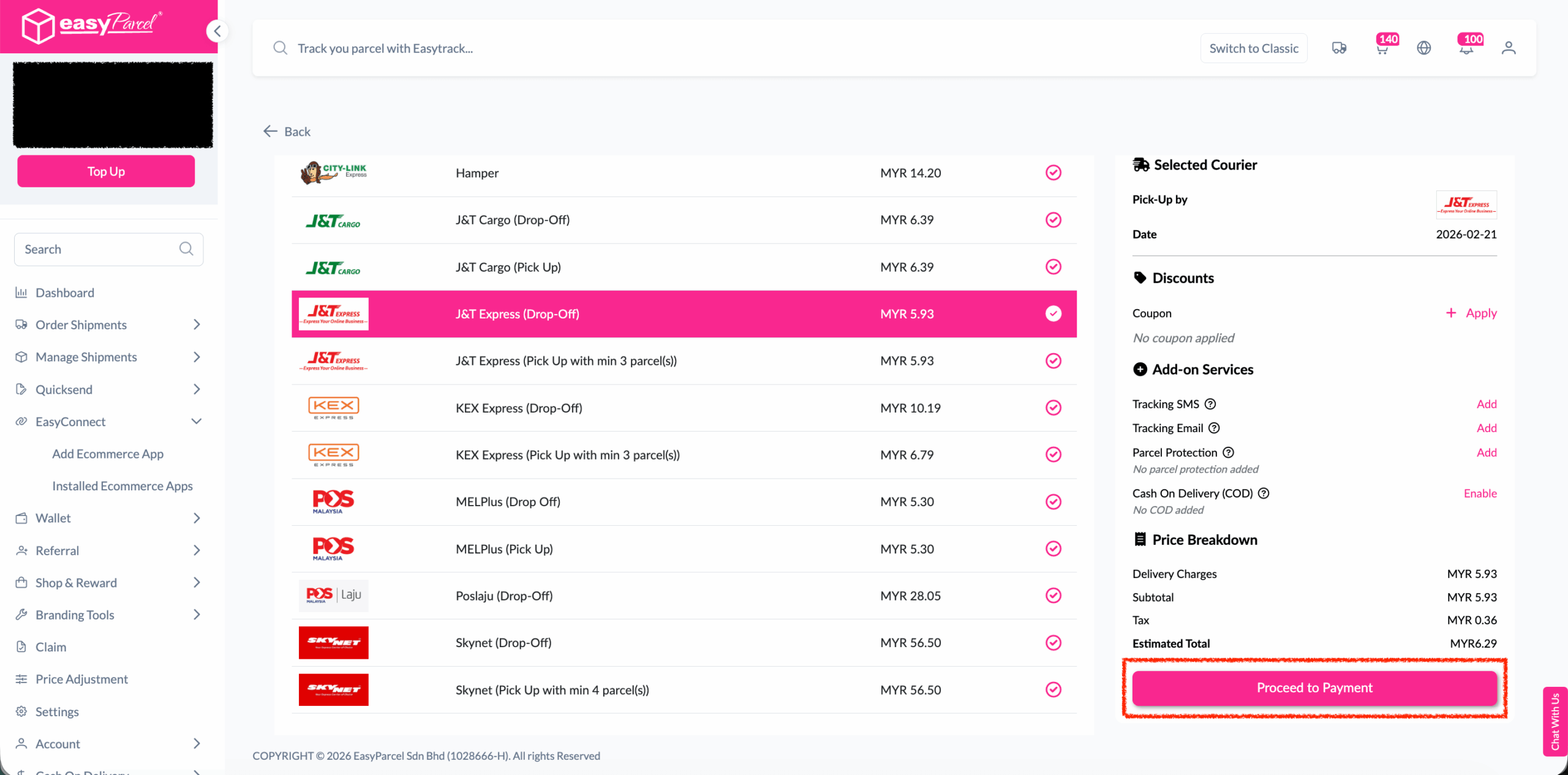
Step 3: Choose the preferred courier option and click on the “Proceed to Payment” button
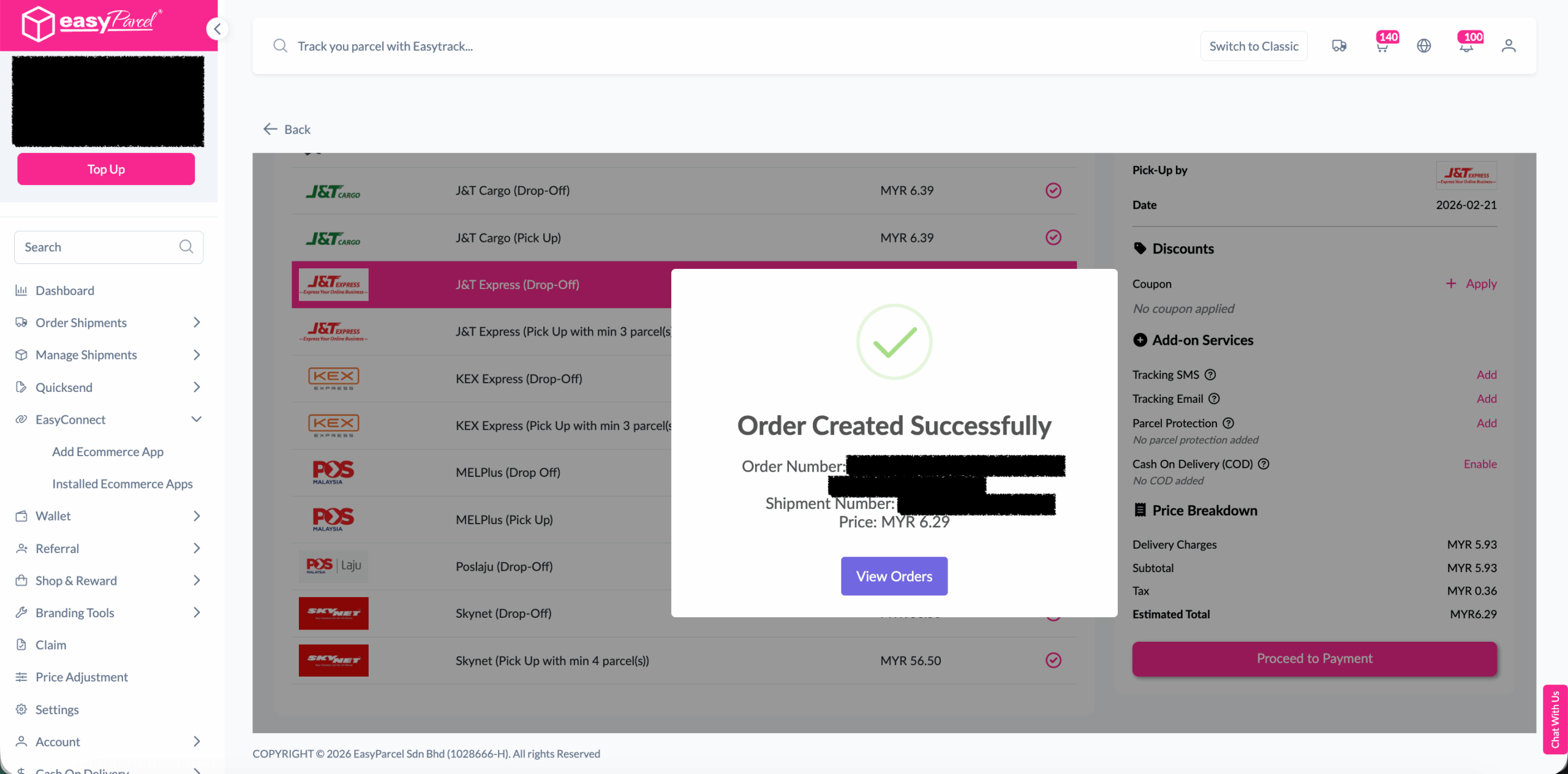
Step 4: The order status, order number, shipment number, and price will be displayed. Click on the “View Orders” button
Step 5: The fulfilled order will now be displayed on the Order Page
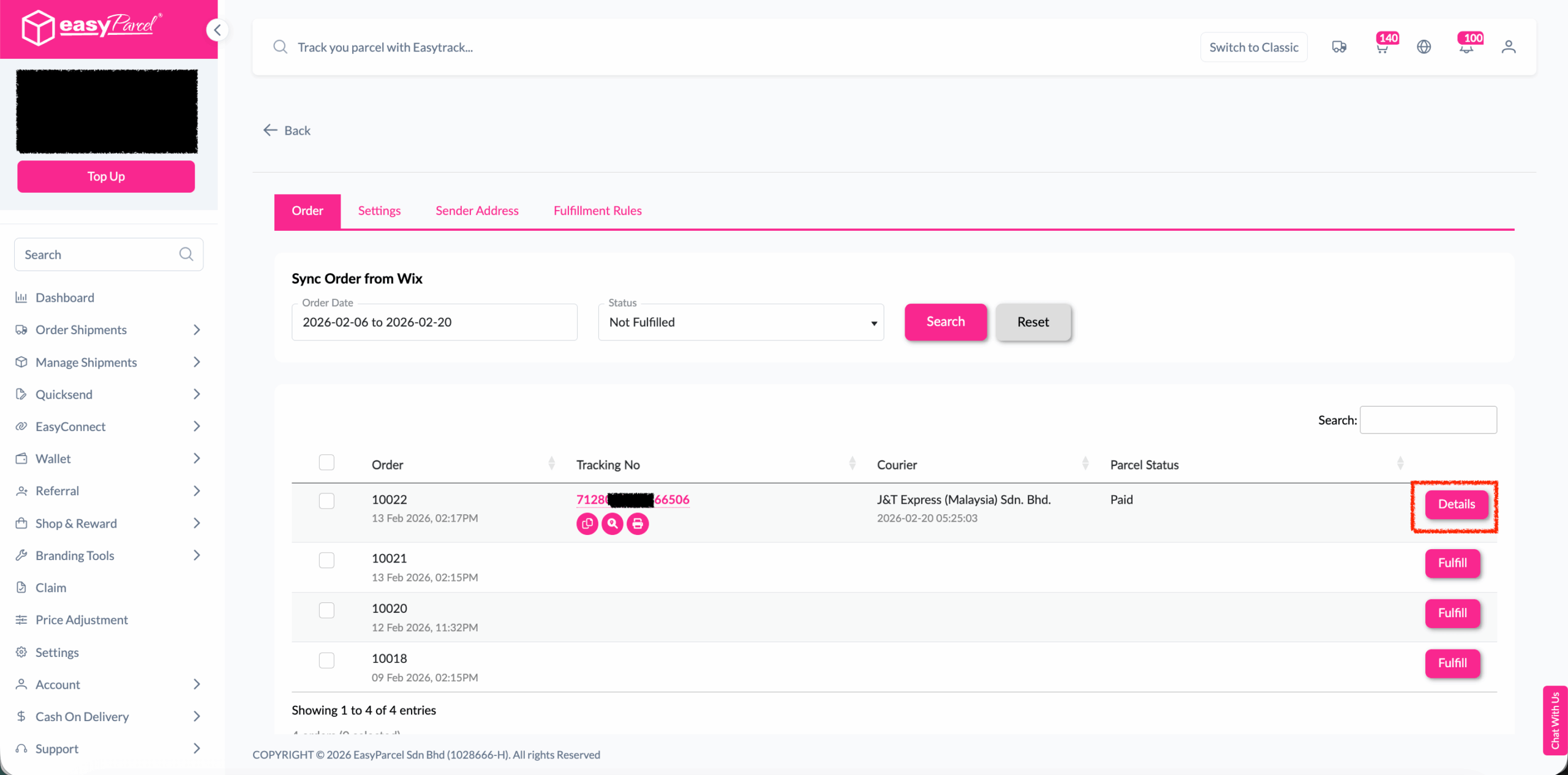
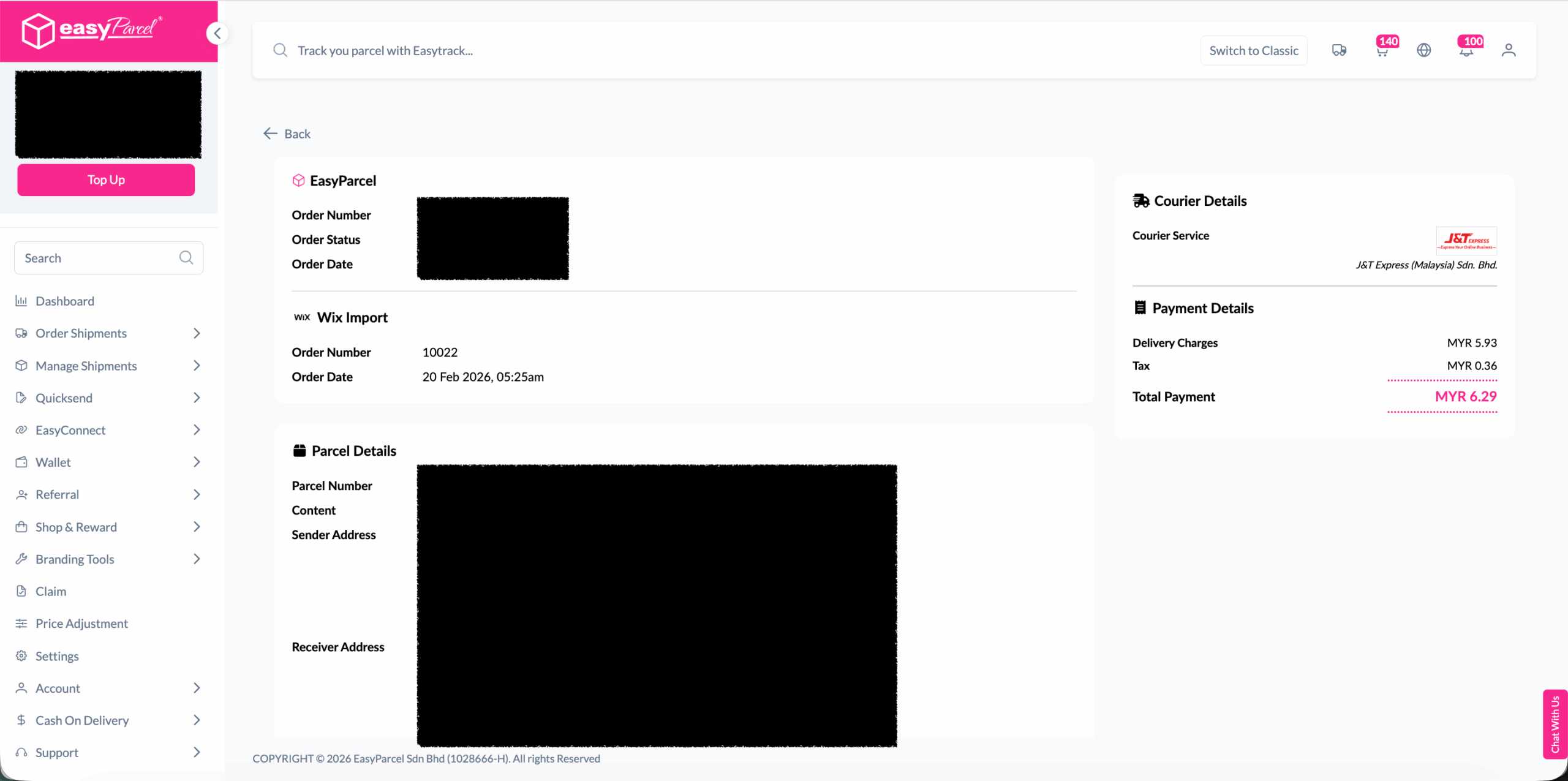
Step 6: Click on the “Details” button. Order details will be displayed on the page
Best Practices For Fulfillment

1. Before Fulfillment
  • Verify inventory availability before confirming fulfillment
  • Check address accuracy to prevent delivery failures
  • Consider delivery timing for time-sensitive orders
  • Review special instructions from customers
2. During Courier Selection
  • Compare multiple options when available
  • Consider delivery speed vs. cost based on customer needs
  • Check service availability for the destination
  • Verify pickup and delivery windows
3. After Fulfillment
  • Print AWB immediately to avoid delays
  • Prepare packages according to courier requirements
  • Schedule pickup if not automatic
  • Monitor tracking for any issues

Get Started Today

With the new Wix integration, managing and shipping your orders has never been easier. Ready to take your WIX store to the next level? Connect your account and start shipping smarter with EasyParcel today!

Haven’t Join EasyParcel?

Shipping newbie? No worries! EasyParcel welcomes you with a sweet FREE RM10 for your first shipment. And that’s just the beginning! Sign up today and join the fun!

×
10.10 Super Rewards Fiesta