Your OpenCart store is running smoothly, orders are coming in, and your business is growing. But with growth comes a familiar challenge: fulfilling all those orders efficiently without spending hours on manual data entry and shipping label generation.
That’s where EasyParcel comes in. Once you’ve integrated your OpenCart store with EasyParcel, fulfilling orders becomes a seamless, automated process. In this blog, we’ll show you exactly how to fulfill your OpenCart orders using EasyParcel—step by step.
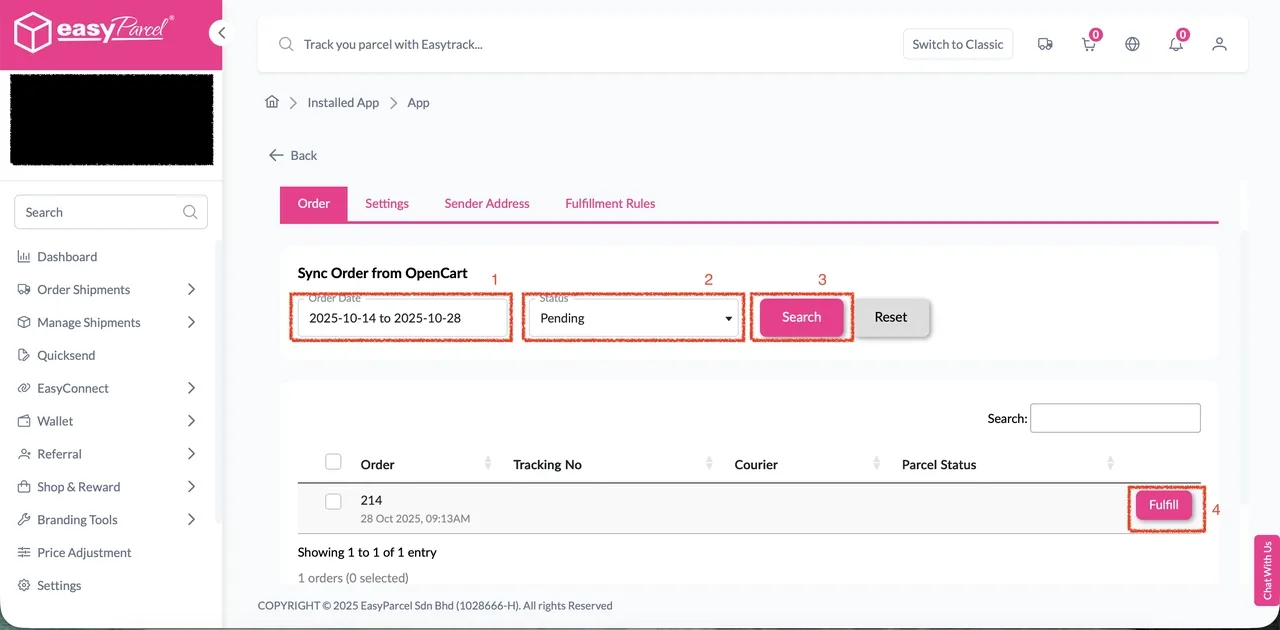
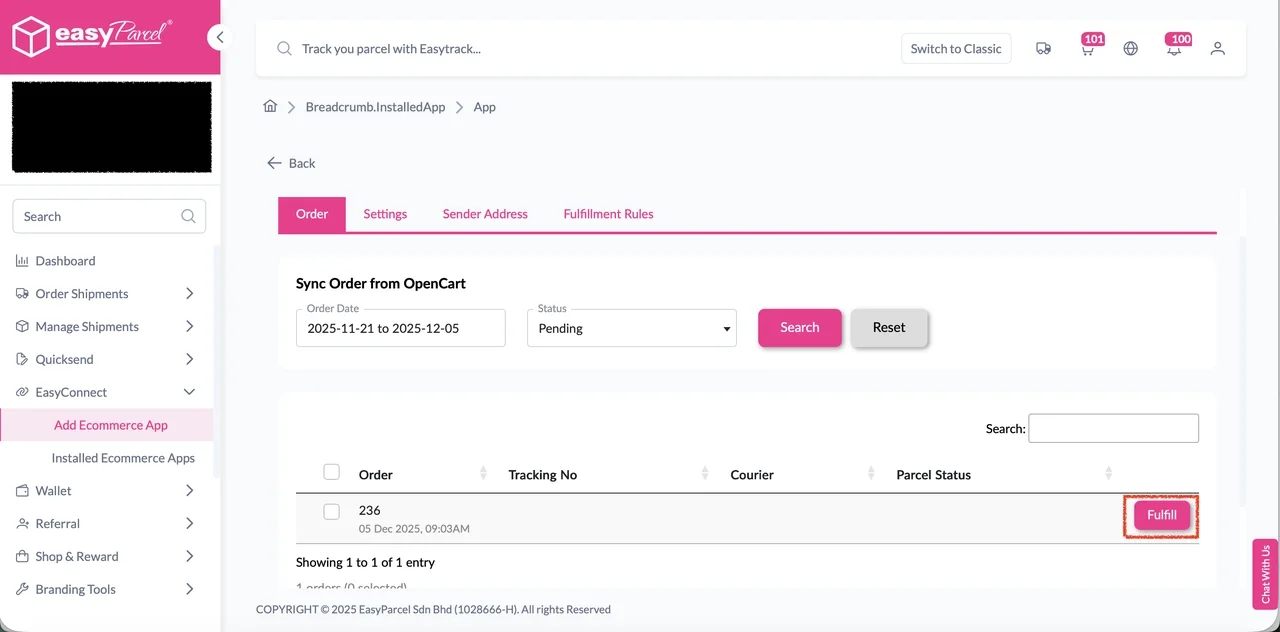
Step 1: Navigate to the Order tab. Select the order date range and order status, then click Search. Click Fulfill on the desired order to open the Order Details page.
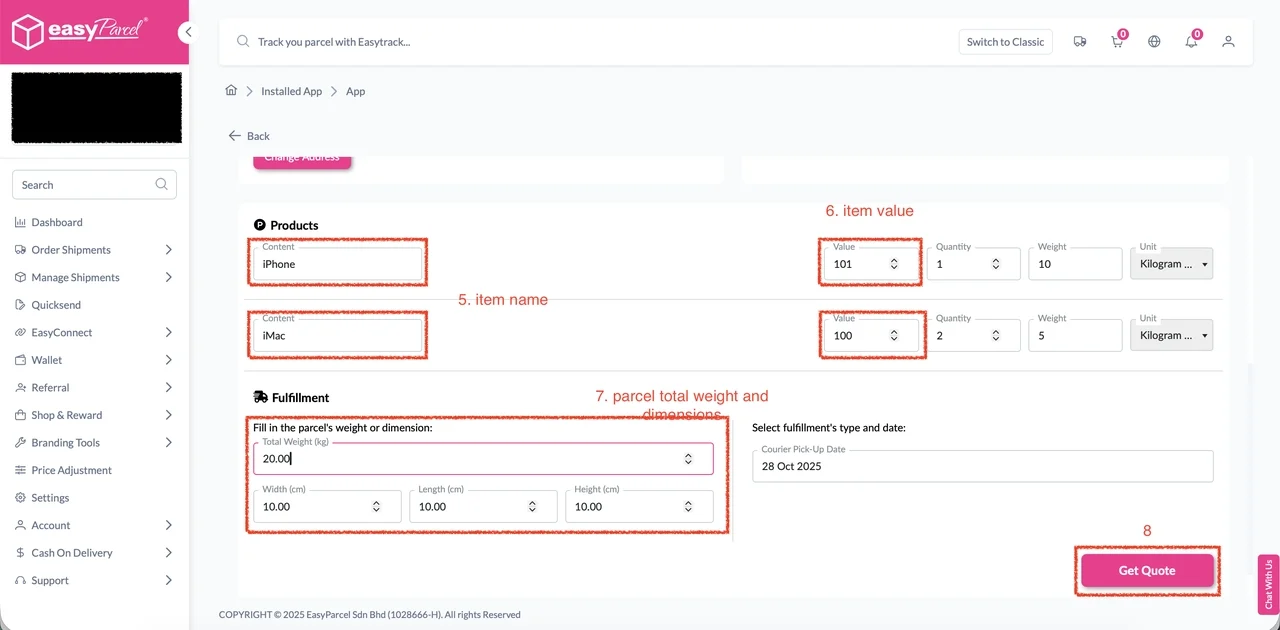
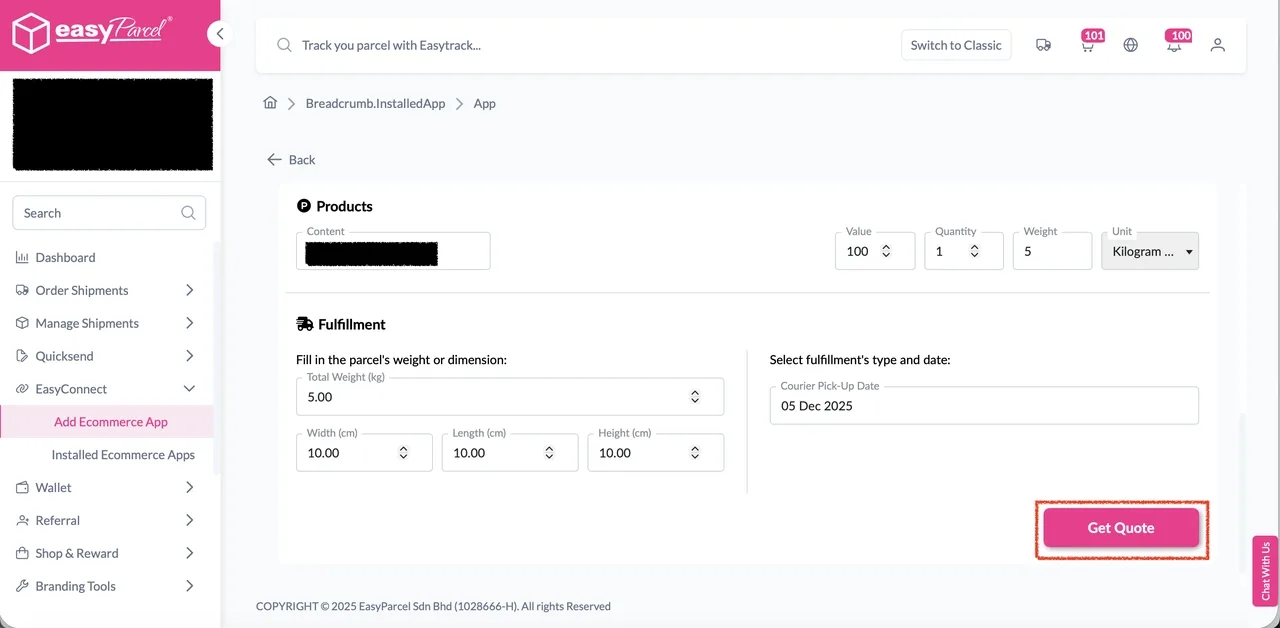
Step 2: Modify item name, item value, total weight, length, width, or height if necessary. Click Get Quote to retrieve courier pricing.
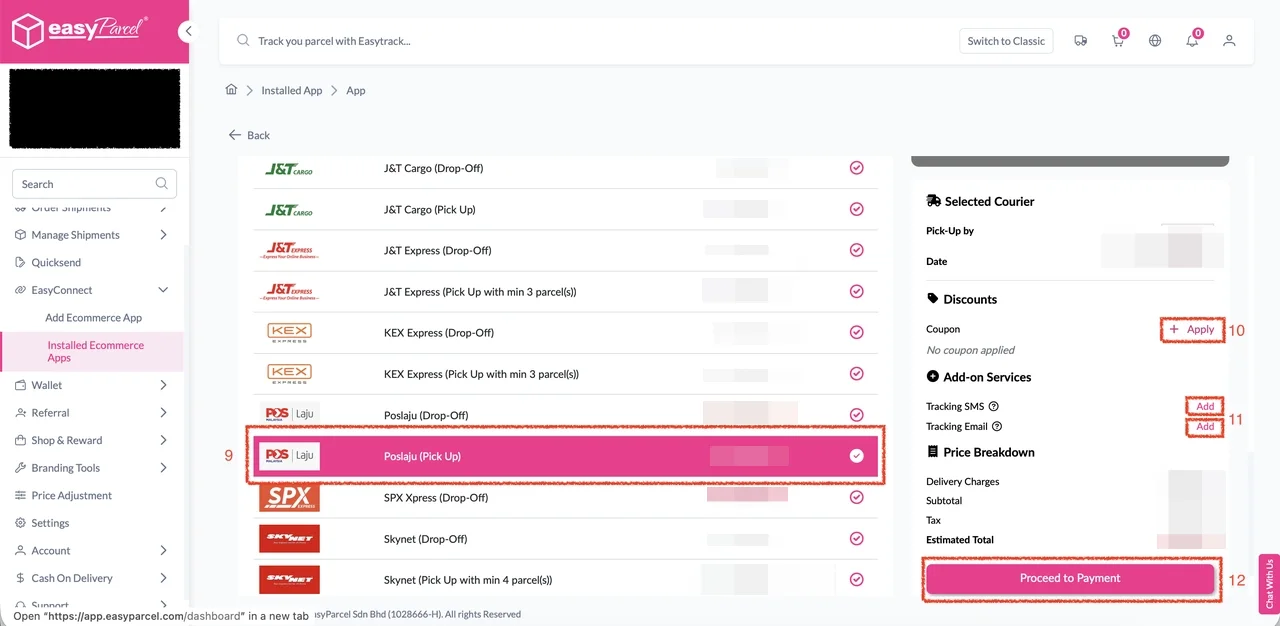
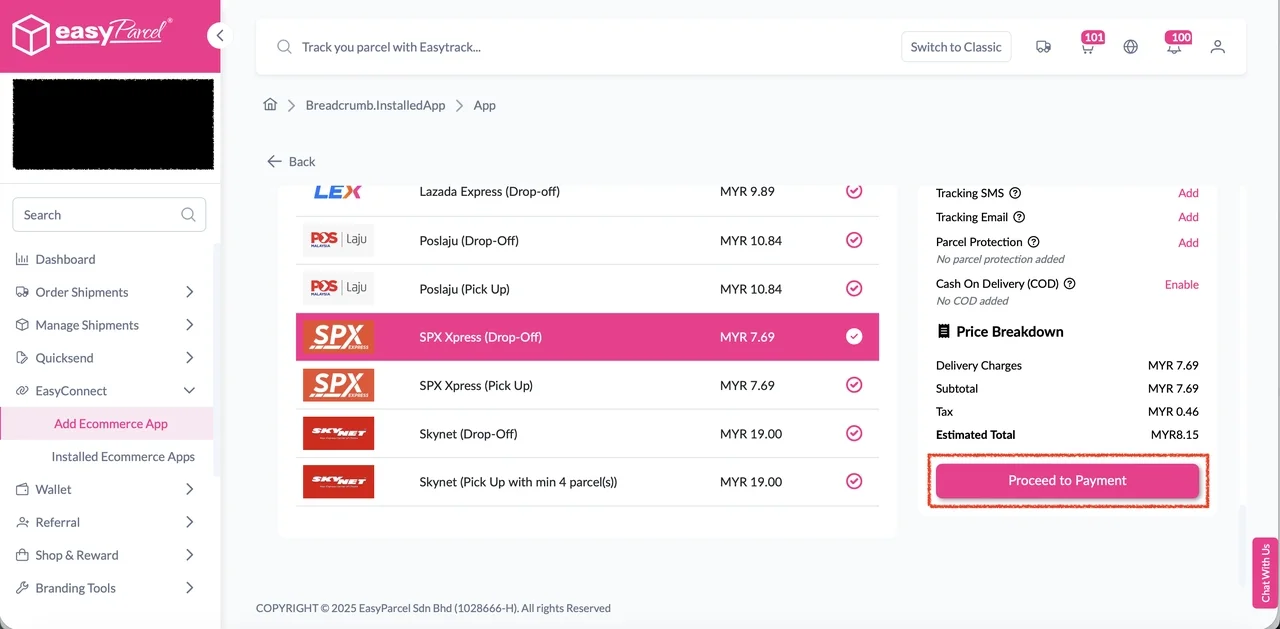
Step 3: Select a courier service from the list. Optionally apply coupons and add-on services. Click Proceed to Payment to finalize.
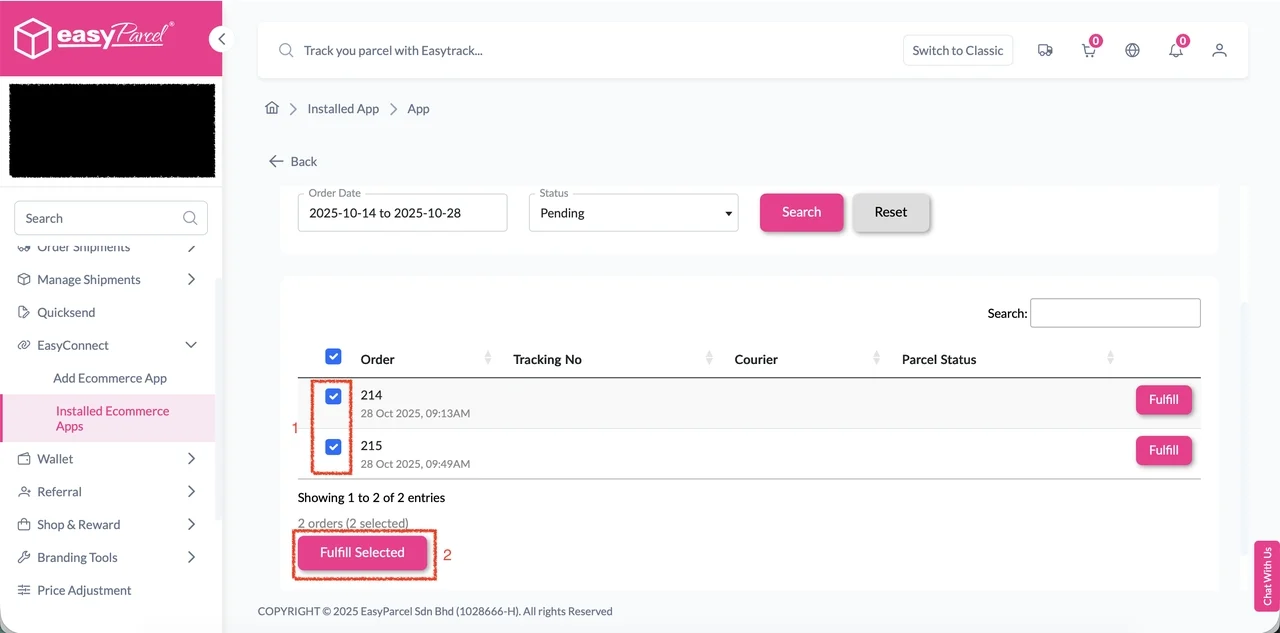
Step 1: In the Order tab, select all orders to be processed together. Click Fulfill Selected.
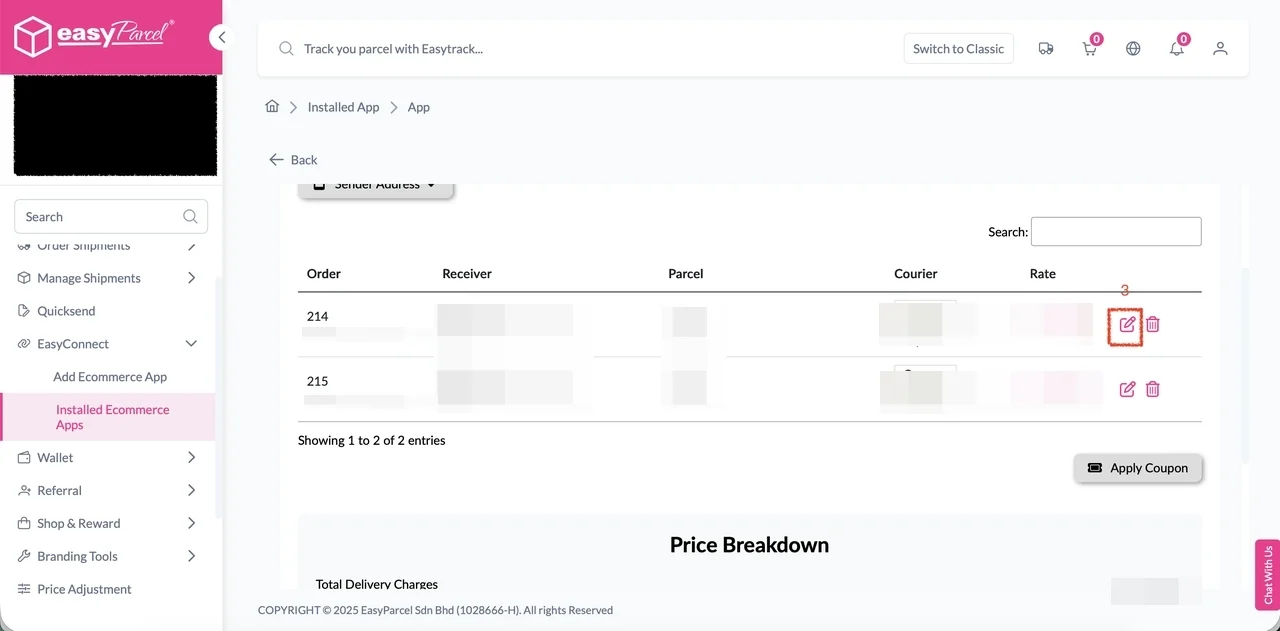
Step 2: The selected orders will appear with their courier services auto-selected. Click the Edit button to view or modify order details.
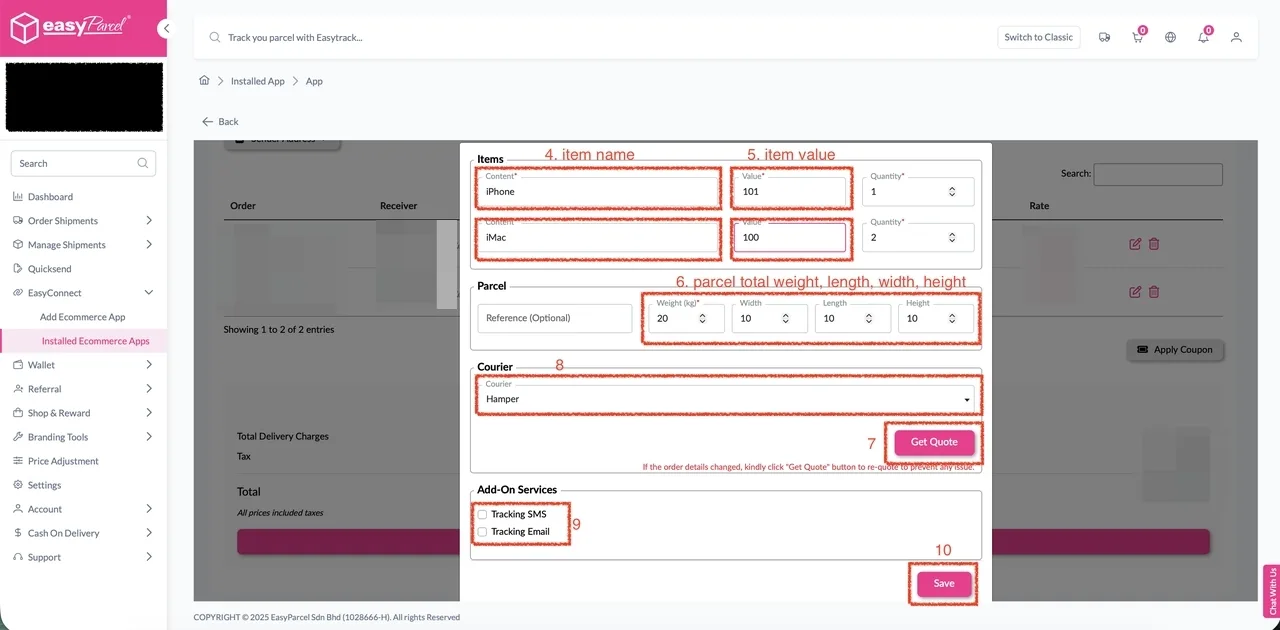
Step 3: Within the form, you can change item name, item value, or parcel dimensions (weight, length, width, height). If changes are made, click Get Quote to refresh courier options. Choose a new courier service if desired and enable add-on services. Click Save to apply changes.
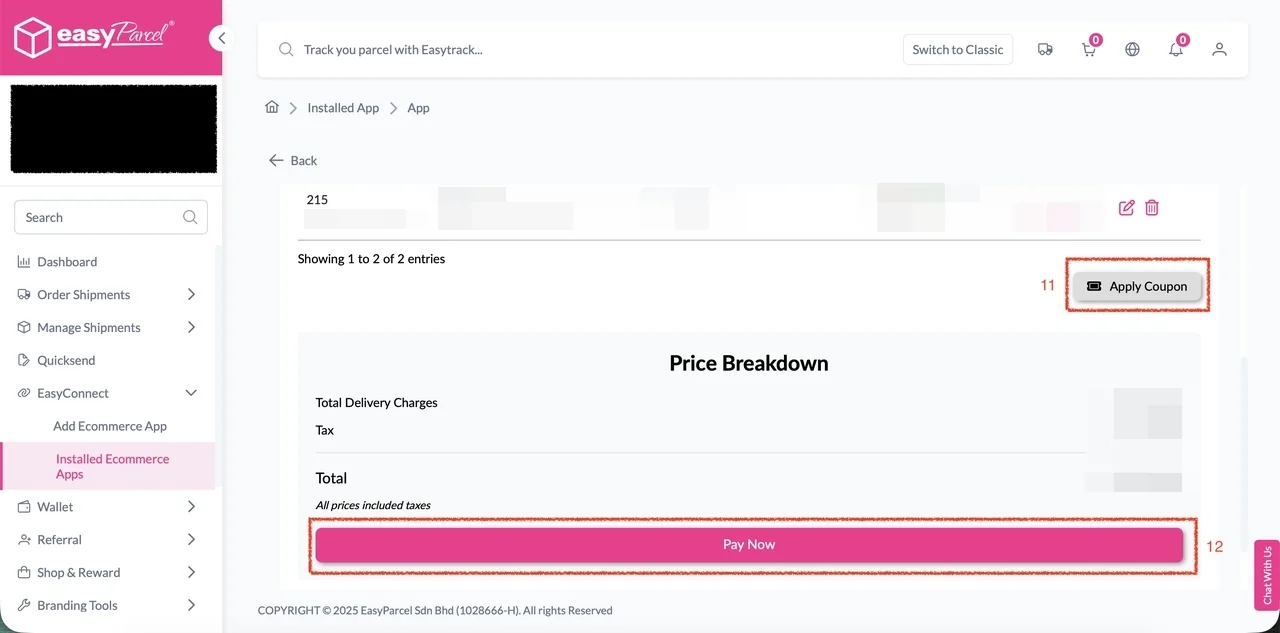
Step 4: (Optional) Click Apply Coupon to include a discount. Once all details are verified and courier service selected, click Pay Now to complete the fulfillment.
How to Enable Auto Update Order Status and Tracking Info After Fulfillment
How to Enable Auto Update
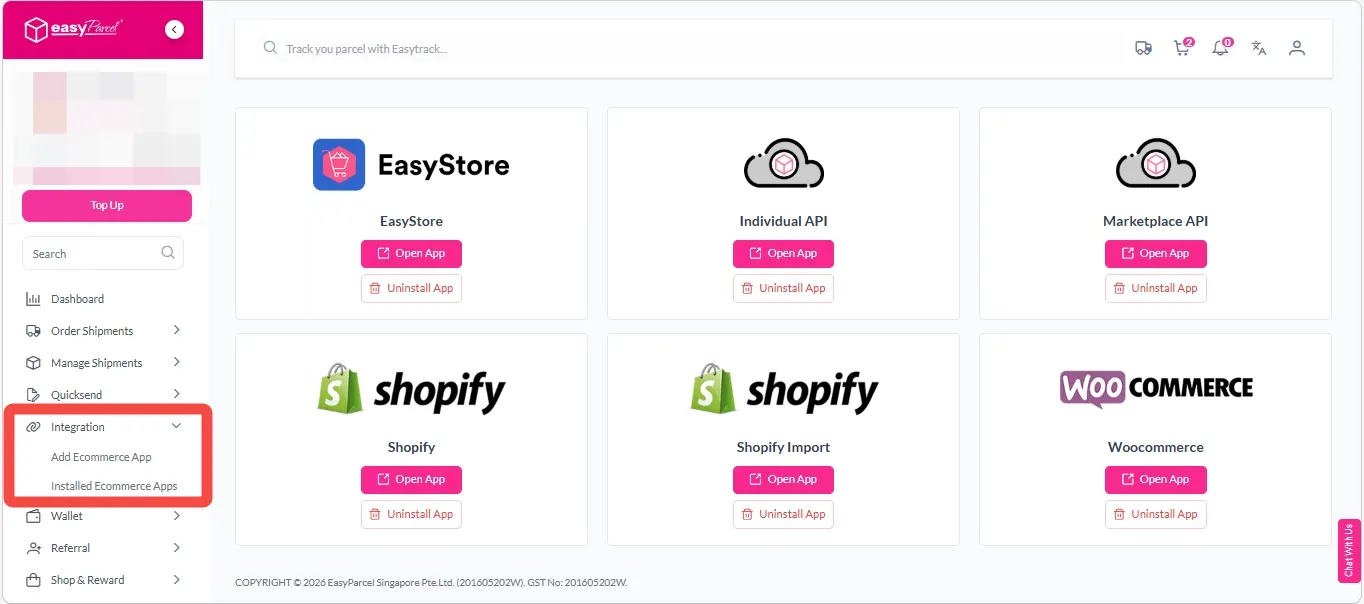
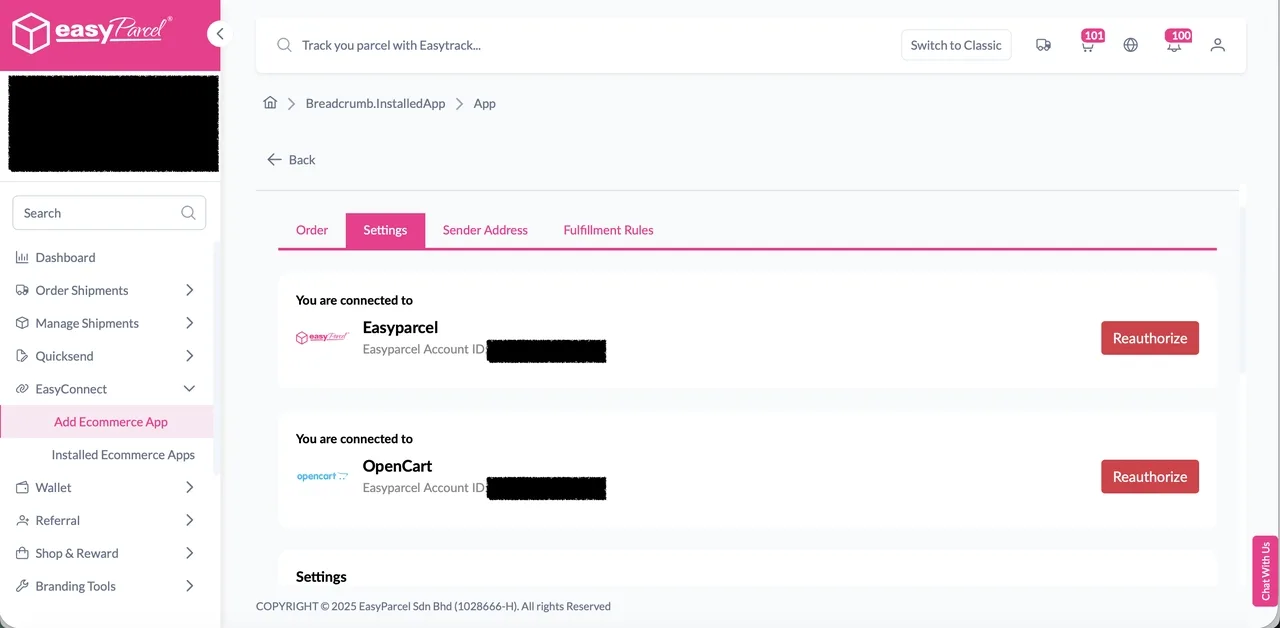
Step 1: Navigate to ‘Integration’ > ‘Installed Ecommerce Apps‘, click ‘Open App’ on OpenCart App.
Step 2: In the Settings tab, scroll down to Settings section.
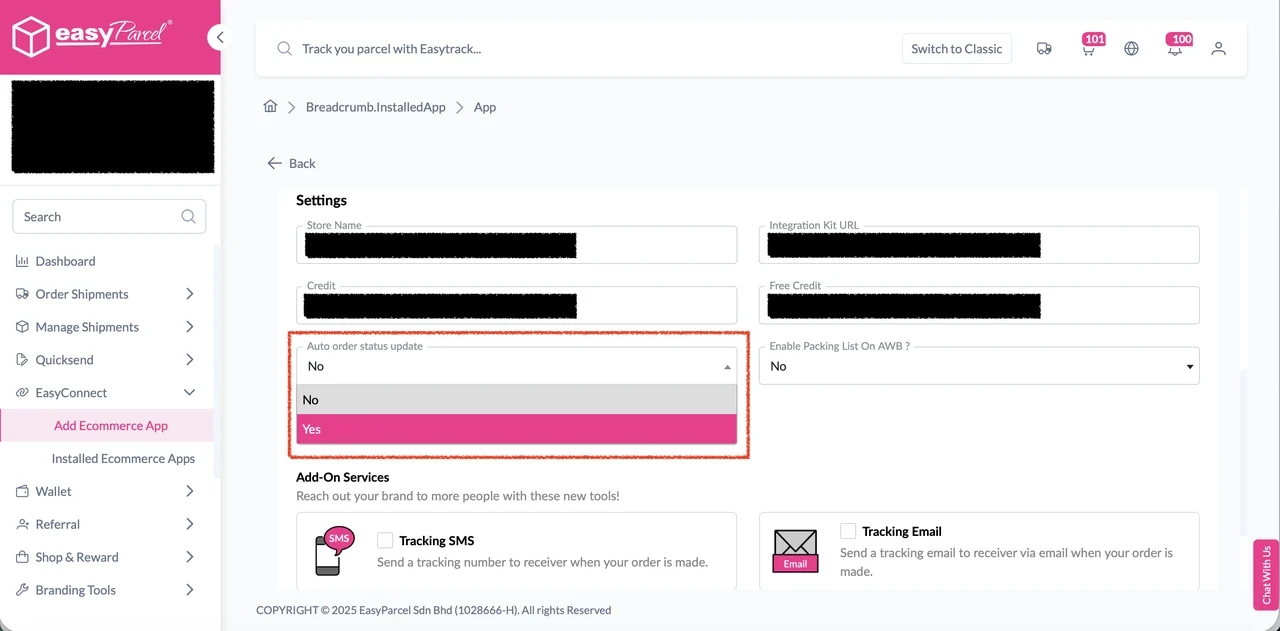
Step 3: Choose ‘Yes’ from the Auto order status update select list.
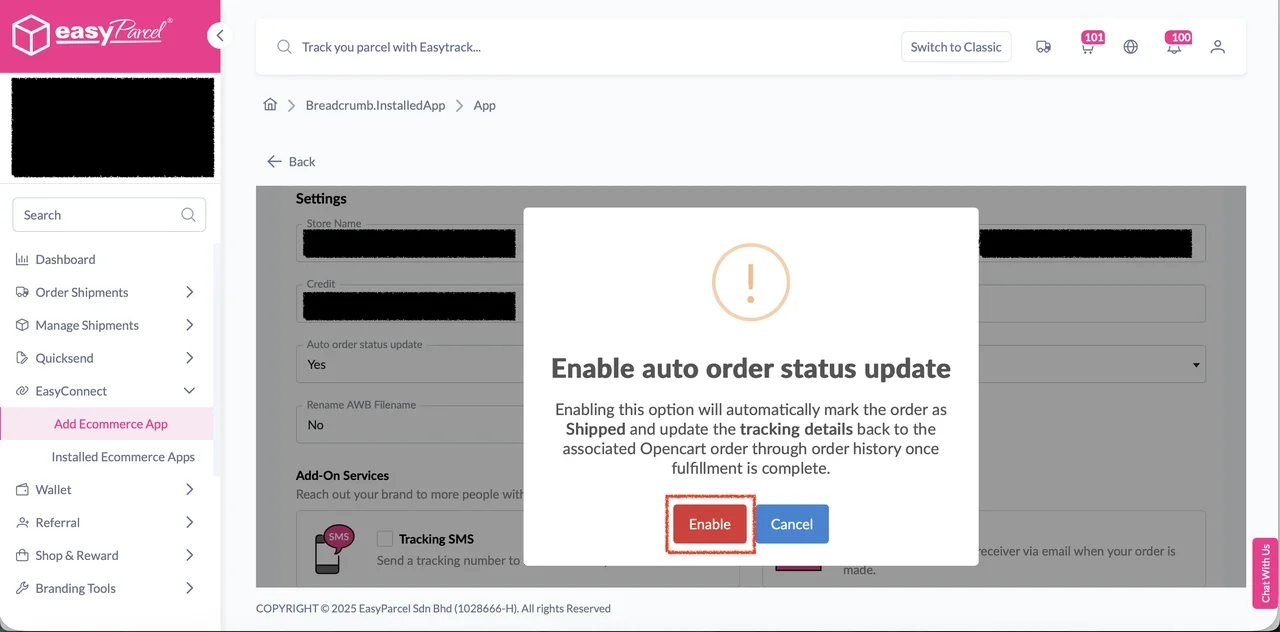
Step 4: A confirmation modal will be displayed. Click ‘Enable’ to enable the setting.
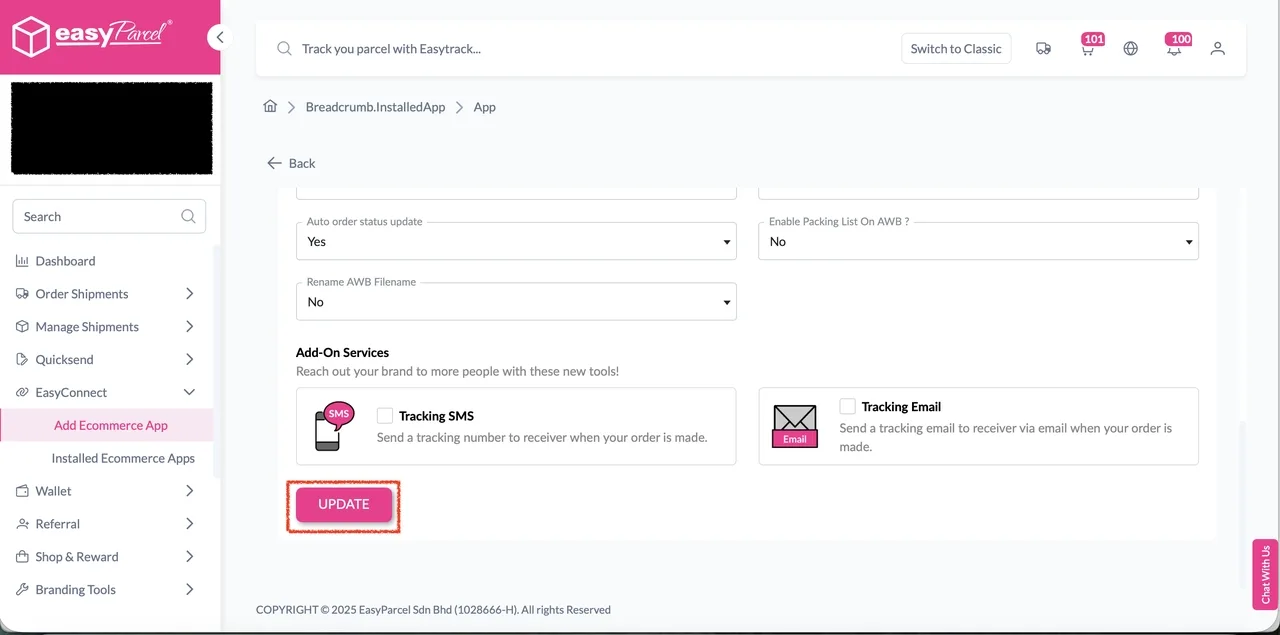
Step 5: Finally, click ‘Update’ to apply the changes.
Opencart Orders Fulfillment
Step 1: Go to the ‘Order’ tab, click the ‘Fulfill’ button on the order you wish to fulfill. You will be redirected to the order details page.
Step 2: On the order details page, ensure product and fulfillment details are correct, then click ‘Get Quote’ to quote list of available courier services for the order selected.
Step 3: A list of courier services will be displayed. Select your preferred courier services, apply coupons or add-on services if any. Then click ‘Proceed to Payment’ to complete the fulfillment.
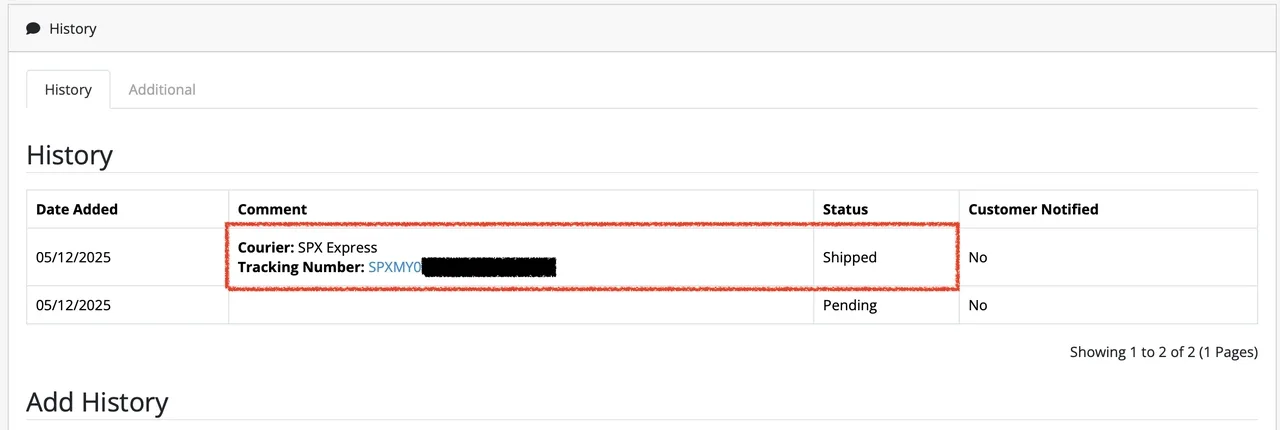
Step 4: After fulfilled successfully, the order status will be changed to Shipped, and the tracking number, URL and courier name will be updated back to the fulfilled order in the OpenCart in the order history
Frequently Asked Question (FAQs)
How does OpenCart EasyParcel fulfillment work?
OpenCart EasyParcel fulfillment allows your OpenCart store orders to be automatically imported into EasyParcel. You can then select orders, choose a courier, generate the airway bill, and arrange pickup or drop-off.
Boost Your Rezeki with up to 500,000 Reward Points + S$2,888 Bonus Credits!
Celebrate the festive season with rewards designed to help your business grow stronger and bigger this Raya! 💚✨ With the Raya Power Boost, when you top up, you’ll earn up to S$2,888 Bonus Credits and 500,000 Reward Points, depending on your top-up amount. Don’t miss out — this exclusive Raya Power Boost runs only until 31st March 2026, 11:59PM!
Create your free account today and receive S$6 shipping coupon to start saving from your very first parcel. Compare courier rates, book in minutes, and start saving immediately.