The Bulk Order feature in EasyParcel Next Gen allows businesses to create and process multiple shipments at once instead of booking one by one. Designed for sellers handling high order volumes, it reduces manual workload, speeds up operations, and improves overall shipping efficiency.
Table of Contents
Benefits of Using EasyParcel Next Gen to Send Bulk Parcels
Increase Flexibility
Upload shipment data using any format — no need to download or follow a rigid template, reducing preparation time and formatting errors.
Increase Effectiveness
Support imports of up to 1,000 orders in a single upload, allowing businesses to process large shipment batches quickly and efficiently.
Steps to Send Bulk Parcels on EasyParcel Next Gen
Step 1: Login EasyParcel Account
Visit EasyParcel official website, and Login EasyParcel account.
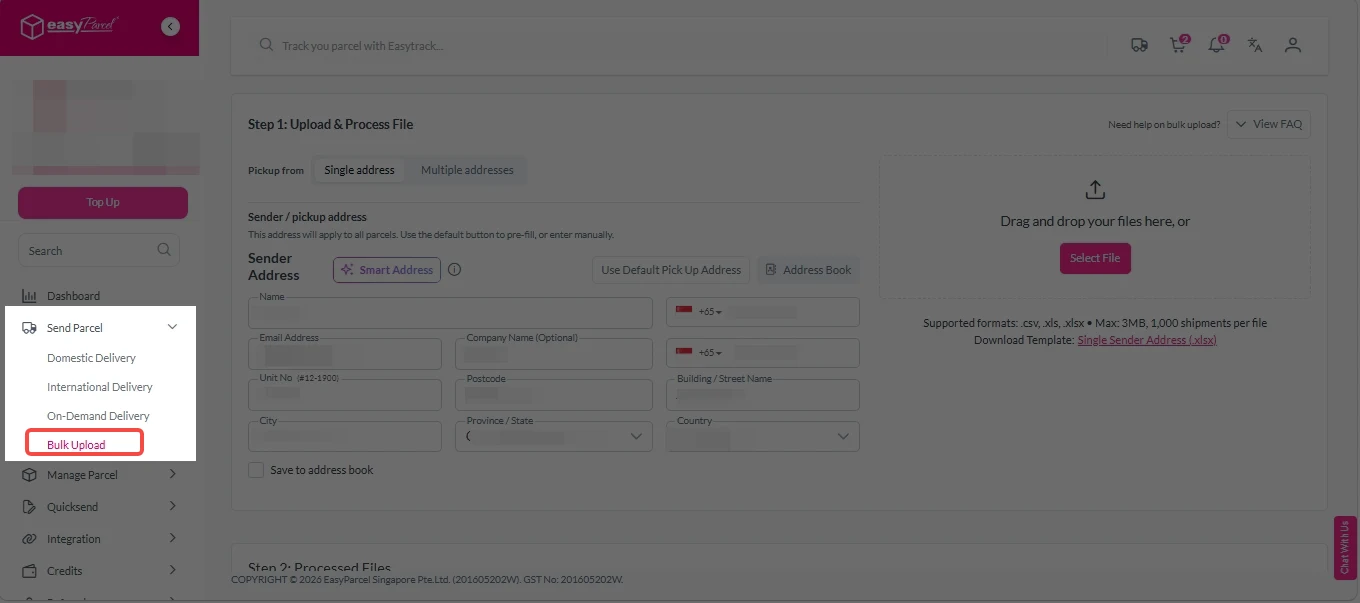
Step 2: Access the "Bulk Import Orders" Feature
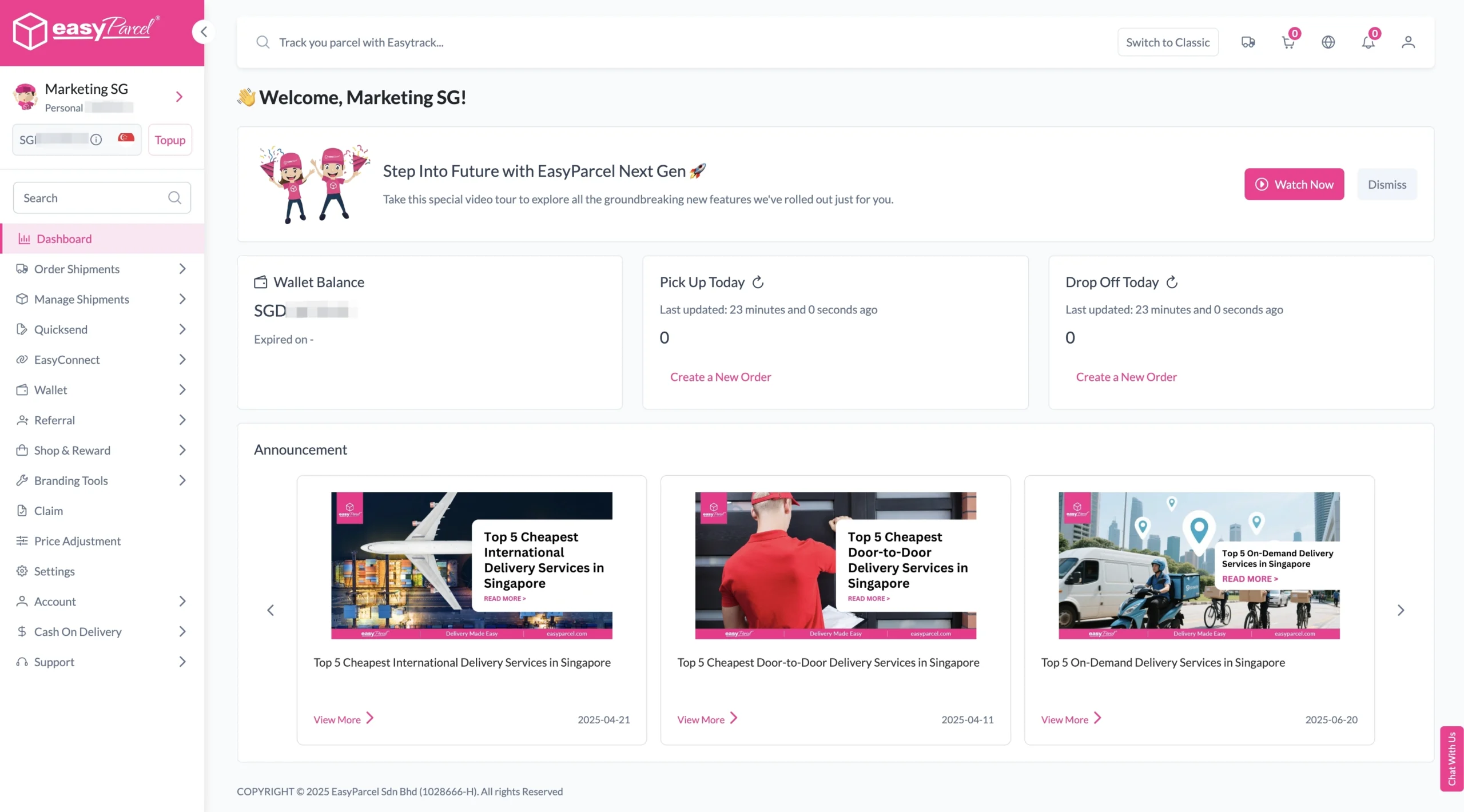
Under “Order Shipments”, click on “Bulk Import Orders“.
Step 3: Import Bulk Orders
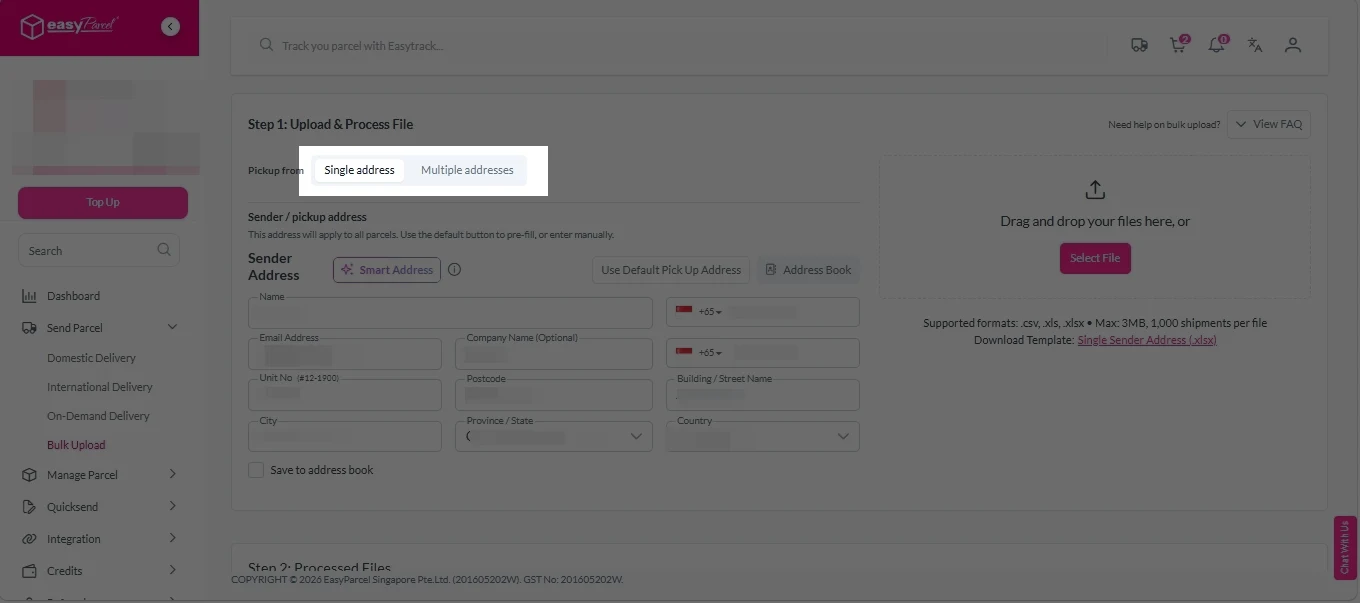
Bulk orders can be imported in two ways — Single Sender (multiple shipments from one sender) or Multiple Sender (shipments from different senders in one upload), giving businesses full operational flexibility.
With Smart Upload, EasyParcel automatically reads your uploaded file and fills in all shipment details, so there’s no manual entry needed.
For eCommerce Platform Integration
EasyParcel provide integration with eCommerce platforms such as Shopify and WooCommerce. Once a customer places an order, the integration supports automatic order fulfillment, streamlining your shipping process.
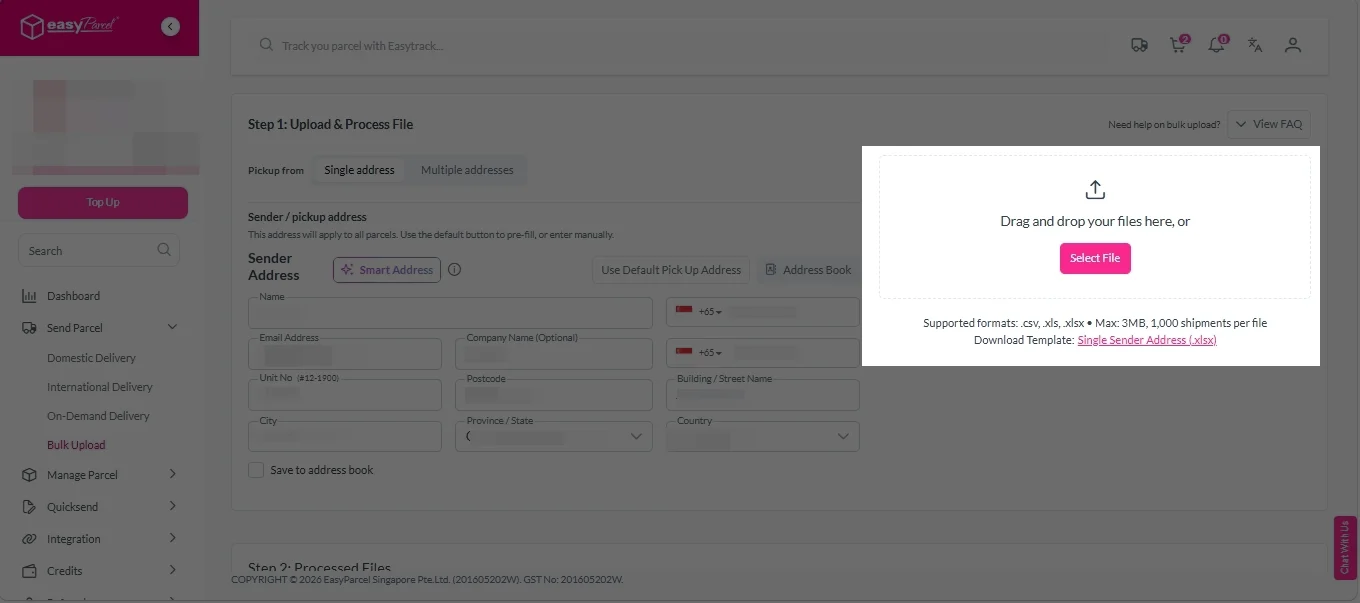
If Single Sender
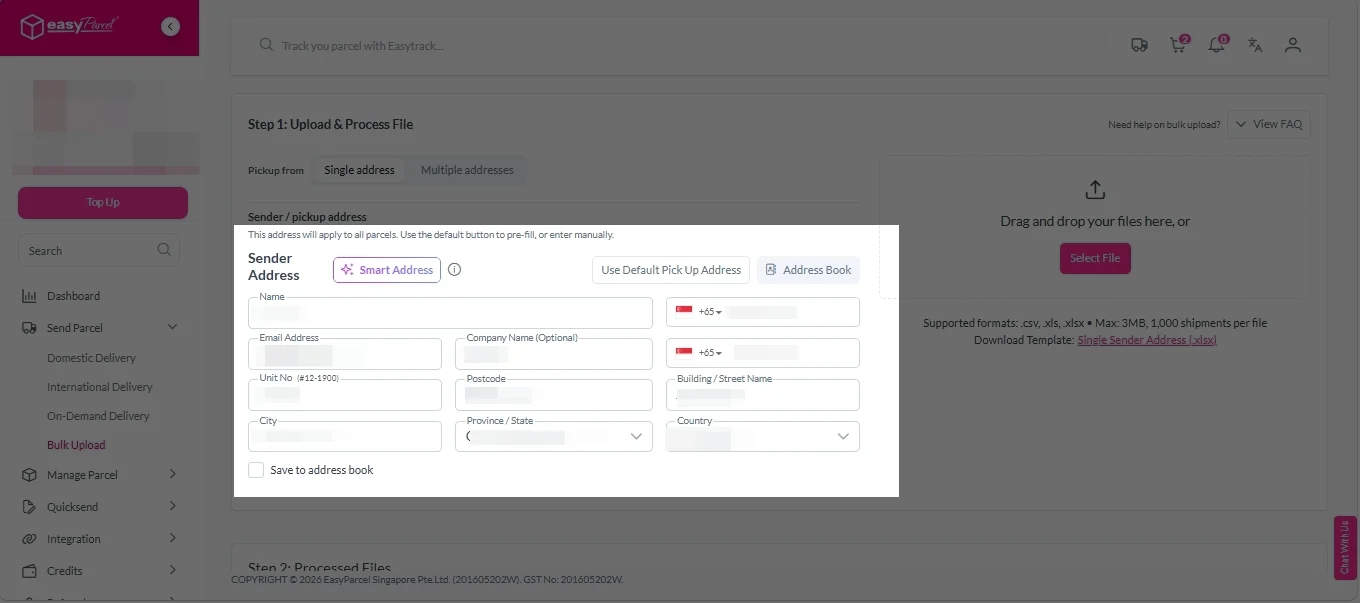
If Single Sender:
1. Click on “Single Sender” tab.
2. Enter sender address.
3. Click “Upload” to import your bulk orders into the system.
4. EasyParcel Next Gen will automatically read and display your shipment data.
You can review all imported orders before proceeding — ensuring accuracy for each parcel’s details.
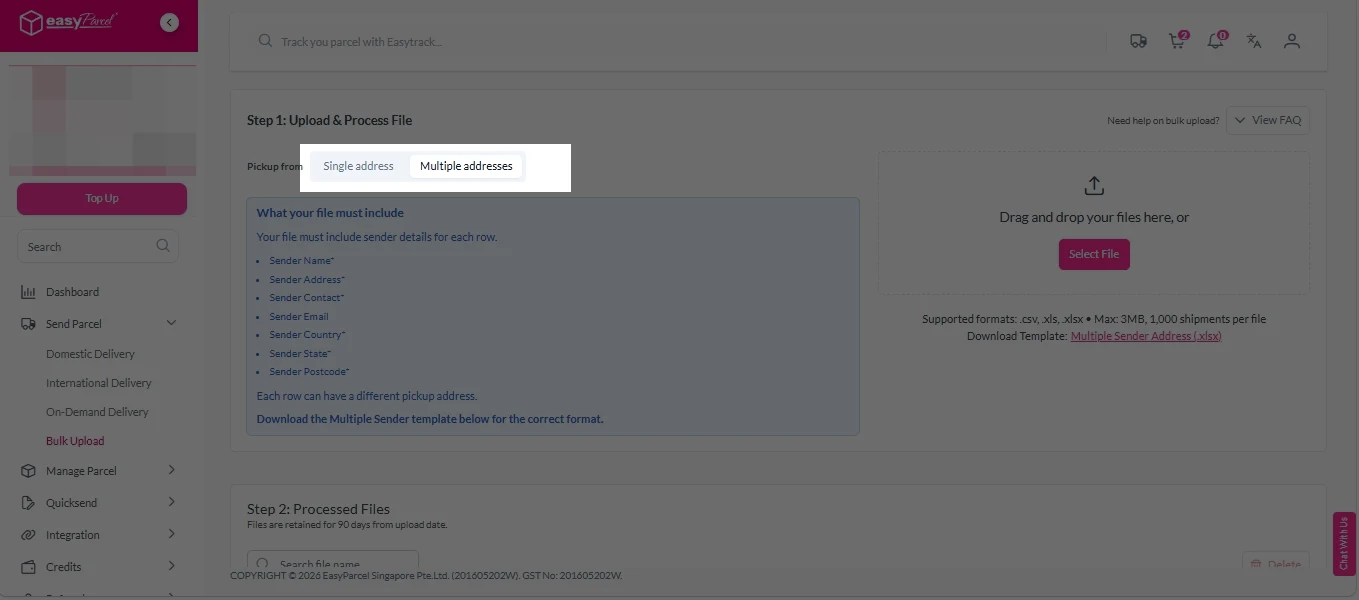
If Multiple Sender
If Multiple Sender:
1. Click on “Mutiple Sender”tab.
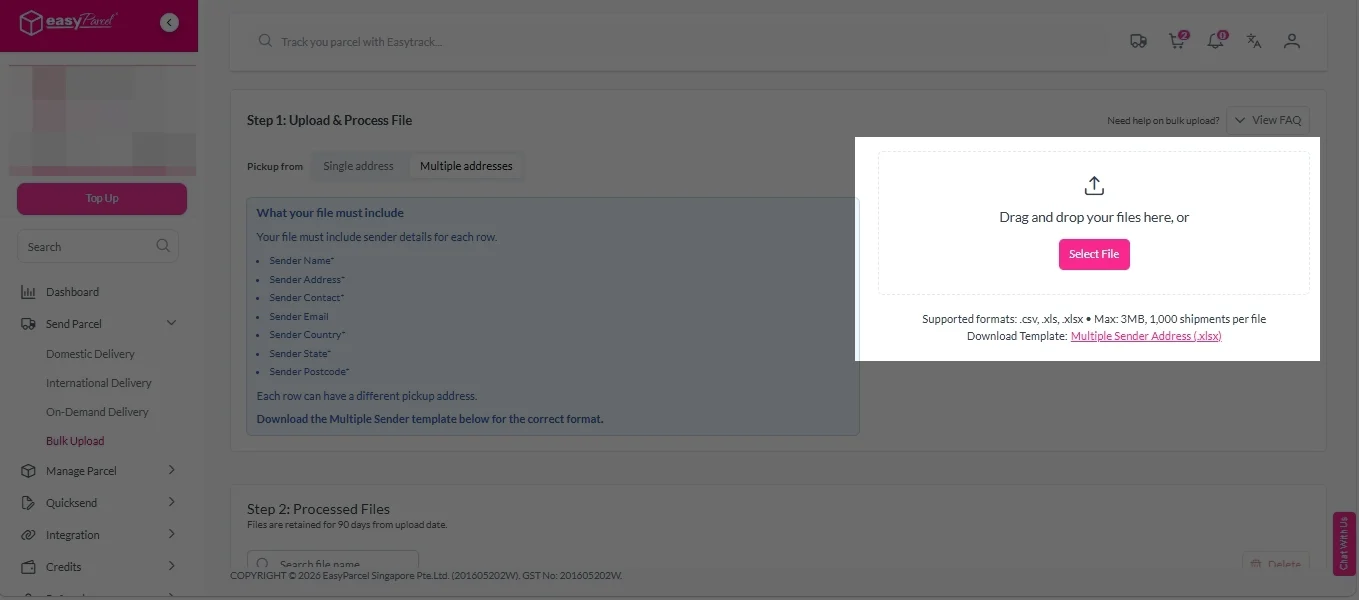
2. Click “Upload” to import your bulk orders into the system.
3. EasyParcel Next Gen will automatically read and display your shipment data.
You can review all imported orders before proceeding — ensuring accuracy for each parcel’s details.
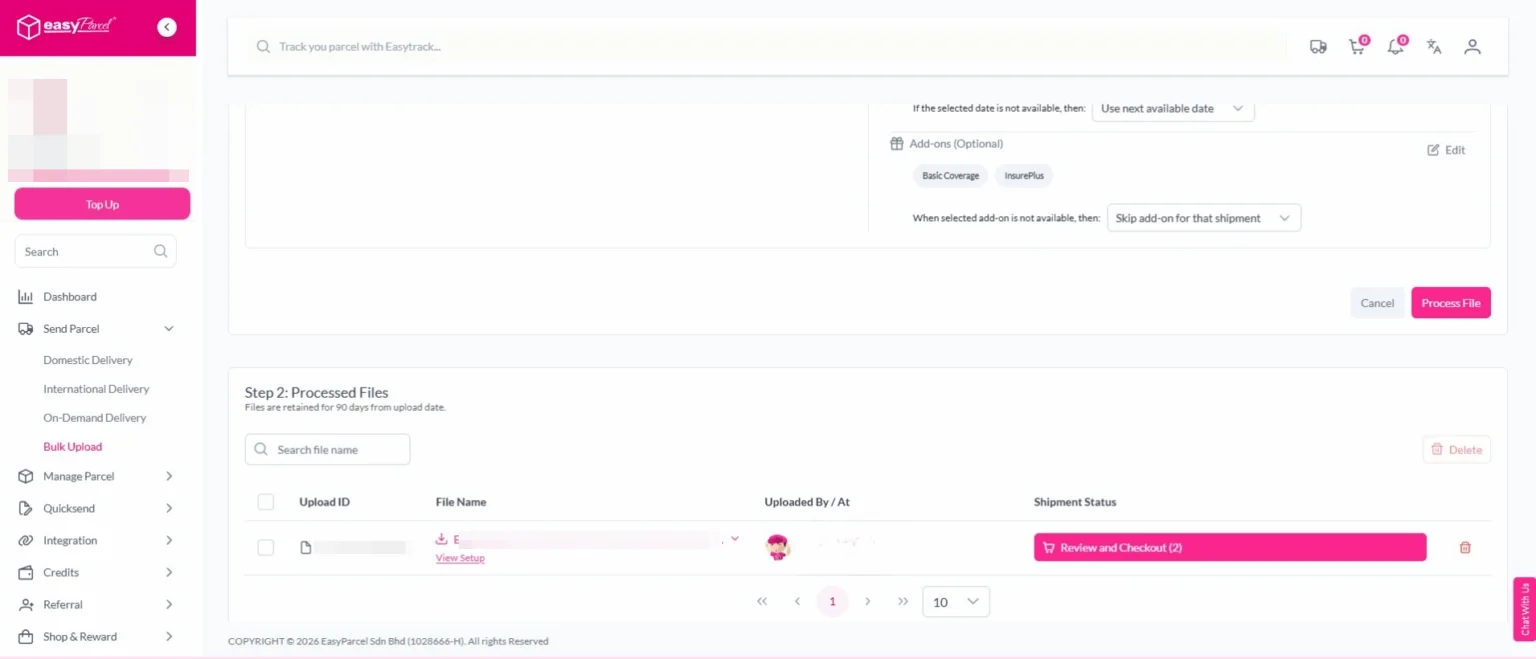
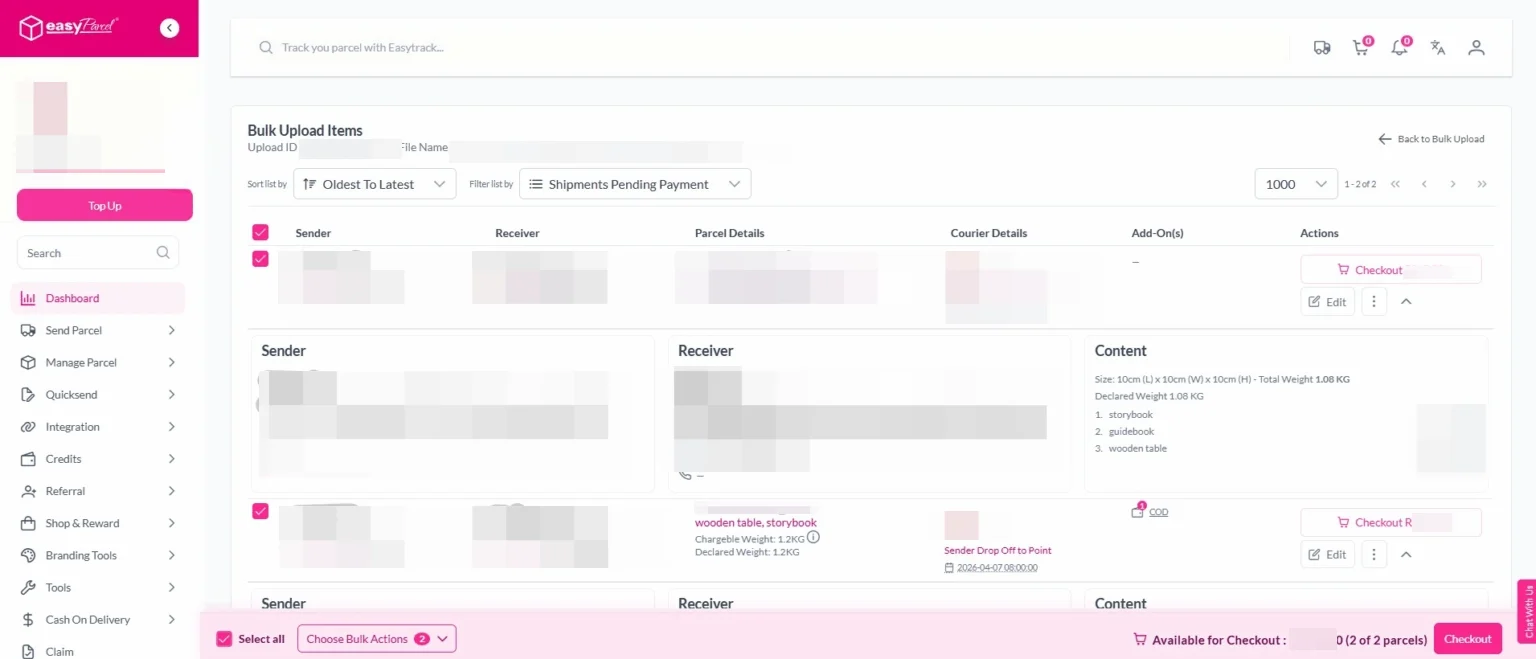
Step 4: Review and Check Information
Review all information including courier details, parcel details, sender details and sender details.
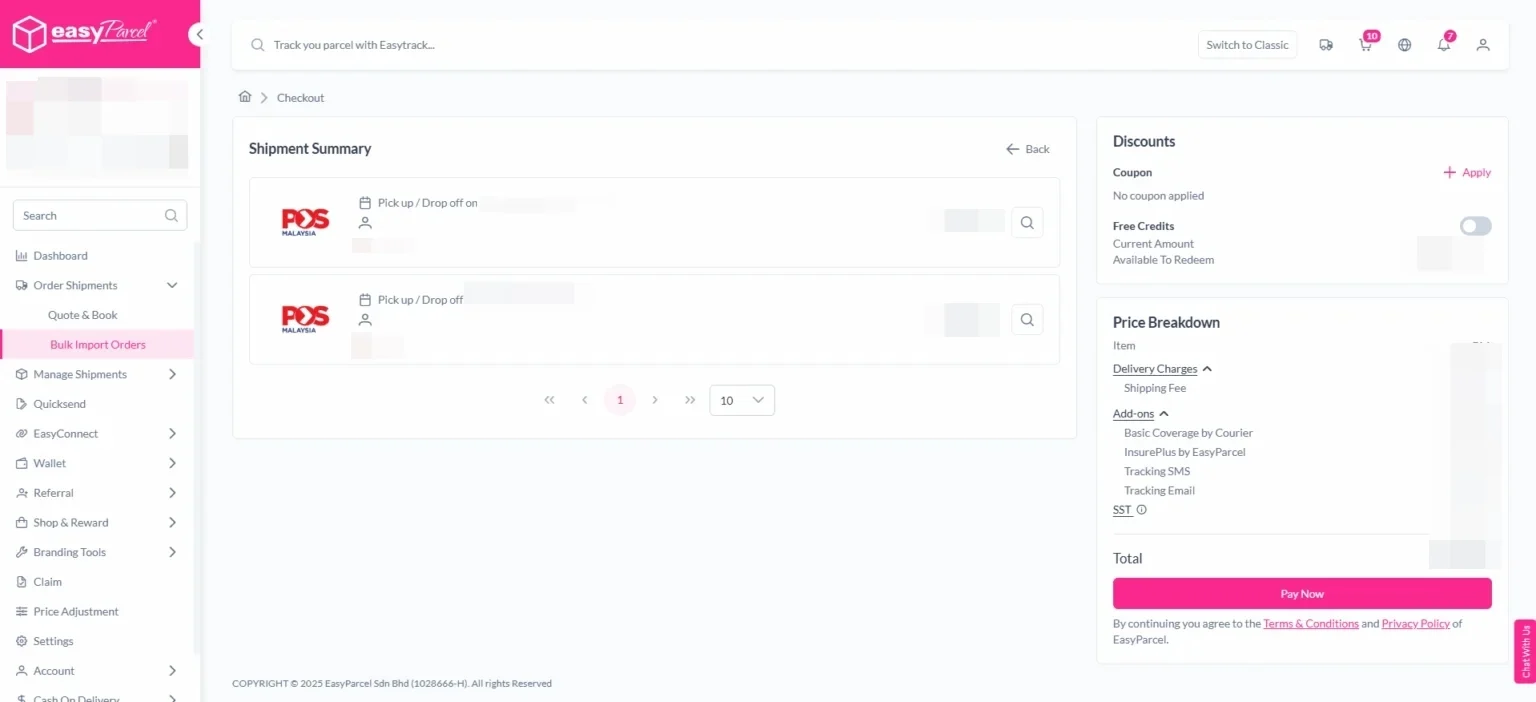
Step 5: Make Payment
After confirming all the information, select the orders you want to confirm and click “Pay Now.”
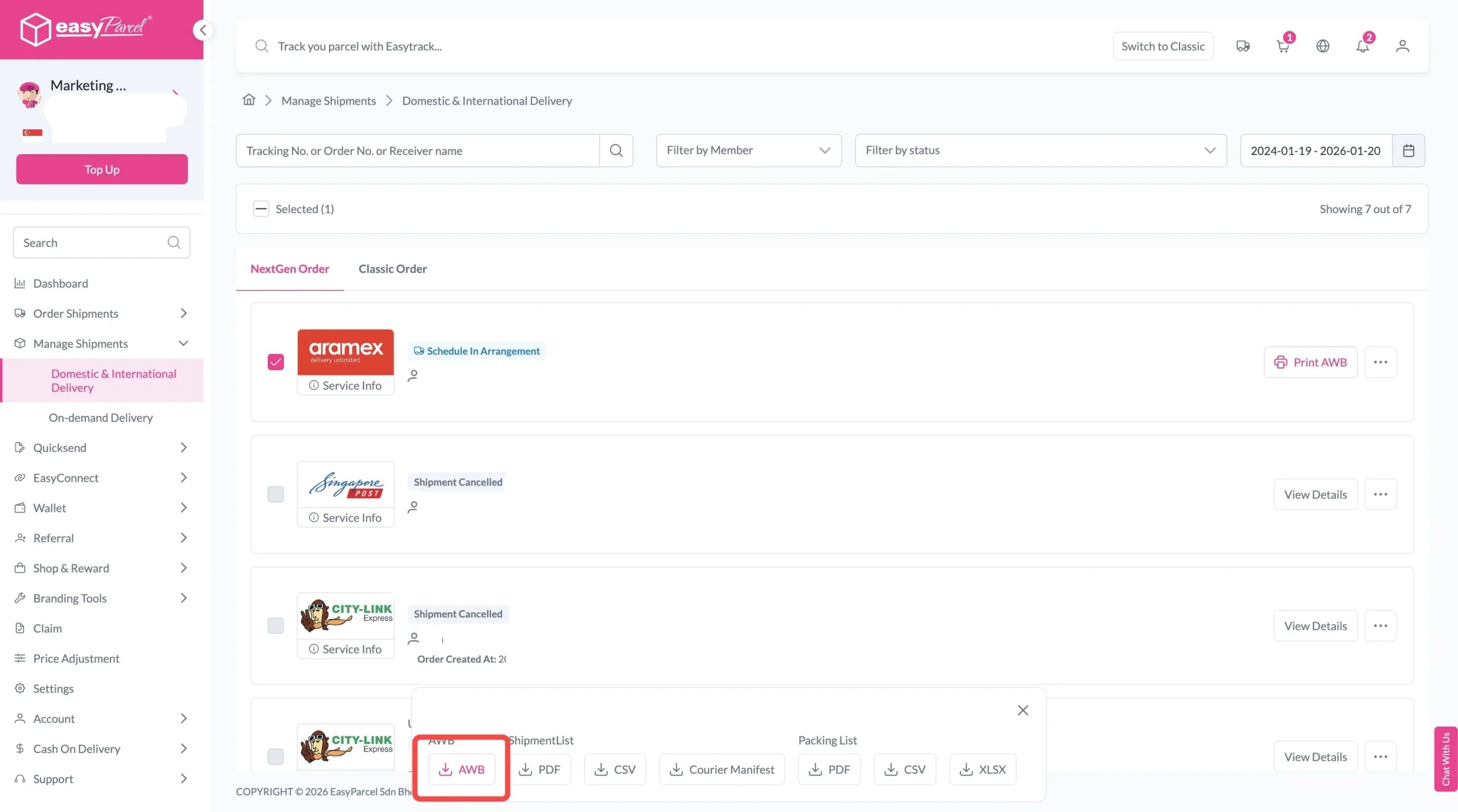
Step 6: Print All Air Waybills
To download print Air Waybill (AWB), go to “Manage Shipments”.
You can print them:
Individually per order, or
All at once by selecting multiple shipments.
Malaysia
Thailand
Indonesia